11
Resetting Factory Settings
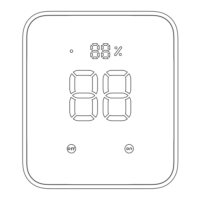
Touch and hold the two touch buttons located on the device. After 2 seconds, the indicator
light will start flashing and then turn off after another 13 seconds. Now release the
buttons, the indicator light will light up then turn off. You Hub 2 has now been reset to
factory settings.
Firmware
In order to improve user experience, we will regularly release firmware updates to
introduce new functions and solve any software defects that may occur during usage.
When a new firmware version is available, we will send an upgrade notification to your
account via our app. When upgrading, please make sure your product is powered on and
make sure your smartphone is within range to prevent interference.
Changing Temperature Unit
1. Open our app, go to Profile > Preferences > Temperature Unit, and select the unit
your prefer.
2. Go back to home page, tap on Hub 2 device card, and tap Sync on the banner.
Setting Up Matter
Please scan the QR code below for Matter setup guide.
For iOS users
https://support.switch-bot.com/hc/en-us/articles/12623119544087-How-to-Use-Matter-
with-SwitchBot-Hub-2-iOS-
For Android
https://support.switch-bot.com/hc/en-us/articles/13223951356823-How-to-Use-Matter-
with-SwitchBot-Hub-2-Android


 To Next Page