Swivl Cloud
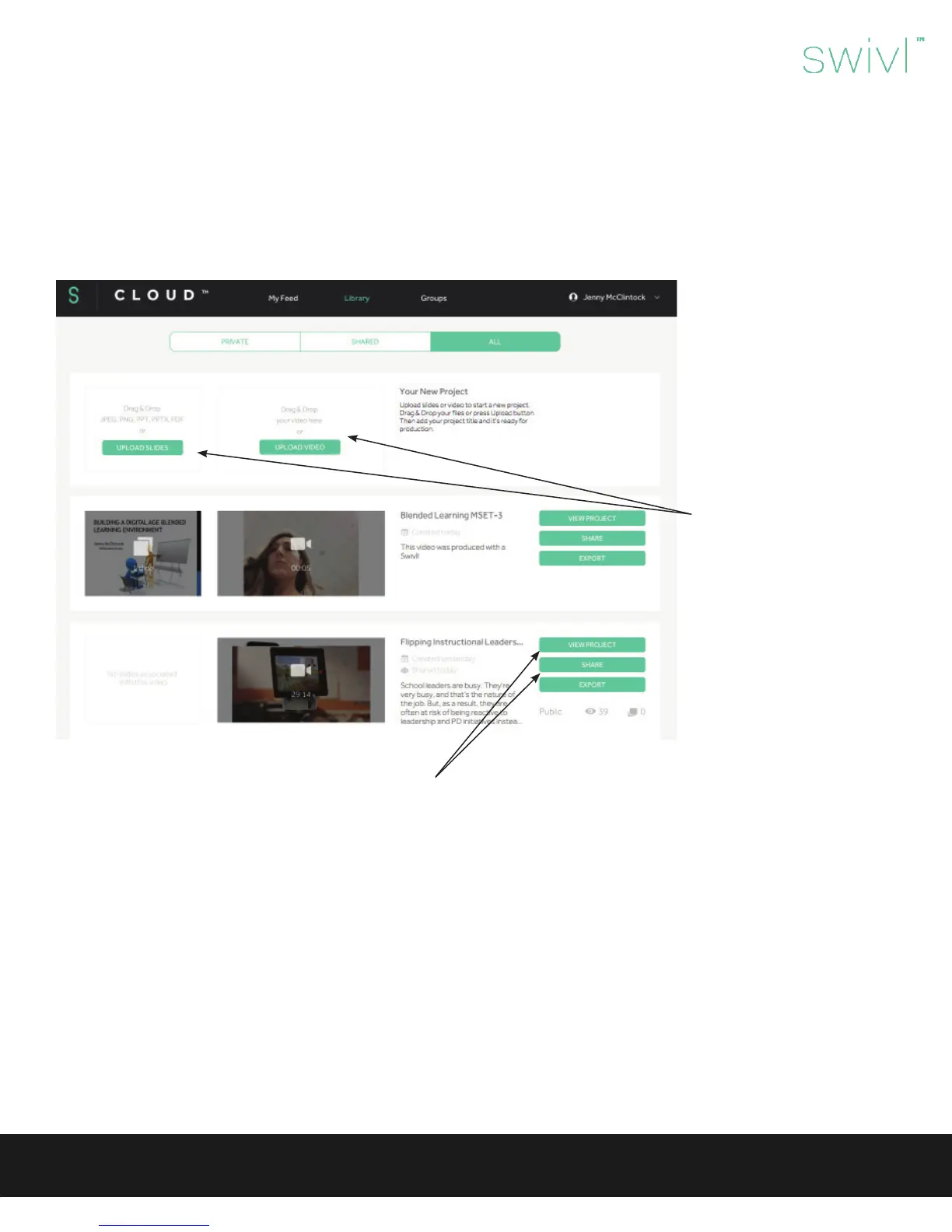
Login to Cloud.Swivl.com to access your videos. At the top, you will notice three tabs to the left of your name:
• My Feed: Contains videos or presentations shared with you by others
• Library: Your videos and presentations
• Groups: View your created groups or groups that you are a part of. Creating a group is helpful when you plan to share many
videos with the same set of users. It will also allow you to add new users to a group and automatically allow them to see a set of
videos.
The Library contains three
additional options:
• Private: Videos you have
not shared
• Shared: Videos you have
shared
• All
While most videos are upload-
ed from the Swivl App, videos
can be manually uploaded from
other programs.
Slides may also be uploaded
to use during recording. These
slides may include teaching
notes, discussion questions,
or presentation materials.
Connect your ipad to a projec-
tor to display the slides during
your presentation. The arrows
on the marker will advance
your slides. (A projection kit is
available for purchase.)
Projects can be shared in four dierent ways:
• Email: Send a link to your project on Swivl Cloud directly via email. Users must have (or create) a Swivl Cloud account to view
the video. This option allows you to see detailed viewing analytics.
• Group: You can share your project with any of your existing groups, or create a new group of Swivl Cloud users.
• Public Link: Video can be viewed without a Swivl Cloud account. This also means that it can be forwarded, re-posted and
watched by anyone.
• Embed: Post your video project into any LMS, website or blog. Embedding options include size, password protection, and
embed access.
Sharing Projects
Video projects can be exported as an .mp4 or .mov le. When projects are exported, viewers lose the benets of Swivl Cloud.
• Download Video: Save the .mp4 video le on your computer.
• Produce: Prepare your project (slides + video) for export and save it as a new project. There are a variety of options for combin-
ing the slides and video into a single le.
• Export to YouTube: Export the video le as a .mov. Only the video le is exported. If you want to export both slides and video,
you should produce the video rst.
Exporting Projects
Swivl User Guide
11



 To Next Page
 Loading...