6
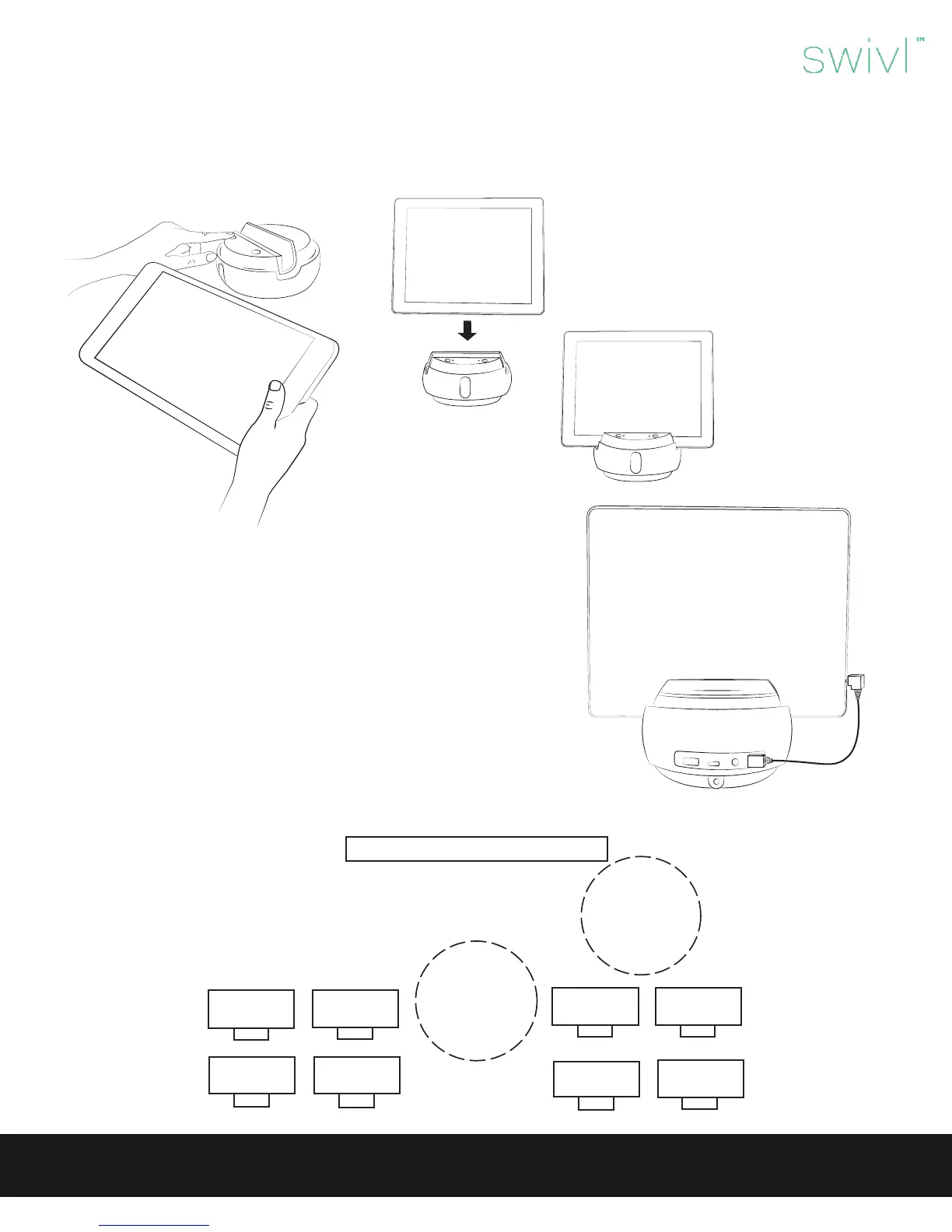
Open the Bluetooth menu on your device. Press and hold sync button on the Swivl base until Bluetooth status light ashes. Pair
with Swivl. Green status light means connected. You will be prompted to open the Swivl Capture App. Then, insert your device,
screen forward into the base.
Step 3: Connect your device.
The marker contains a microphone, so plug the audio cable into micro-
phone port on the base and into your mobile device to receive wireless
microphone feed.
Step 4: Connect audio cable.
Swivl User Guide
whiteboard or projection screen
Best for content
capture of whiteboards
and of the instructor
Best for capturing
class interactions
Desk Desk
Desk
Desk Desk
Desk
Place Swivl approximately 6-15 feet from the presenter in the front or
middle of the room. Use the Swivl oor or table stand for the best results.
The heads-up display allows the teacher to view the live recording and
uploaded presentations.
Desk
Desk
Step 5: Select room placement.



 To Next Page