9
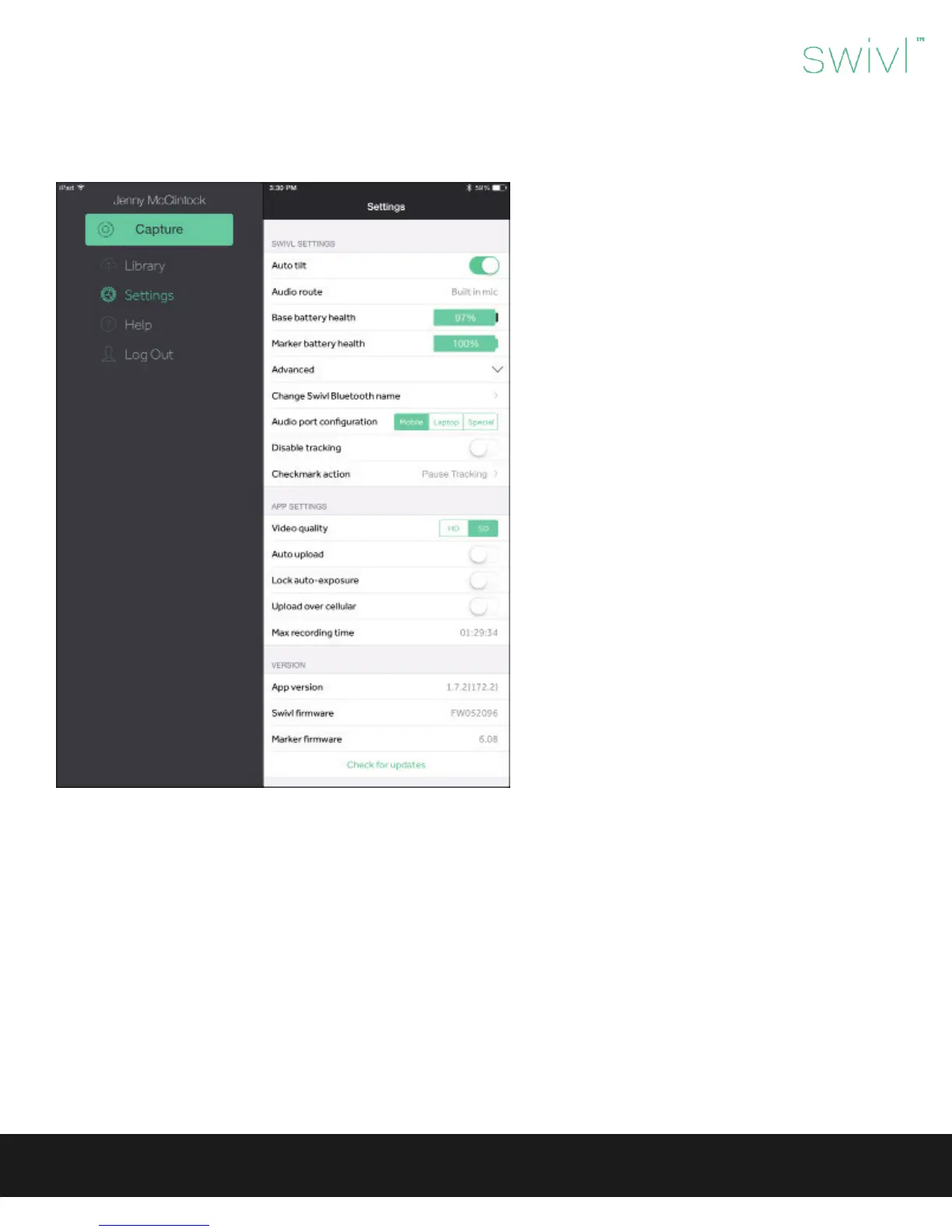
Settings
SWIVL SETTINGS:
(Only available when connected to the Swivl base via
Bluetooth.)
• Automatic tilt: Enable Swivl base to tilt automatically.
• Audio route: Indicates where audio is being captured.
• Base battery health: Indicates battery life remaining
in base unit.
• Marker battery health: Indicates battery life remain-
ing in marker.
Advanced
• Change Swivl Bluetooth name: The name of the Swivl
base can be changed for easier identication.
• Audio port conguration: Manage which device type
audio is routed to.
• Disable tracking: This setting will manually disable
tracking. The marker can still be used to start/stop
recording and as a microphone, but the base will not
track the marker.
• Checkmark action: The checkmark action by default
is set to slide view. It can also be set to pause tracking
or capture a 360 degree video.
APP SETTINGS:
• Video size: Determine the size of video your mobile
device captures. SD is recommended and requires
1.2 GB of space per 1-hour video. HD requires 2.4 GB
of space per 1-hour video. It is important to note that
videos are stored on your mobile device until deleted.
It is recommended that you upload videos to Swivl
Cloud and then delete them from the app to save
space.
• Auto upload: By enabling this function, your videos will automatically be uploaded to Swivl Cloud. This is recommended if you
are using a wi connection.
• Lock auto-exposure: Locks exposure level at the beginning of recording for duration of video. It is recommended to disable
this function.
• Upload over cellular: Enables upload of videos using cellular data.
• Max recording time: Indicates maximum amount of video (in minutes) that can be recorded on your device.
VERSION:
• App version: Indicates which release of Swivl Capture is being used.
• Swivl rmware: Indicates which release of base rmware is being used.
• Marker rmware: Indicates which release of marker rmware is being used.
By exiting the splash screen, you will notice ve options within the left navigation bar. The settings apply to the app and the
control the Swivl Robot when connected via Bluetooth.
Swivl User Guide



 To Next Page
 Loading...