Before:
Turn on the TV and set it to
channel 3.
• If channel 3 is already occupied for broad-
casting, see “RF Output Channel” section.
1
1
2
2
3
3
4
4
1
1
2
2
STOP
EJECT A
3
3
4
4
4
4
Hint
Hint
•
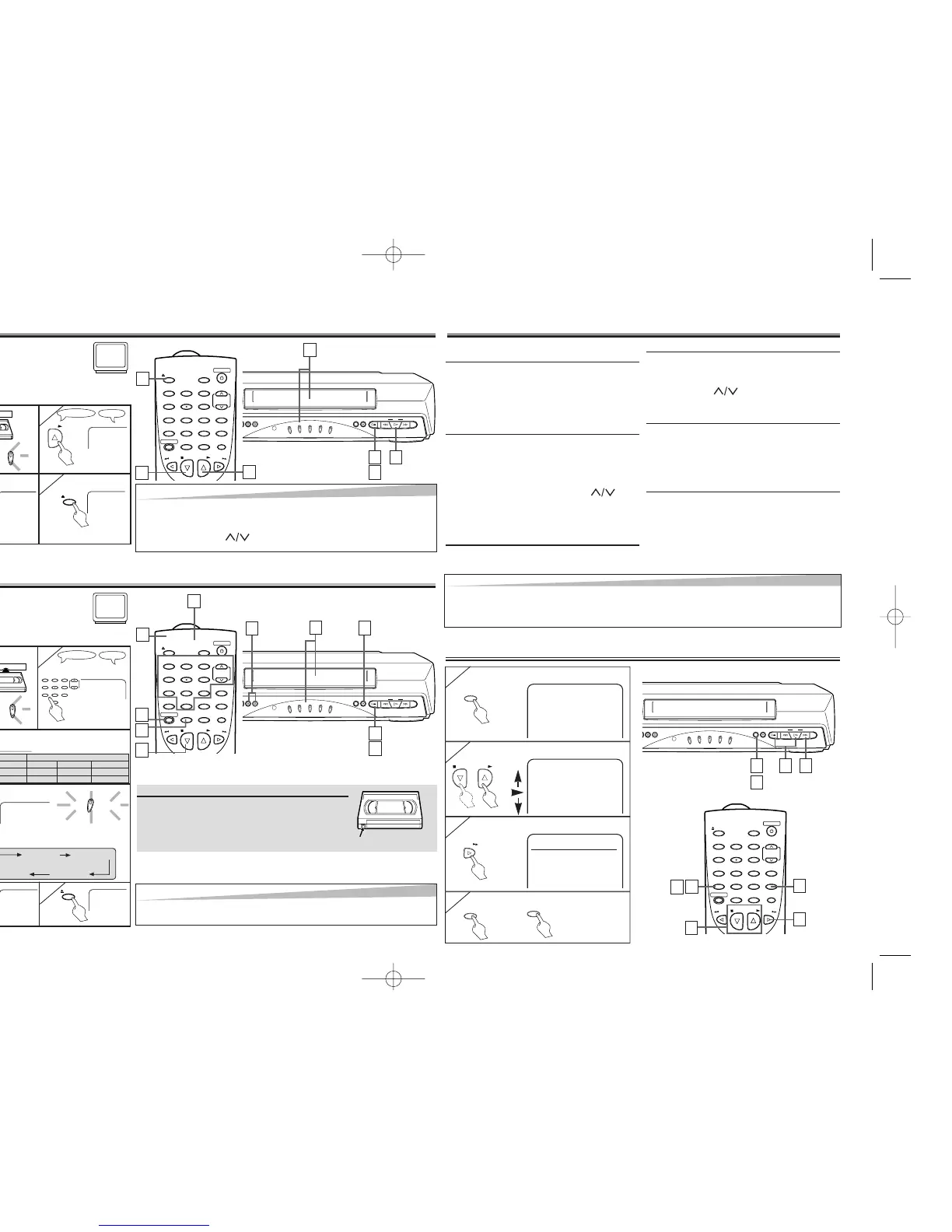
When a tape without record tab is inserted, the unit will start playback auto-
matically at step 1).
• Tracking will be automatically adjusted upon playback. To adjust the tracking manu-
ally, press [CHANNEL ].
To cue or review picture during play-
back (Picture Search)
Hit [F.FWD
gg
] or [REW
hh
].
• Hit it again and the VCR will now
search in super high speed. (in the
LP/SLP modes only.)
To freeze the picture on TV screen
during playback (Still mode)
Hit [PAUSE/STILL]. Each time you hit
the button, the picture will be forwarded
by one frame.
• If the picture begins to vibrate vertically
during the still mode, stabilize the pic-
ture by pressing [CHANNEL ].
• If the picture is distorted or rolling verti-
cally, adjust the vertical hold control on
your TV if equipped.
Counter Reset
Hit [C.RESET/EXIT].
To play back in slow motion
Hit [SLOW] during playback or the still mode.
• If the noise bar appears on the TV
screen, you can reduce it by pressing
[CHANNEL ].
To temporarily stop recording
(Pause mode)
Hit [PAUSE/STILL].
• During the rec pause mode, five
C
marks appear on the TV screen. Each
C
mark represents one minute.
• Hit it again to resume recording.
Auto Rewind
When a tape reaches its end during play-
back, fast-forward, or recording (except
timer recording and One Touch
Recording), the tape will automatically
rewind to the beginning. After rewinding
finishes, the unit will eject the tape and
turn itself to off.
Before:
Turn on the TV and set it to
channel 3.
• If channel 3 is already occupied for
broadcasting, see “RF Output Channel” section.
7. Other Operations
Hint
Hint
• Still/Slow/Pause mode will be automatically cancelled after 5 minutes to prevent damage to the tape and the
video head.
• To return to playback from the Picture Search/Still/Slow mode, hit
[PLAY
BB
].


 To Next Page