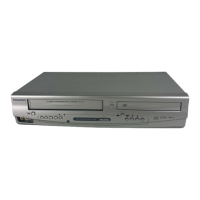
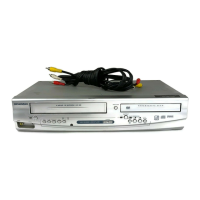
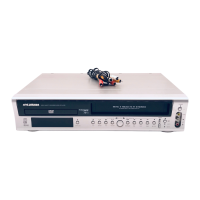
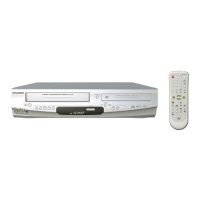
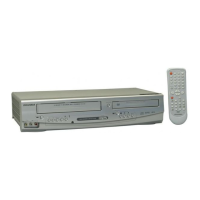
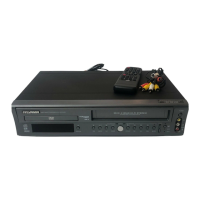
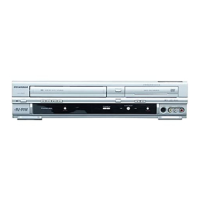
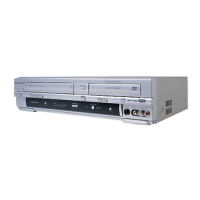
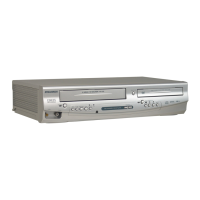
DVD/CD Player with Video Cassette Recorder
DVC840G
Owner’s Manual
Please read before using this unit.
Precautions
Laser Safety ................................................................................ 2
■ Important Safeguards ................................................................ 3
Location and Handling ................................................................ 4
Avoid the Hazards of Electrical Shock and Fire .......................... 4
Moisture Condensation Warning ................................................. 4
About Copyright .......................................................................... 4
Notice for Progressive Scan Outputs .......................................... 4
Symbols Used in This Manual ..................................................... 4
Maintenance ................................................................................ 4
■ About the Video Cassettes and Discs ..................................... 5
Playable Video Cassettes ........................................................... 5
Playable Discs ............................................................................. 5
Unplayable Discs ........................................................................ 5
Setup
■ Connections ............................................................................... 6
RF Output Channel ..................................................................... 6
Hint for Cable Box or Satellite Box .............................................. 6
Connection to an Audio System .................................................. 6
Connection to a TV ..................................................................... 7
■ Preparation for Use ................................................................... 8
Turn On the Unit for the First Time ............................................. 8
To Add or Delete Channels ......................................................... 8
Clock Setup ................................................................................. 8
■ Function Overview ..................................................................... 9
Front Panel Indicator ................................................................... 9
VCR / DVD Switching .................................................................. 9
Front & Rear Terminals ............................................................... 9
Remote Control ......................................................................... 10
Installing the Batteries for the Remote Control ......................... 10
VCR Functions
■ Playback ................................................................................... 11
■ Other Operations ..................................................................... 11
Index Search ............................................................................. 11
Time Search .............................................................................. 11
Auto Repeat .............................................................................. 12
■ Recording ................................................................................. 12
Recording & OTR (One Touch Recording) ............................... 12
Timer Recording ........................................................................ 12
Hints for OTR and Timer Recording .......................................... 13
Copying a Video Tape ............................................................... 14
DVD Functions
■ Playback ................................................................................... 15
■ MP3/WMA Playback ................................................................. 16
■ On-Screen Display ................................................................... 16
■ Search Functions ..................................................................... 17
Using Track Search ................................................................... 17
Using Title / Chapter Search ..................................................... 17
Using Time Search .................................................................... 17
Marker Setup ............................................................................. 17
■ Repeat / Random / Programmed Playback ............................ 18
Repeat Playback / Repeat A-B Playback
Random Playback / Programmed Playback .............................. 18
■ Special Settings ....................................................................... 19
Subtitle Language / Audio Language / Camera Angle
Black Level Setting / Stereo Sound Mode / Virtual Surround .... 19
■ DVD Setup ................................................................................ 20
LANGUAGE Setting .................................................................. 20
DISPLAY Setting ....................................................................... 21
AUDIO Setting ........................................................................... 21
PARENTAL Setting ................................................................... 22
OTHERS Setting ....................................................................... 22
Reset to the Default Setting (Except for PARENTAL Setting) .. 23
Information
■ Troubleshooting Guide ........................................................... 23
■ Specifi cations .......................................................................... 24
■ Language Code List ................................................................ 24
■ Limited Warranty ..................................................................... 24
■ Español ..................................................................................... 25
■ Quick Use Guide ...................................................................... 27


 To Next Page
 General