21/26
User’s Guide
6200 Digital
Voice Processor
To download the latest version of 6200 Designer, a Windows GUI
application interface for the 6200, go to: www.airtoolsaudio.com
Alternate Communications Connections... continued
Ethernet
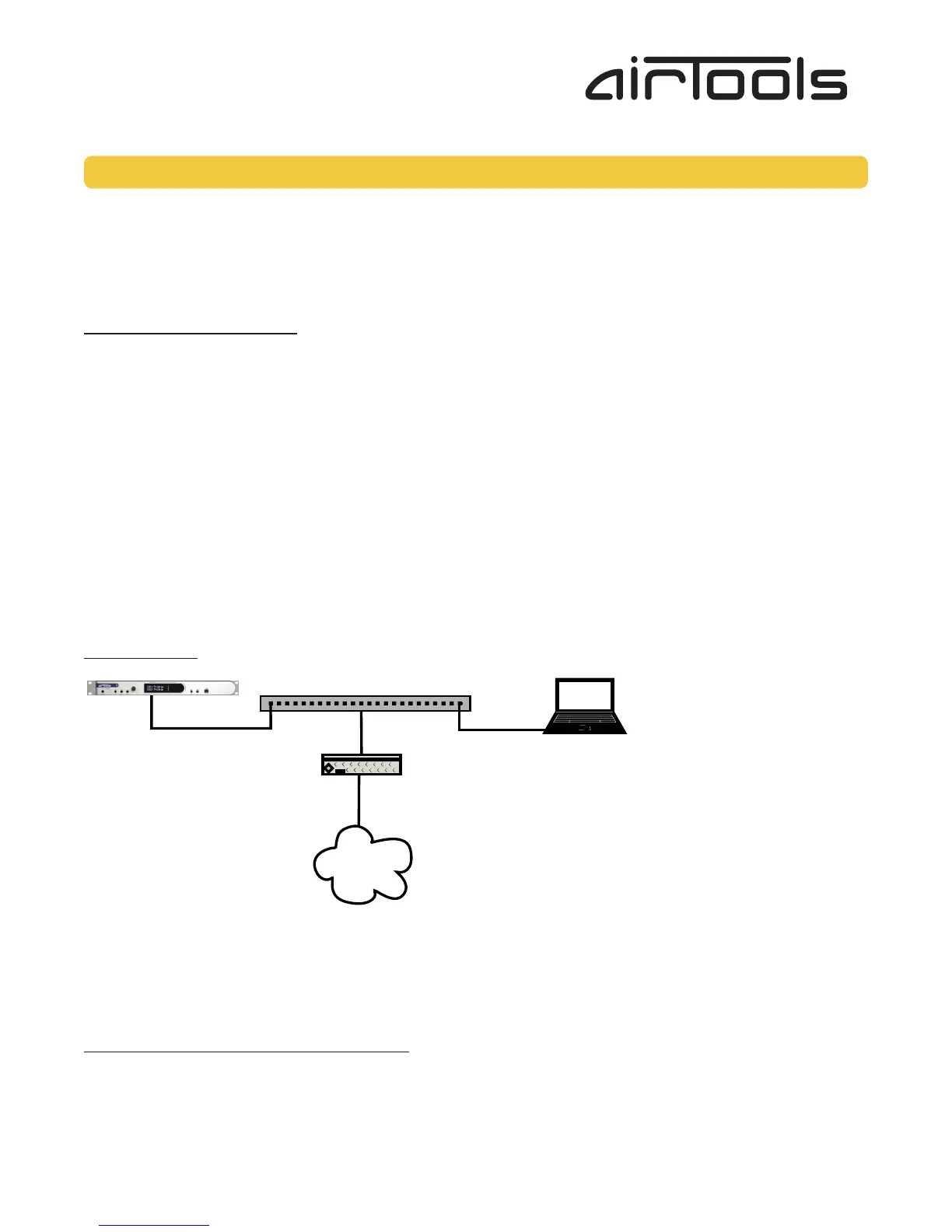
The 6200 has the ability to be controlled by a host computer via Ethernet. This requires the host computer to be connected to
the 6200 either by an Ethernet switch or a crossover cable. It also requires that the 6200 as well as the host computer have
the proper network configuration.
Note: Always prefer a switch in lieu of a standard hub. This is especially important when mixing 10 Base-T and 100 Base-T
devices in a data-intensive environment.
Network configuration of the 6200:
A. Connecting to the 6200 from a host computer on the same LAN
Both the 6200 and the host computer require the following 3 items:
1. IP Address - The unique address of a node on a network.
2. Subnet Mask - Configuration that defines which IP Addresses are included in a particular subnet.
3. Gateway - The interface of a device that routes traffic from one subnet to another. (Only needed when communicating to/
from a device on a different subnet).
If you are putting the 6200 on an existing network, a network administrator should be able to provide the above information.
For security reasons, it is not recommended to put the 6200 directly on the internet. If you do, a network administrator or your
Internet Service Provider can provide the above information. If you are building your own separate network, you may consider
using an IP Address from one of the “Private-Use” networks noted in RFC-1918:
1. 172.16.0.0/12 = IP Addresses 172.16.0.1 through 172.31.254.254 and a Subnet Mask of 255.240.0.0
2. 192.168.0.0/16 = IP Addresses 192.168.0.1 through 192.168.254.254 and a Subnet Mask of 255.255.0.0
3. 10.0.0.0/8 = IP Addresses 10.0.0.1 through 10.254.254.254 and a Subnet Mask of 255.0.0.0
Example Network:
B. Connecting to the 6200 through a Firewall/VPN
We are currently testing control of a 6200 through a firewall and VPN, but are unable to guarantee performance of these
types of connections at this time. If you wish to experiment communicating with the 6200 through a firewall, note that the 6200
communicates on UDP port 6200 for network control and UDP port 6201 for auto-discovery.
Configuring your computer for a network connection:
A. Windows 2000
1. Select “Start->Settings->Control Panel”.
2. Open the “Network and Dial-up Connections” Control Panel.
3. Right click on your “Local Area Connection” and select “Properties”.
4. Under “This connection uses the following items”, select “Internet Protocol (TCP/IP)” and press “Properties”.



 To Next Page