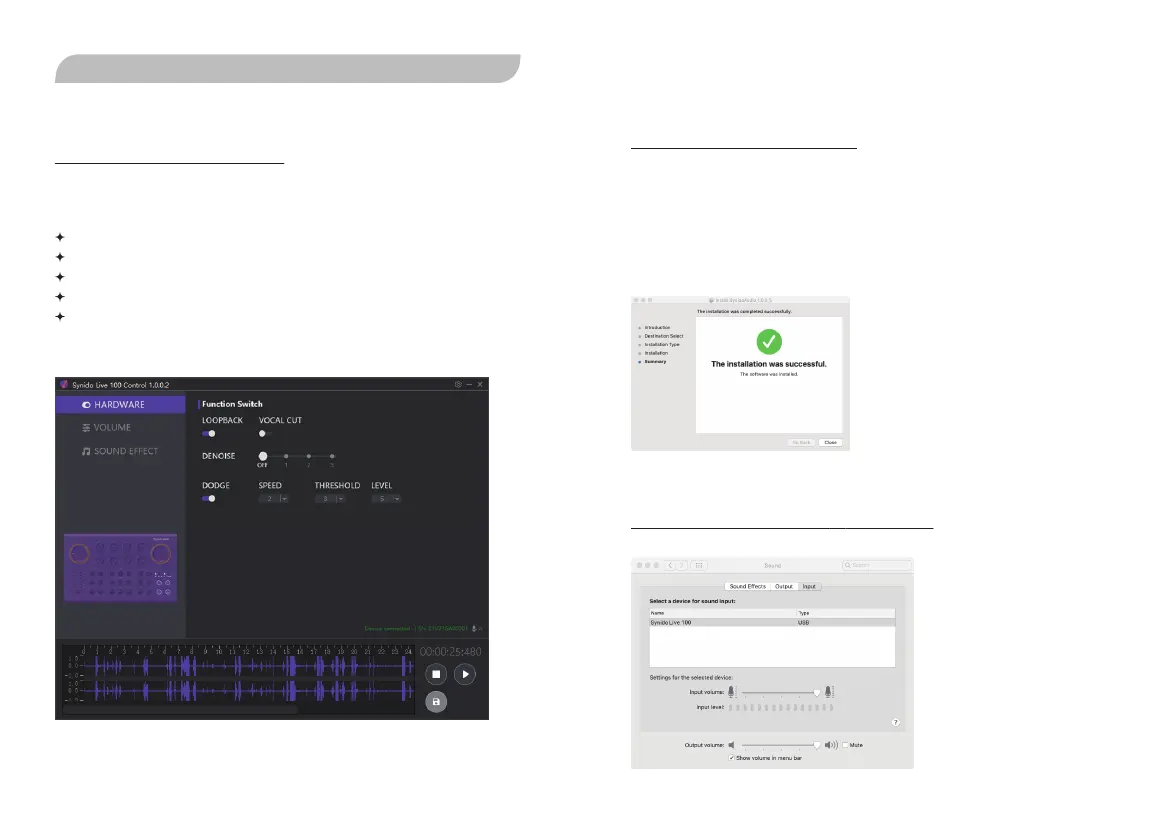
4.1. PC Control Panel
4. PC CONTROL PANEL
Synido Live 100 PC Control Panel can be downloaded on:
www.synido.com/support/downloads
This application will let you manage all the special functions that are not
directly accessible on the Synido Live 100 device.
These include:
Play and save the recording or settings
Accurately enter the number to set the volume
Setting dodge speed/threshold/level
Setting denoise level
Setting the vocal cut level
The software is compatible with Windows 7+ and Mac OSX 10.8+.
In order to use the software, you must connect the Synido Live 100.
4.2. Download and Installation Of Mac Software
User Manual - PC Control Panel - 11
STEP 1: SOFTWARE DOWNLOAD
Please go to the official website to download the installation program:
www.synido.com/support/downloads
STEP 2: SOUND CARD CONNECTION
Connect the PC interface to the computer using the USB-C cable included in the
package.
STEP 3: SOFTWARE INSTALLATION
Double-click the downloaded driver and follow the instructions to install it.
STEP 4: SYSTEM SETTINGS
After confirming that Synido Live 100 has been recognized by the computer, go to
SYSTEM PREFERENCES → SOUND → OUTPUT/INPUT, find the audio device list in the
above position, and select Synido Live 100 as your input and output device.
User Manual - PC Control Panel - 12


 To Next Page