Adjusting On Screen Displays (OSD)
Source: Adjust TVlnput Source
You can choose the Input Source of your TV to best display the picture based on your TV connection settings.
Available Input sources: TV, Video1, Video2, Component, PC
There are two ways to choose the Input Source.
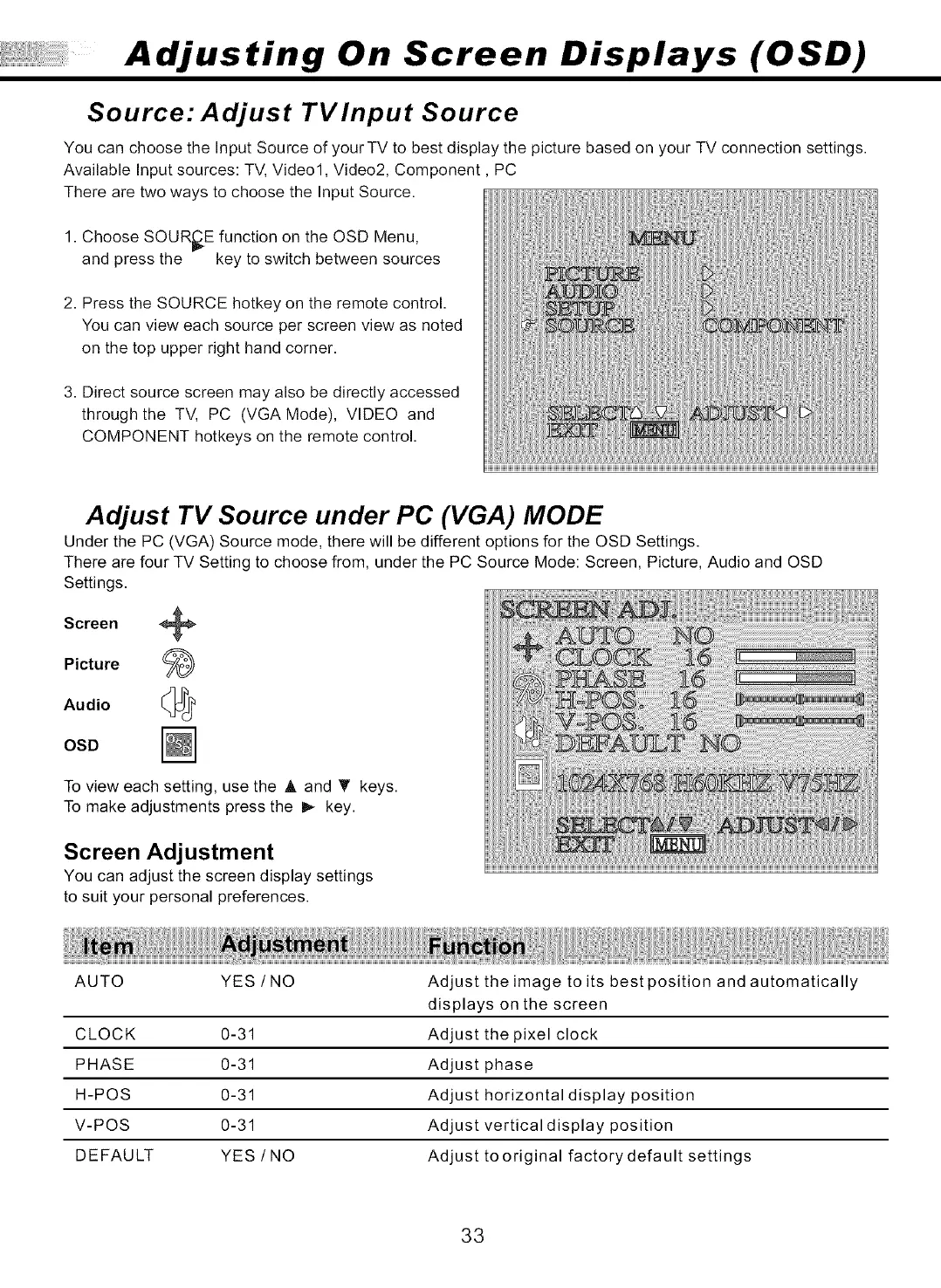
1. Choose SOURCE function on the OSD Menu,
and press the key to switch between sources
2. Press the SOURCE hotkey on the remote control.
You can view each source per screen view as noted
on the top upper right hand corner.
3. Direct source screen may also be directly accessed
through the TV, PC (VGA Mode), VIDEO and
COMPONENT hotkeys on the remote control.
Adjust TV Source under PC (VGA) MODE
Under the PC (VGA) Source mode, there will be different options for the OSD Settings.
There are four TV Setting to choose from, under the PC Source Mode: Screen, Picture, Audio and OSD
Settings.
Screen +
Picture
Audio _
OSD
To view each setting, use the A and T keys.
To make adjustments press the I_ key.
Screen Adjustment
You can adjust the screen display settings
to suit your personal preferences.
AUTO YES/NO
CLOCK 0-31
PHASE 0-31
H-POS 0-31
V-POS 0-31
DEFAULT YES / NO
Adjust the image to its bestposition and automatically
displays on the screen
Adjust the pixel clock
Adjust phase
Adjust horizontal display position
Adjust vertical display position
Adjust to original factory default settings
33


 To Next Page
 Loading...