Need help?
Do you have a question about the Targus ACB10US1 and is the answer not in the manual?
Insert the driver CD into the computer's optical drive before proceeding.
Proceed by following the instructions displayed on the screen.
Connect the USB Bluetooth adapter to the USB port when prompted.
Download drivers from the Targus website if no optical drive is available.
Steps to start the Bluetooth connection via the system tray icon.
Steps to stop the Bluetooth connection via the system tray icon.
Confirm that the Bluetooth adapter has been successfully installed.
Instructions for setting up and managing Bluetooth devices.
Provides contact details for technical support via website, email, and phone.
Details FCC compliance statements and warnings regarding interference.
Information on RF exposure limits and compliance for the device.
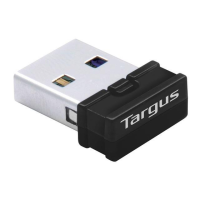
The Targus Bluetooth 4.0 Dual-Mode Micro USB Adapter is a compact and versatile device designed to enable wireless connectivity for your PC or laptop. This adapter facilitates communication with a wide range of Bluetooth-enabled devices, allowing you to expand your computer's capabilities without the clutter of cables.
At its core, the adapter serves as a bridge, transforming your computer into a central hub for Bluetooth interactions. It allows your PC or laptop to wirelessly connect to various Bluetooth devices, including personal digital assistants (PDAs), smartphones, keyboards, mice, printers, and other compliant devices. The adapter supports a broad spectrum of Bluetooth versions, ensuring compatibility with both older and newer peripherals. This dual-mode capability means it can connect to both classic Bluetooth devices and those utilizing Bluetooth Low-Energy (BLE), offering flexibility in your wireless ecosystem.
A key security feature of this adapter is its built-in 128-bit encryption and authentication. This robust security measure ensures that connections between your computer and Bluetooth devices are secure, protecting your data from unauthorized access. The adapter is designed for ease of use, featuring Plug-and-Play convenience, which simplifies the installation process and allows for quick setup.
Using the Targus Bluetooth adapter is straightforward, starting with its installation. The process typically involves inserting the provided driver software CD into your computer's optical drive and following the on-screen instructions. For computers without an optical drive, the necessary drivers can be conveniently downloaded from the Targus website. It is crucial to install the software drivers before connecting the adapter to a USB port to ensure proper functionality. Once the drivers are installed, you can insert the USB Bluetooth adapter into an available USB port, and the system will recognize it.
After installation, you can verify that the adapter is correctly installed by checking your computer's Device Manager. Under 'Bluetooth Radios,' you should see an entry for a 'Broadcom BCM 20702 Bluetooth 4.0 USB device.' If it's not present, simply unplug and re-plug the adapter to initiate the driver recognition process.
Operating Bluetooth functionality is managed through the Bluetooth icon in the Windows system tray. To activate Bluetooth, you right-click the icon and select "Start the Bluetooth Device / Turn Adapter On." The icon will turn blue with a white insert, indicating that the Bluetooth software is active. Conversely, to deactivate Bluetooth, you select "Stop the Bluetooth Device / Turn Adapter Off," and the icon will turn red, signifying that Bluetooth is stopped.
The Bluetooth tray provides quick access to several key operations. You can easily add new Bluetooth devices by right-clicking the icon and selecting "Add a Device." To view currently connected Bluetooth devices, you can choose "Show Bluetooth Device." For more advanced configurations and settings, the "Open Settings" option from the right-click menu will take you to the Bluetooth Configuration Panel. This centralized control allows you to manage your Bluetooth connections efficiently.
The adapter's wireless range extends up to 10 meters in free space, providing ample flexibility for device placement within your workspace. This range is suitable for connecting peripherals like keyboards and mice, or for streaming audio to Bluetooth speakers without being tethered to your computer.
The Targus Bluetooth adapter is designed for minimal maintenance. Its Plug-and-Play nature means that once installed, it generally operates without requiring frequent intervention. The primary aspect of maintenance involves ensuring that the software drivers are up to date. While the initial installation provides the necessary drivers, periodically checking the Targus website for newer versions is a good practice. Software updates can offer improved performance, enhanced compatibility with new devices, or address any potential bugs.
In the event of connectivity issues, a simple troubleshooting step is to unplug the adapter from the USB port and then plug it back in. This action can often re-initialize the connection and resolve minor glitches. If problems persist, verifying the adapter's installation in the Device Manager, as described in the usage features, can help confirm if the device is being recognized correctly by the operating system.
The adapter's robust construction and secure encryption features contribute to its reliability, minimizing the need for extensive maintenance. By following the initial installation guidelines and keeping the drivers updated, users can expect consistent and secure wireless connectivity for their Bluetooth devices. The compact size of the adapter also makes it easy to leave plugged into a laptop or PC without obstruction, reducing the likelihood of physical damage from frequent insertion and removal.
 General
| Interface | Bluetooth 2.0 |
|---|---|
| Product color | Black, Silver |
| Compatible operating systems | Windows 7, Windows XP, 2000, ME, 98SE, and Mac OS X |
 Weight and Dimensions
| Weight | 12.7 g |
|---|---|
| Dimensions (WxDxH) | 56 x 20 x 11 mm |

 To Next Page