Need help?
Do you have a question about the Targus PA410E and is the answer not in the manual?
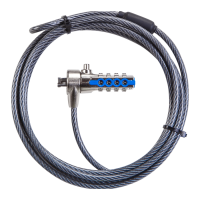
Identifies the lock's dials, windows, and reset screw for combination setting.
Instruction to input the existing combination or '0000' for initial setup.
Details how to push and rotate the reset screw to prepare for new combination.
Guides the user to set the desired new four-digit combination.
Explains rotating the reset screw back to secure the new combination.
Advises users to securely record their new combination for future reference.
Step to turn dials to hide the set combination for testing.
Step to re-enter the correct combination to verify functionality.
Final verification to ensure the locking button depresses completely.
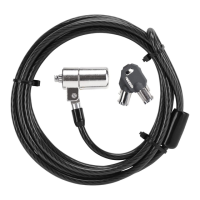
Guides wrapping the cable around a sturdy part of furniture or fixture.
Instructs to pass the lock mechanism through the cable's looped end.
Input the correct combination to enable the locking mechanism.
Press and hold the button to align the lock's teeth for insertion.
Insert the lock into the computer's slot and release the button to secure.
Turn dials to hide the combination after the lock is secured.
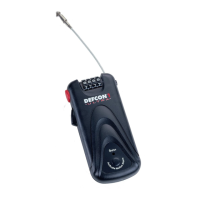
Place the DEFCON locking device into the computer's security slot.
Pull the lock away to check if there is a significant gap.
Try available SecureSpacers (1.6, 0.8, 0.4 mm) to fit the gap.
Take out the lock from the computer before applying the chosen spacer.
Input the correct combination to prepare for unlocking the device.
Press and hold the button to realign the locking teeth.
Pull the DEFCON CL out of the notebook computer's lock slot.
Select a solid surface like furniture or a metal cabinet for mounting.
Use abrasive pad and alcohol wipe to clean the mounting area.
Apply adhesive backing or screws to secure the base plate.
Place and slide the DEFCON Security Base Plate cover to lock it.
Connect the DEFCON cable lock to the secured base plate.
Details general product information such as weight.
Provides dimensions and color of the locking mechanism.
Lists the cable's length, diameter, and material.
 General
| Brand | Targus |
|---|---|
| Model | PA410E |
| Category | Laptop Accessories |
| Language | English |

 To Next Page