6
Installing the PS/2 Port Drivers
Each PS/2 port installs a seperate port driver. The following steps repeat until
all PS/2 ports are configured.
The New Hardware Detected message box appears when your computer
finds the USB-PS/2 Converter.
Then the Add New Hardware Wizard window appears and installs the
supporting driver as a USB Human Interface Device.
1 When the message, What would you like Windows to do?
appears, select Search for the best driver for your device, and
click Next.
The system locates the correct software driver.
2 Click Next to install the driver.
3 When the installation complete message appears, click Finish.
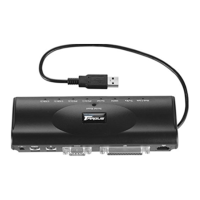
Congratulations! You have installed the Targus USB Mobile Port Replicator
with Ethernet. The new ports available to you are: two USB, two PS/2, one
serial, one parallel, and one RJ-45 Ethernet port. They are numbered
sequentially following the existing ports in your computer.
Note: The Targus USB Mobile Port Replicator with Ethernet supports hot
Plug N Play (connecting and disconnecting the network cable while the
computer is on and connected to a network) if the notebook is still
powered on when you disconnect the USB cable. When you reconnect the
cable, the notebook will be automatically reconnected to the network.


 To Next Page