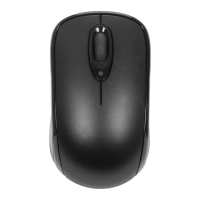
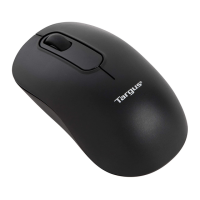
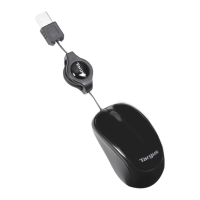
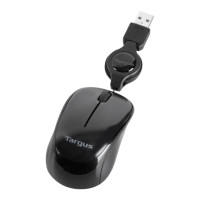
Targus Optical 5-Button USB mouse
6
Targus Optical 5-Button USB mouse
7
GB – Introduction
Congratulations on your purchase of the Targus Optical 5-Button USB
Mouse. The scroll feature of this mouse enhances your internet browsing
capabilities and enables you to quickly access program features options
supported under the Windows® operating system. The mouse connects
directly to your computer’s USB port. As soon as the mouse is plugged
in, Windows will automatically install the correct driver.
System Requirements
Hardware
• USB interface
Operating System
• Microsoft Windows
®
2000
• Microsoft Windows
®
XP
• Microsoft Windows Vista
®
• Microsoft Windows
®
7
• Mac OS
®
X 10.4 or later
Contents
• Targus Optical 5-Button USB Mouse
• User Guide
Using the Mouse
NOTE: THE THIRD BUTTON AND THE SCROLLING WHEEL ONLY WORK WITH THE OPERATING SYSTEMS
LISTED ABOVE. IF YOU USE THE MOUSE WITH A DIFFERENT OPERATING SYSTEM, IT WILL LOSE ITS
ENHANCED FEATURES AND FUNCTION AS A STANDARD, TWO-BUTTON MOUSE.
Left Button
Internet Page
Backward
Internet Page
Forward
Right Button
Third Button/
Scrolling wheel
For Optimal Performance
Never use the optical mouse on glass, mirrored or shiny reflective sur-
faces as these surfaces will cause the mouse to fail temporarily.




 To Next Page