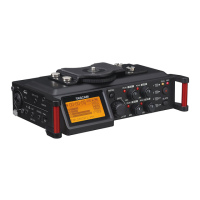
DR-70D Release Notes
2 TASCAM DR-70D
Firmware update procedures
CAUTION
•
Update mode cannot be entered if no SD card is
loaded.
•
When updating the rmware, be sure that the
batteries have sucient charge or power the
unit using a TASCAM PS-P515U AC adaptor (sold
separately) or USB bus power from a computer.
The program has been set so that the update will not
be conducted if battery power is insucient.
1. Download the most recent rmware from the TEAC
Global Site (http://teac-global.com/). If the le that
you have downloaded is compressed in ZIP format, for
example, decompress it.
2. Turn the unit’s power ON and use the included USB
cable to connect it with a computer. This unit will
be recognized as an external drive (external storage
device) by the computer.
3. Copy the downloaded rmware to the “UTILITY” folder
on the DR-70D.
4. After copying has completed, disconnect the unit from
the computer following the correct procedures, and
turn the unit power OFF.
5. While pressing and holding both the MENU and 1/8
buttons, turn the unit power ON.
The unit starts up in update mode, and the update le
appears on the screen.
CAUTION
•
If this screen does not appear, turn the power OFF.
Then while pressing and holding both the MENU
and 1/8 buttons, turn the unit’s power ON again.
Continue to press and hold the MENU and 1/8
buttons rmly until this screen appears.
•
When rmware has been copied to this unit’s “UTILITY”
folder from a Mac, in addition to the rmware le
itself, another le with “._” added to the beginning of
the rmware name is also shown. Use the le without
the “._” at the beginning of the name.
NOTE
•
This screen shows a list of the rmware update les
inside the “UTILITY” folder of the unit. Also, the
screen shows the rmware copied at Step 3 above.
No Update File
appears if there is no update le
in the “UTILITY” folder.
•
The screen shown is an example. The actual display
diers.
6. Turn the DATA dial to select the rmware and press
the DATA dial button to open the following screen.
The current version appears on the left and the
updated version appears on the right.
NOTE
The screen shown is an example. The actual display
diers.
7. Press the DATA dial to start the update.
8. When the update is complete,
Update Complete
appears at the bottom of the screen, and then the
power turns OFF automatically. Turn the power ON
again.
9. Follow the “Conrmation of rmware version”
instructions above to check that the
System Ver.
is now the most recent version of the rmware.
This completes the procedure for updating this unit.
10. Connect to a computer with USB and delete the
rmware update from the unit’s “UTILITY” folder.


 To Previous Page
 Loading...