EasyManua.ls Logo

tbs electronics TBS5930 - User Manual

tbs electronics TBS5930
19 pages
Print Icon
To Next Page IconTo Next Page
Loading...
www.tbsiptv.com
1 / 19
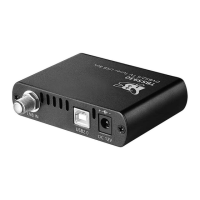
TBS5930 DVB-S2X/S2 TV Tuner USB Card User Manual
TBS5930 DVB-S2X/S2 TV Tuner USB card is an USB interface digital satellite external TV Tuner box for watching
and recording Free to Air satellite TV on both desktop and laptop PC. It supports both DVB-S2 and DVB-S
programs receiving. It's ready with Windows BDA driver and Linux driver. It's compatible with Windows7
Media Center, MediaPortal, DVBlink, DVBDream, DVBViewer, ProgDVB, Skynet, TSreader, XBMC, MythTV, VDR
and many other popular DVB softwares.
Appearance:
Question and Answer IconNeed help?

Do you have a question about the tbs electronics TBS5930 and is the answer not in the manual?

Overview

The TBS5930 DVB-S2X/S2 TV Tuner USB Card is an external USB interface digital satellite TV tuner box designed for watching and recording Free-to-Air satellite TV on both desktop and laptop PCs. It supports the reception of both DVB-S2 and DVB-S programs.

Function Description:

The primary function of the TBS5930 is to enable users to watch and record Free-to-Air satellite television channels on their computers. It acts as an external tuner, connecting to the computer via a USB 2.0 port and to a satellite dish via an LNB input. The device is compatible with various DVB software applications, allowing for flexible viewing and recording options. It supports both Windows and Linux operating systems with dedicated drivers.

Important Technical Specifications:

  • Interface: USB 2.0
  • Tuner Type: Digital Satellite TV Tuner (external box)
  • Supported Standards: DVB-S2X, DVB-S2, DVB-S
  • Power Input: DC 12V/2A
  • Operating Systems: Windows (BDA driver), Linux (driver available)
  • Compatibility (Windows): Windows 7 Media Center, MediaPortal, DVBlink, DVBDream, DVBViewer, ProgDVB, Skynet, TSreader, XBMC, and other popular DVB software.
  • Compatibility (Linux): DVBlast, Astra Cesbo, Tvheadend, and other DVB software.
  • LED Indicators:
    • Blue LED: Power indicator.
    • Green LED: Lock status indicator (lights up when the tuner card is locked onto a signal).

Usage Features:

The TBS5930 offers a straightforward setup process for both Windows and Linux platforms.

Windows Platform Usage:

  1. Hardware Installation:
    • Connect the TBS5930 to a PC/Laptop via the USB 2.0 port.
    • Connect the DC 12V/2A power adapter to the TBS5930.
    • Connect the satellite signal cable to the LNB IN port on the TBS5930.
  2. Driver Installation:
    • Download the appropriate Windows driver package (e.g., tbs5930_release_v1005_20230105.zip) from the TBS website.
    • Unpack the driver package and run the TBS_5930_setup application to install the driver.
    • Upon successful installation, the tuner device will appear in "Computer—Device Manager" under "Sound, video and game controllers" as "TBS 5930 USB DVBS/S2 BDA".
  3. DVB Software Installation and Configuration (e.g., DVBdream):
    • Install a recommended DVB software like DVBdream, DVBViewer, etc.
    • LNB Setup: Configure the LNB type (Ku LNB, C-band LNB, etc.) in the DVB software's options (e.g., DVBdream's "Options—Diseqc" settings). LNB information is typically marked on the LNB itself. For example, for Ku-Circular LNB with a band frequency of 11300, set the LOF-1 to 11300000.
    • Diseqc Switch Configuration: If using a Diseqc or Multiswitch, select the correct switch port (e.g., Port 1) in the Diseqc settings. If connecting directly, simply pick Port 1.
    • Channel Tuning (Manual Scan):
      • Navigate to the "Channels" menu and select "Manual Scan".
      • Fill in the "Frequency", "Pol.", "Symbol rate", and "Modulation" information for the desired transponder.
      • Click "Scan" to search for channels.
      • Once channels are found and locked, save them.
    • Recording:
      • Single Channel Recording: Use the "Record On/Off" option in the "Channels" menu. Recordings are typically saved in the "Record" folder within the DVBdream installation directory.
      • Entire TS Recording: Utilize the "Modules—TsWriter2" feature to record the entire transport stream.
    • Important Note: Always turn off the DVB software before unplugging the USB cable to prevent data corruption or device issues.

Linux Platform Usage:

  1. Hardware Connection Check:
    • Verify the device connection using the lsusb command in the terminal. The TBS5930 should be listed (e.g., Bus 001 Device 003: ID 734c:5930 TBS Technologies China TBS 5930).
    • Confirm driver loading with dmesg | grep frontend.
  2. Linux Driver Installation:
    • Refer to the TBSdtv Linux media wiki for driver installation instructions, including prerequisites, build error solutions, and rebuilding procedures.
    • After successful installation, reboot the server to load the driver. The tuner device should appear under /dev/dvb (e.g., adapter0).
  3. Streaming Software Installation and Configuration (e.g., DVBlast, Astra Cesbo, Tvheadend):
    • DVBlast:
      • Install DVBlast (e.g., sudo apt install dvblast for Ubuntu or su yum install dvblast for CentOS).
      • Configure channels using command-line commands (e.g., dvblast -f 12538000 -s 41250000 -v 13 -a 0 for tuning). Parameters include frequency (-f), symbol rate (-s), LNB voltage (-v), modulation (-m), and adapter number (-a).
      • For streaming, create a configuration file (e.g., dvb1.conf) specifying output and channel details.
    • Astra Cesbo:
      • Download the Astra binary (e.g., http://cesbo.com/download/astra/latest/x86_64/astra).
      • Give execute permission (chmod +x astra) and copy to /usr/bin (cp astra /usr/bin).
      • Create a path for Astra (mkdir -p /etc/astra) and a configuration file (vi astra.conf).
      • Download and save the license file to /etc/astra/.
      • Start Astra Cesbo (astra -c /etc/astra/astra.conf -p 8060 --daemon) and log in to the web GUI (http://ip:8060, default admin/admin).
      • Configure the web UI, including adapters, streams, and settings, referring to the detailed explanations on the Cesbo website.
    • Tvheadend:
      • Install Tvheadend (e.g., snap install tvheadend or build from source code).
      • Start Tvheadend (tvheadend -C).
      • Access the web GUI (http://ip:9981, default port, can be changed with --http_port).
      • Configure Network: Create a "DVBS" network in the "DVB Inputs—Networks" section. Ensure "Network discovery" is turned off.
      • Configure Tuner Device: In "DVB Inputs—TV adapters", configure the "Network" setting for the TBS5930 adapter to the newly created DVBS network.
      • Configure Muxes: Go to "Muxes" and add a new mux. Fill in "Delivery system" (DVB-S2), "Frequency (kHz)", "Symbol rate (Sym/s)", "Polarization", "Modulation", and "FEC". Click "Create".
      • Services: After creating the mux, if it's locked, "Services" will appear.
      • Channels: In "DVB Inputs—Channels", map services to channels and enable them.
      • URLs: Access streams via URLs:
  • http://ip:9981/playlist for multiple channels.
  • http://ip:9981/stream/channelnumber/'channel number' for a single channel.
  • Download an "m3u" URL for playback in compatible media players.

Maintenance Features:

  • Driver Updates: Users are advised to check the TBS website for the latest driver releases to ensure optimal performance and compatibility.
  • Software Compatibility: The device is designed to work with a wide range of DVB software, offering flexibility in choosing and updating preferred applications.
  • Troubleshooting: The manual provides guidance on checking hardware connections and driver installation status, which are fundamental steps for troubleshooting. For further assistance, users can contact support@tbsdtv.com.

tbs electronics TBS5930 Specifications

General IconGeneral
Brandtbs electronics
ModelTBS5930
CategoryTV Tuner
LanguageEnglish

Related product manuals