7 8
Using your phone
Using your phone
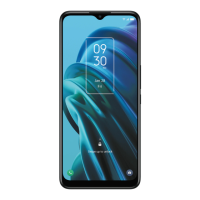
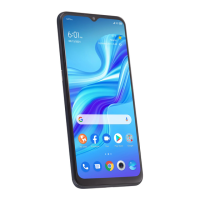
Home screen
The Home screen provides quick access to all the items (applications,
shortcuts, folders and widgets) you like to use most frequently.
Touch the Home symbol to get instant access to the Home screen.
Google Search bar
Touch to enter text search screen.
Touch to speak to Google Assistant.
Touch to access Google Lens
Favorite applications tray
Touch to enter the applications.
Touch and hold to move or change applications.
Notification bar
Touch and drag down to open the
notifications panel.
Back
Home
Recent apps
The Home screen oers multiple pages for shortcuts or applications you
may download from the Play Store. Simply swipe your finger horizontally
to the left. From the Home screen, swipe right to view a Google news feed
page.
Making a call
1. From the Home Screen, tap Phone .
2. Tap Keypad .
3. Enter the number you want to call in the keypad or use the Search
Contacts bar to enter the first few letters of a contact’s name. Tap the
correct entry to make a call.
4. Tap Call to place a call.
5. To hang up a call, tap .
Receiving a call
When you receive a call, a call window will be presented on top of the
screen. Touch Decline to dismiss a call or Answer to answer a call.
Touch the call window to open the Phone call screen.
On the Phone call screen:
• Swipe Phone up to answer the call;
• Swipe Phone down to reject the call;
• Swipe Message up to reject the call by sending a preset message.
To mute incoming calls, press the Volume Key.



 To Next Page
 Loading...