© 2018 techBite. All rights reserved. Flix Gamepad - EN
5
Use only the cable supplied or recommended by the manufacturer. If in doubt, contact your dealer
or the manufacturer's service department. The device indicates low battery charge by flashing LED4.
To charge the battery, connect the microUSB plug of the cable to the power socket (4) on the device
and the USB to a power source (computer, power bank, etc.). When the battery is recharged, LED4
will light up.
Do not use too much force as this may damage the device or power source
.
The damages
resulting from improper handling are not covered by the warranty. The device can heat
up during charging. It is a regular occurrence and should not affect the stability or
performance of the device. Avoid exposing the battery to very high/low temperatures (below
0°C/32°F and over 40°C/104°F). Extreme temperatures may influence capacity and battery life. If
the device does not charge properly or there are other problems with the battery, it should be
delivered with the power supply to the manufacturer's service center. A single battery charge should
not last longer than 1 day. Do not destroy, impair or throw the battery into flames - it is dangerous
and may cause fire. Worn-out or impaired battery should be placed in a dedicated container. Please
dispose of battery according to the instructions.
Sleep mode
The device goes into sleep mode one minute after disconnection. When connected, it will enter
sleep mode after 5 minutes of inactivity.
Android Platform
To connect the gamepad to your Android device via Bluetooth (wired connection will not work) turn
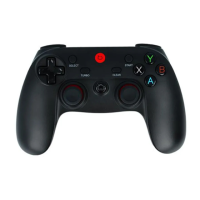
on the gamepad by pressing the X and HOME button for 2 seconds. LED1 starts flashing quickly.
Turn on the Bluetooth module on your Android device and search for the device with the name "Flix
Gamepad" and pair it. When LED1 is on, the connection is active.
Enter/exit mouse simulation mode
Gamepad can be used to simulate a mouse on Android. The left joystick controls the cursor, button
A is responsible for the left and button B is responsible for the right mouse button. To activate the
mouse mode on the gamepad, press and hold the X button and briefly press the SELECT button.
When LED3 lights up, the mode is active. To exit mouse mode, press the button sequence as
described above. When LED3 is off, the mouse mode is deactivated.
Platforma Smart TV / TV BOX (Android)
To connect the gamepad to a Smart TV system or a TV Box using the Android operating system,
turn on the gamepad via Bluetooth (wired connection does not work) by pressing and holding the
A and HOME buttons simultaneously for 2 seconds. LED1 will blink. When LED1 is on, the connection
is active.
The device may not work with some Smart TV systems.
PC platform (X-Input mode)
The Gamepad can work with PCs only when connected with a microUSB-USB cable (as when
charging the battery). The drivers will be installed automatically. In older versions of your system,
if automatic installation fails, find a problematic device in Device Manager and choose a driver for
it called "XBOX 360 Console Controller for Windows". When LED4 flashes, the gamepad battery is
charged when it lights up permanently, it is fully charged.
Platforma PS3
To make the gamepad work in conjunction with the PS3 system, turn it on by pressing and holding
down the TURBO and HOME buttons simultaneously for 2 seconds. LED1, LED2 and LED3 will start
to flash. Connect the gamepad to the console with a microUSB-USB cable. When LED4 blinks, the
gamepad battery is being charged when it lights up permanently, it is fully charged.
Automatic reconnection
To resume the Bluetooth gamepad when it is switched off, press the HOME button for 2 seconds
and the devices should start working together again.


 To Next Page