8
3. Press the left or key while Display language is selected, use the direction keys ( and
) to select your desired language, then press the left or key again to confirm your
choice.
4. Press the key to select Writing language, then repeat the process from the previous step.
5. Enter the PIN code (provided with the SIM card) and press the left or key.
6. Once the language has been configured, press Done to confirm.
Tip: By default, the date and time are updated automatically by the SIM card.
When you set the date and time manually, this feature is turned o. To turn this
feature back on, go to Menu > Settings > Phone > Date & time > Update time
settings. Select Auto update time, then press the left and keys.
4. NAVIGATING MAIN MENU
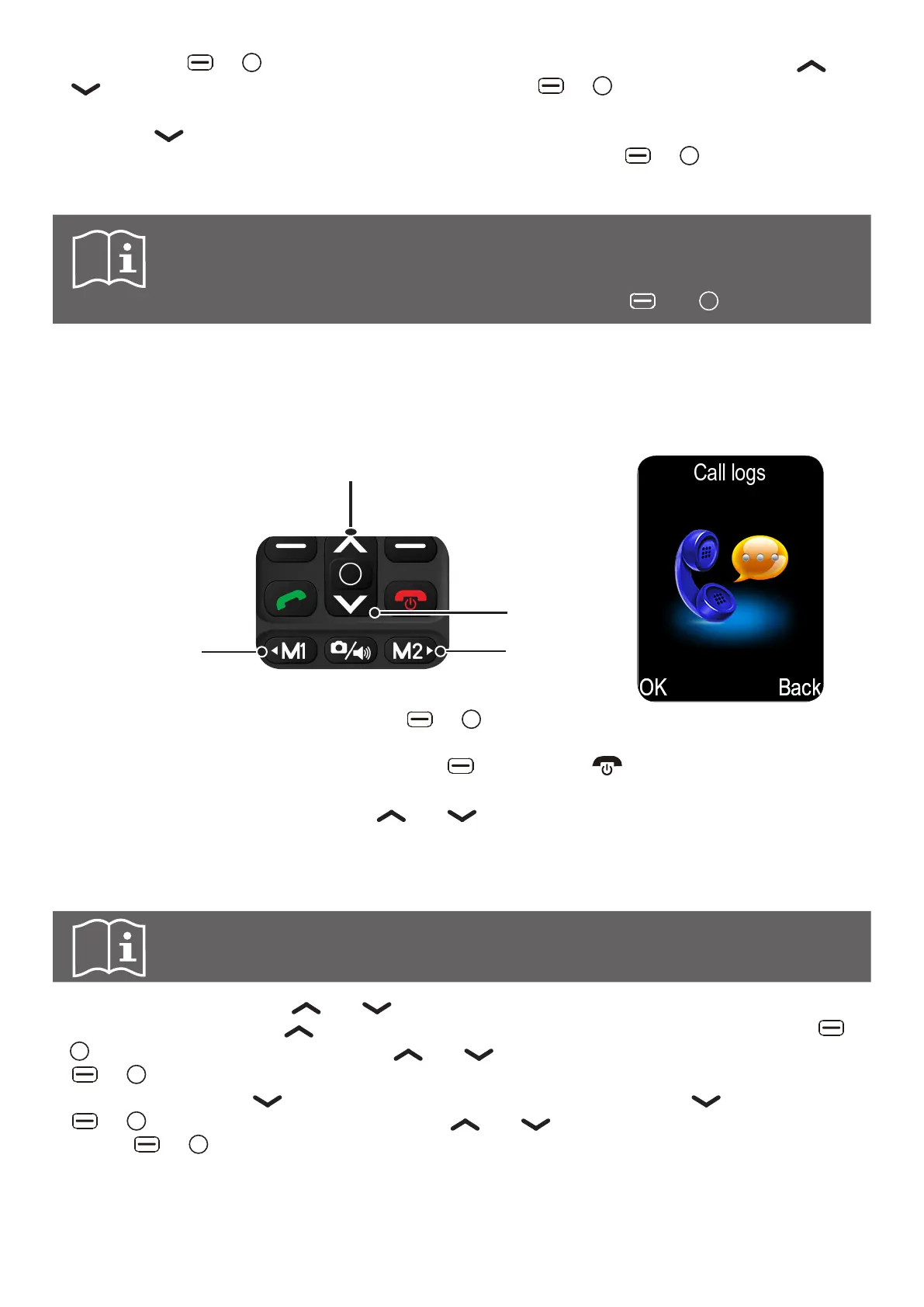
4.1 Controls
Left
Right
Up
Down
To access the main menu, press the left or key. In general, to confirm a choice (OK) or
see a list of options in a menu, you can also use these keys.
To go back or cancel an option, use the right key. Use the key to go back to the main
screen.
To scroll through the menus, use the and keys.
To move left or right, use the M1 and M2 keys.
4.2 Shortcuts
Tip: The shortcuts are preassigned, however they can be changed.
To change default shortcuts go to: Menu > Settings > Phone > Dedicated keys
You have two shortcut keys ( and keys) to which features can be assigned.
To assign a feature to the shortcut key, from the Dedicated keys menu, press the left or
key to access the feature list. Press and keys to select a feature, then press the left
or key to confirm. Press Done to confirm.
To assign a feature to shortcut key, from Dedicated keys menu, press key, then the left
or key to access the feature list. Press and keys to select a feature, then press
the left or key to confirm. Press Done to confirm.



 To Next Page