© 2011 TeleType Co.
67
Getting Started
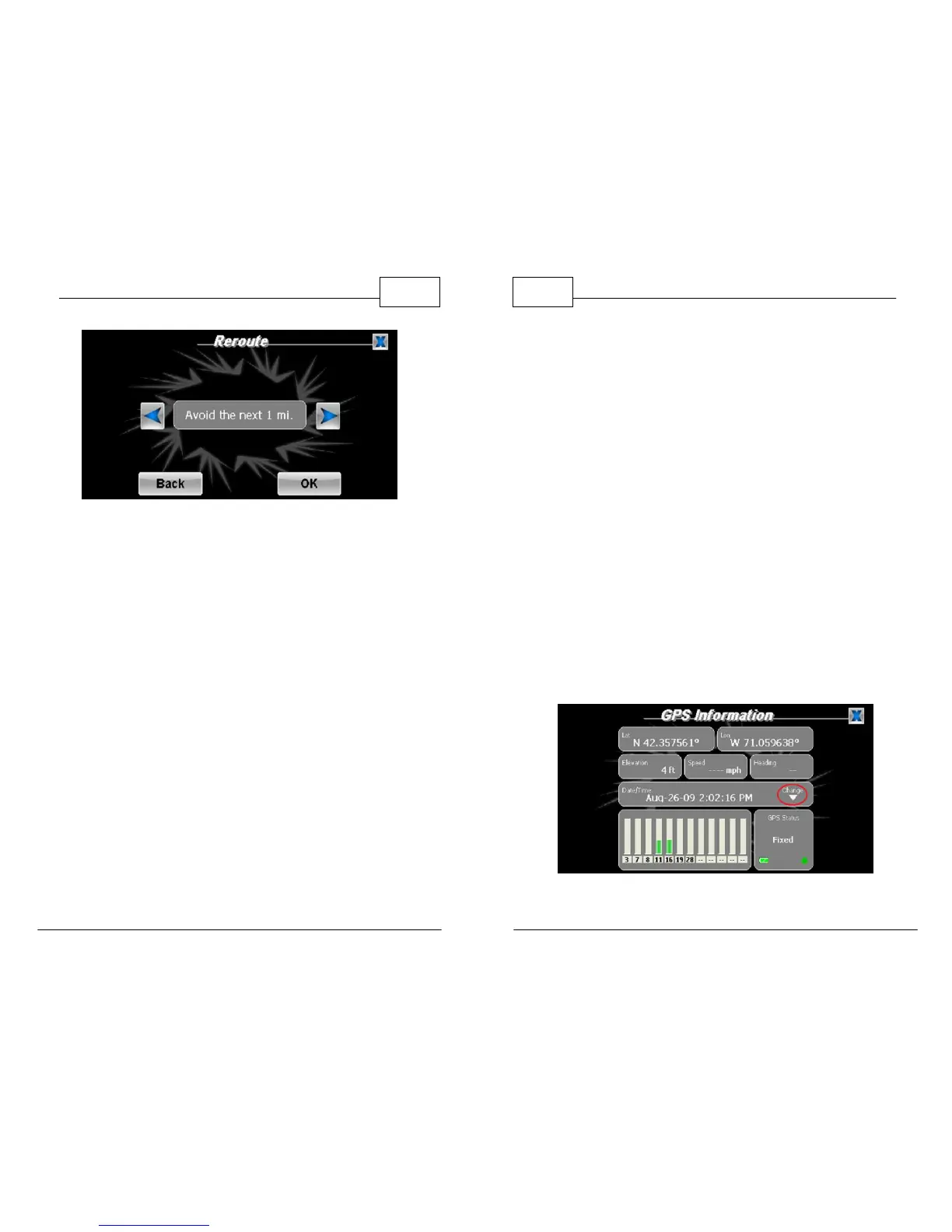
Choose Reroute Distance
If for some reason you do not wish to follow a
route, you can clear the existing route from the
screen by pressing <Clear Route>.
WorldNav Navigation Software
68
© 2011 TeleType Co.
2.15 Your GPS Settings
Press <Menu>, then scroll to the third Menu screen
by pressing the right arrow icon twice. Press
<GPS Status>. The GPS information screen shows
your latitude, longitude, elevation, speed, heading
(direction of travel), date/time, the total number
and strength of satellite signals. The green dot on
the bottom right of the panel indicates the GPS has
a fixed position. The dot will change colors based
on the following status: Red - not locked in; Yellow -
Acquiring Satellites; Blinking Green - getting close
to locking in; Green - position fixed. A signal status
bar will appear in Map Mode in the bottom left
hand corner that displays the satellite signal. Note:
See Section 4.6 to adjust time.
GPS Information Screen
Note: If you are developer or are using a device other than a



 To Next Page