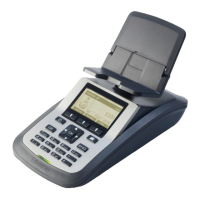
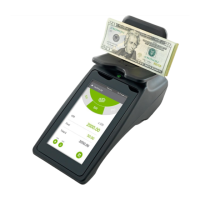
The Tellermate Touch & LiveSafe system is an integrated cash management solution designed to enhance efficiency, security, and accountability in retail and other cash-handling environments. It combines a smart safe (LiveSafe) with a cash counting device (Touch) to streamline cash handling processes from the point of sale to deposit.
Function Description
The LiveSafe is an intelligent safe that provides secure storage for bills. It automatically validates and registers bills upon insertion, recording both quantity and value regardless of denomination. This ensures that cash is secured immediately after receipt, reducing the risk of theft and errors. Access to the LiveSafe's cassette, which stores the bills, is controlled through iButtons, ensuring that only authorized personnel can deposit or collect cash.
The Touch cash counter is a weight-based device that quickly and accurately counts cash. It integrates seamlessly with the LiveSafe, allowing users to configure and monitor the safe's settings directly from its interface. The Touch also serves as a data hub, sending all count data to a Cloud-based Touch Viewer account. This provides comprehensive visibility and auditing capabilities for all cash handling tasks, including the contents of the LiveSafe.
When used together, the Touch and LiveSafe create a closed-loop cash management system. Users can count cash from the register using the Touch, deposit it into the LiveSafe, and then send all associated data to the Touch Viewer with a single button press. This integration eliminates unseen gaps in cash management processes, provides full accountability, and simplifies adherence to internal cash management procedures.
Usage Features
The system offers a user-friendly interface for various cash handling tasks:
- Main Menu: The Touch's main menu provides access to the LiveSafe dashboard, count tasks (Start Bank, Closeout, Pickup, Deposit), Touch settings, and training videos.
- LiveSafe Dashboard: This central hub allows users to view the current status of the LiveSafe, configure its settings, and manage iButtons. Access to the dashboard requires a 4-digit PIN.
- Operator and Collector Lists: Users can view detailed information about deposits made by cashiers/operators and collections made by managers/collectors. This includes the LiveSafe used and the total amount added or collected, broken down by denomination.
- Timezone & Cloud Configuration: The Touch allows users to set the system's timezone, which affects the date and time of transactions. It also supports Cloud API integration, enabling notifications of money-related events in the LiveSafe to be sent to a specified URL, enhancing real-time monitoring.
- Transactions (Recent & History): The system provides a clear overview of all recent and historical transactions. Users can view denominations fed into the LiveSafe(s) by both the LiveSafe itself and individual operators, along with exact timestamps. This feature offers a complete audit trail of cash movements.
- Safe Status: This screen displays the status of all connected LiveSafe units, including software version, timezone, bills counted and rejected, and network details.
- Counting Money (Deposit Task): The Deposit task is used to remove the cassette from the LiveSafe and send count results to the Touch Cloud Viewer. The process involves selecting a collector, choosing the relevant LiveSafe, and then counting the collected bills from largest to smallest denomination. A review screen provides a breakdown of the register total, LiveSafe total, and overall total.
- Counting Money (Closeout Task): The Closeout task is performed at the end of a cashier's shift. It allows the operator to count down the cash in the register, including bills already added to the LiveSafe. Similar to the Deposit task, it involves selecting a register number, operator, and LiveSafe, followed by counting and a review of totals.
- LiveSafe Count Configuration: This section in the settings menu allows users to define how operator and collector roles are performed for each count task (Start Bank, Closeout, Pickup, Deposit, Safe).
- Reference Numbers: The system supports global reference number configuration for various count tasks (Closeout, Deposit) and allows users to configure the store name, which is essential for sending data to the Touch Viewer application.
Maintenance Features
The system incorporates features to manage and maintain its operational integrity:
- iButton Configuration: iButtons are crucial for controlling access and accountability. The LiveSafe dashboard allows for comprehensive iButton management, including:
- Adding Collector Keys: Essential for authorizing personnel to collect bills from the safe. The process involves selecting "Add Collector," placing the iButton on the contact point, and confirming successful registration.
- Adding Operator Keys: Optional, but allows users to insert bills into the safe. The procedure is similar to adding collector keys.
- Assigning Aliases: Users can assign descriptive aliases (names) to iButtons, linking them to their serial numbers for easier identification and management. This is done by editing the iButton entry and renaming it via a keypad.
- Deleting Keys: Operator and collector keys can be easily deleted from the system. A warning message is displayed before deletion to prevent accidental removal.
- Software and Firmware Updates: While not explicitly detailed as a user-initiated feature, the "Safe Status" screen displays the software version of the LiveSafe and the firmware versions of its components (SCC and NV), indicating that the system is designed to track and potentially facilitate updates to ensure optimal performance and security.
- Cloud Connectivity: The system's reliance on Cloud-based data transmission (Touch Viewer) implies continuous monitoring of connectivity. The "Cloud settings" in the Timezone & Cloud configuration allow users to enable bill event notifications, ensuring that the system can communicate effectively with external platforms.
- Troubleshooting and Support: The manual mentions contacting Tellermate for more information on certain features (e.g., Cloud settings), suggesting that support channels are available for troubleshooting and assistance with advanced configurations. Training videos are also accessible from the main menu to guide users through various tasks.

 Need help?
 General

 To Next Page