EasyManua.ls Logo

Telstra Pre-Paid - User Manual

Telstra Pre-Paid
9 pages
Print Icon
To Next Page IconTo Next Page
Loading...
WELCOME
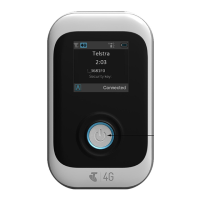
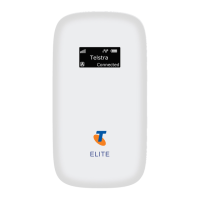
Thank you for choosing the Telstra Pre-Paid Mobile Wi-Fi.
To get the most from your wireless router and to keep it in the best condition please read this manual thoroughly.
The following parts are supplied in the box:
Parts
Quantity
Telstra Pre-Paid Mobile Wi-Fi 1
AC Charger 1
USB charging cable 1
Quick Start User Guide 1
Manufacturer’s Warranty Card 1
Quick Reference Section
Home page
192.168.0.1 or telstra.wifi.4g
Admin login
password
Default SSID
TPP4G_6digits - shown on the main display
Default Security
Key
Enter the characters shown on the main display.
Note this is case sensitive.
Restore defaults
Open the back cover. The reset button is found
next to the USB power socket. Press gently with a
pen tip or pin. All passwords and settings will be
restored to defaults and the router will reboot.
IMPORTANT: Security Settings - SSID and Wi-Fi Security Key (WPA Key)
By default the Wi-Fi SSID and password are displayed on the main display.
They are also printed on the label underneath the battery and on the security card provided in the box.
Use this information to connect all your devices to your Wi-Fi router.
To switch off the password display, log into the web interface and navigate to Settings > Wi-Fi Settings > WiFi Password Viewable.
1. A QUICK LOOK AT YOUR DEVICE
1. On / Off button - Press and hold for 1-2 seconds to switch on or off.
2. microSD(HC)slot for expandable memory up to 32GB
3. WPSPress to enable Wi-Fi Protected Setup authentication process.
4. Power socket - Connect to your computer or AC charger for battery charging.
5. Antenna ports – Connect an external antenna to boost your signal. The connector type is TS5 and antennas are widely available from Telstra dealers.
6
. LC
D Display Panel:
Question and Answer IconNeed help?

Do you have a question about the Telstra Pre-Paid and is the answer not in the manual?

Summary

Quick Reference Section

Home page and Admin Login

IP address, URL, and credentials for accessing router settings.

Wi-Fi Network Details

Default SSID and security key for Wi-Fi connection.

Restoring Default Settings

Procedure to reset router to factory defaults using the reset button.

1. A QUICK LOOK AT YOUR DEVICE

Device Components and Ports

Identifies external parts like antenna ports, WPS, power socket, and microSD slot.

LCD Display Panel Information

Explains indicators like signal strength, network provider, and battery level.

2. INSERT YOUR SIM CARD AND BATTERY

SIM Card and Battery Installation Process

Step-by-step guide for inserting SIM and battery into the device.

Accessing the Reset Button

Location and use of the reset button for restoring defaults.

3. SWITCH ON AND CHARGE YOUR ROUTER

Device Power On and Charging

Instructions for turning on the router and charging its battery.

microSD Card Usage

How to insert and use a microSD card for portable storage.

4. CONNECT TO THE INTERNET

Connecting to the Wi-Fi Network

Steps to connect devices to the Telstra Pre-Pay Wi-Fi network.

Roaming and Low Power Mode

Information on network roaming and device standby mode.

External Antenna Connection

Guidance on connecting an external antenna to improve signal.

5. USING THE WEB INTERFACE

Logging into the Web Interface

How to access and log into the router's configuration pages via browser.

Connection Tab Overview

Details on viewing device status and connected devices.

Settings and Record Tabs

Functionality of Settings for advanced configuration and Record for data usage.

Device Information

Hardware, Software, and Network Status

Displays device hardware/software versions, network conditions, and SIM status.

6. USING THE DEVICE AS A TETHERED MODEM

Tethered Modem Connection

Guide to connect the device as a wired modem using the USB data lead.

Installing Network Drivers

Steps for installing necessary drivers from the CD ROM for tethering.

7. TROUBLESHOOTING TIPS

Internet Access and Speed Issues

Solutions for common problems like no internet access or slow speeds.

AP Isolation and Signal Problems

Explanation of AP Isolation and troubleshooting low signal reception.

Battery Charging and Other Issues

Troubleshooting battery charging issues and other common symptoms.

8. TECHNICAL SPECIFICATIONS

Network and Data Service Specifications

Details on frequency bands, data speeds, Wi-Fi range, and connections.

Physical, Battery, and OS Specifications

Information on dimensions, weight, battery, working temp, and OS compatibility.

9. OTHER INFORMATION

Computer and Browser Compatibility

Requirements for PC, MAC, and browser use with the router.

Safety and Warning Notices

Important safety precautions, warnings, and environmental considerations.

Cleaning, Maintenance, and Network Lock

Guidance on cleaning, maintaining, and network unlocking procedures.

Telstra Pre-Paid Specifications

General IconGeneral
WiFi Standards802.11 b/g/n
WiFi Bands2.4GHz
Max WiFi Users10
Max WiFi Speed150Mbps
4G LTE BandsBands 1, 3, 5, 7, 8, 28

Related product manuals