Need help?
Do you have a question about the Tenda HG9 and is the answer not in the manual?
Description of LED indicators on the ONT, including their color, status, and meaning for device operation.
Details the physical ports (TEL, PON, LAN, USB) and buttons (LED, WPS, WLAN, RESET) on the ONT device.
Guides through configuring internet access in router mode using PPPoE, including login and WAN setup.
Troubleshooting steps for users unable to access the ONT's web interface at 192.168.1.1.
Solutions for issues preventing internet access after ONT configuration, covering LEDs, ISP, and connection settings.
Guidance on why Wi-Fi signals might not be found and how to enable them on the ONT.
Instructions for resetting the ONT to factory defaults via button or web UI.
Steps to modify the Wi-Fi network name (SSID) and password through the ONT's web interface.
This document provides a comprehensive guide for the AC1200 Dualband Wi-Fi XPON ONT (HG9), detailing its functions, usage, and maintenance.
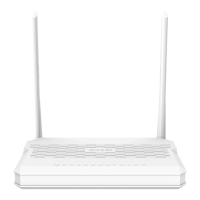
The AC1200 Dualband Wi-Fi XPON ONT (HG9) is a versatile device designed to provide high-speed internet access, voice services, and Wi-Fi connectivity. It acts as an Optical Network Terminal (ONT) in an XPON network, converting optical signals into electrical signals for use by connected devices. The device supports dual-band Wi-Fi (2.4G and 5G), enabling flexible and efficient wireless connectivity for various applications. It features multiple LAN ports for wired connections, a telephone port for voice services, and a USB port for resource sharing.
The ONT's core function is to facilitate internet access, supporting both router mode (PPPoE or DHCP) and bridge mode. In router mode, the ONT can manage network addresses and provide internet connectivity directly to connected devices. In bridge mode, it acts as a pass-through device, allowing a separate router to handle network management and PPPoE dial-up. This flexibility caters to different network setups and ISP requirements.
The device is equipped with several LED indicators that provide real-time status updates. These include POWER, INET, PON, LOS, LAN1/2/3/4, TEL, 2.4G, 5G, WPS, and USB. Each indicator signifies a specific operational state, such as power status, internet access availability, optical signal reception, LAN port activity, telephone service registration, Wi-Fi network status, WPS negotiation, and USB device connection. These indicators are crucial for quick troubleshooting and understanding the device's operational health.
The ONT also includes various physical ports and buttons for connectivity and control. The PON port is for connecting to the optical fiber network. Multiple Gigabit LAN ports (LAN1/2/3/4) allow for wired connections to computers, routers, switches, or IPTV set-top boxes. A TEL port is provided for connecting a telephone for voice services. The POWER jack is for connecting the power adapter, and an ON/OFF button controls the device's power. Additionally, there are buttons for LED indicator control, WPS negotiation, and Wi-Fi network enable/disable. A reset button is also available for restoring the device to its factory default settings.
Setting up the ONT involves a straightforward connection process. Users need to connect the optical fiber cord to the PON port, the power adapter to the POWER jack, and then press the ON/OFF button to power on the device. For initial configuration or internet access, users can connect a computer to a LAN port using an Ethernet cable or connect a smartphone to the ONT's Wi-Fi network using the SSID and password found on the bottom label.
The device's web user interface (UI) is accessible via a web browser by entering the default IP address (192.168.1.1). The default login credentials (username and password are both "admin") allow users to access and configure the ONT's settings.
For internet access, the ONT supports two main configuration options: router mode and bridge mode. In router mode, users can configure internet access over PPPoE or DHCP. The process involves navigating to the WAN settings in the web UI, enabling VLAN (if required by the ISP), entering the VLAN ID, setting the Channel Mode (PPPoE or IPoE/DHCP), and providing ISP-specific credentials like PPPoE username and password. Once configured, the ONT handles the internet connection directly.
In bridge mode, the ONT acts as a transparent bridge, passing the internet connection to a separate router. This setup requires connecting a LAN port of the ONT to the WAN port of a router using an Ethernet cable. The router then handles the PPPoE connection and network management. This mode is suitable for users who prefer to use their own router for advanced network features.
The dual-band Wi-Fi functionality allows for flexible wireless connectivity. The 2.4G Wi-Fi network provides broader coverage, while the 5G Wi-Fi network offers higher speeds and less interference, ideal for bandwidth-intensive applications. Users can enable or disable the Wi-Fi networks using the WLAN button and configure Wi-Fi names (SSID) and passwords through the web UI. The WPS button simplifies connecting WPS-supported devices to the Wi-Fi network without manually entering the password.
The USB 2.0 port enables resource sharing, allowing users to connect a USB storage device to the ONT. This feature can be used for sharing files across the network, although specific functionalities might depend on the firmware and configuration.
The LED indicators play a crucial role in monitoring the ONT's status and troubleshooting potential issues. For instance, a solid green POWER LED indicates proper power-on, while a blinking LOS LED suggests a problem with the optical fiber connection or signal strength. A solid green PON LED signifies successful registration with the network, whereas a blinking PON LED indicates an ongoing or failed registration. These visual cues help users quickly identify the source of a problem.
Troubleshooting common issues is facilitated by the provided FAQ section. For example, if a user cannot log in to the web UI, the guide suggests checking power status, Wi-Fi connection, wired connection, IP address settings, and trying a different browser or device. It also recommends resetting the ONT as a last resort.
If internet access fails after configuration, the guide advises checking the status of various LED indicators (POWER, LOS, PON) to pinpoint the problem. It also suggests verifying ISP support for self-purchased PON devices and ensuring that WAN parameters are correctly configured in router mode. For bridge mode, it emphasizes proper router connection and configuration.
The guide also addresses Wi-Fi related issues, such as not finding the Wi-Fi signal. It instructs users to ensure that the 2.4G and 5G LED indicators are lit and to press the WLAN button if they are not. For 5 GHz Wi-Fi network visibility, it reminds users that only 5 GHz-supported devices can detect and connect to it.
Resetting the ONT is a key maintenance feature for resolving persistent issues or restoring default settings. This can be done by holding down the RESET button with a pointed object for 10 or more seconds after the ONT has fully started up. Alternatively, a software reset can be performed through the web UI by navigating to Admin > Backup/Restore and clicking the Reset option.
Changing Wi-Fi names (SSID) and passwords is a common maintenance task for security and personalization. The guide provides clear steps to do this through the web UI, by accessing the WLAN settings for both 5GHz (wlan0) and 2.4GHz (wlan1) networks, modifying the Basic Settings for SSID and Security settings for the Pre-Shared Key, and applying the changes.
The device also supports wall mounting, offering flexibility in placement. The manual provides specific recommendations for expansion bolts and screws, ensuring secure installation. This feature helps optimize Wi-Fi coverage and keeps the device out of the way.
Overall, the AC1200 Dualband Wi-Fi XPON ONT (HG9) is designed for ease of use and maintenance, with clear indicators, a user-friendly web interface, and comprehensive troubleshooting guidance to ensure reliable internet and voice services.
 General
| ITU standards | G.984.1, G.984.2, G.984.3, G.984.4 |
|---|---|
| Networking standards | IEEE 802.1Q, IEEE 802.3u, IEEE 802.3z |
| Transmission distance (max) | 20 km |
| Wi-Fi | Yes |
| Antennas quantity | 2 |
| Antenna gain level (max) | 6 dBi |
| Fiber ports quantity | 1 |
| Fiber optic connector | SC |
| Ethernet LAN (RJ-45) ports | 4 |
| Product type | Optical network terminal (ONT) |
| Product color | White |
| Power consumption (typical) | 18 W |
| Storage temperature (T-T) | -40 - 70 °C |
| Operating temperature (T-T) | 0 - 45 °C |
| Storage relative humidity (H-H) | 5 - 90 % |
| Operating relative humidity (H-H) | 10 - 90 % |
 Weight and Dimensions
| Depth | 124.9 mm |
|---|---|
| Width | 190 mm |
| Height | 26.5 mm |

 To Next Page