My WiFi coverage and/or performance isn’t as good as I expected.
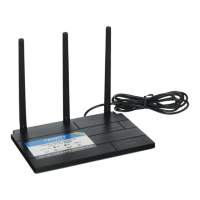
• Make sure you’re connected to the Trinity Xtend, not directly to your WiFi router. Go to your
WiFi connection settings and find your Xtend’s SSID in the list of available connections (see
the label on the bottom of the Xtend for your unit’s SSID).
• Use the TERK XTEND App to check the strength of the WiFi signal the Xtend is receiving
from your WiFi router. If the signal strength is less than two or three bars, you might need to
move the Terk Xtend and WiFi router closer together.
I can’t reconnect to the Trinity Xtend.
• Make sure you haven’t automatically reconnected directly to your WiFi router. Go to your
WiFi connection settings and find your Xtend’s SSID in the list of available connections (see
the label on the bottom of the Xtend for your unit’s SSID).
I’m having intermittent connection problems.
• Make sure you’re connected to the Trinity Xtend, not directly to your WiFi router. Go to your
WiFi connection settings and find your Xtend’s SSID in the list of available connections (see
the label on the bottom of the Xtend for your unit’s SSID).
• Use the TERK XTEND App to check the strength of the WiFi signal the Xtend is receiving
from your WiFi router. If the signal strength is less than two or three bars, you might need to
move the Terk Xtend and WiFi router closer together.
TROUBLESHOOTING (continued)





 To Previous Page
