
 Need help?
Do you have a question about the TERK Technologies Trinity Xtend and is the answer not in the manual?
Guidance on selecting the best location for antenna reception, including tips for placement near windows and high positions.
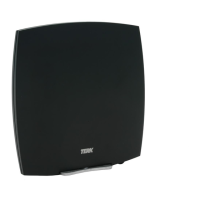
Instructions for positioning the antenna on a flat surface or mounting it securely to a wall.
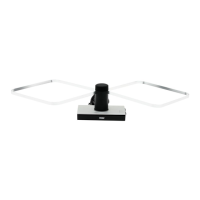
How to raise the antenna's five elements to their upright position for optimal performance.
Steps to connect the antenna's coaxial cable to your TV or converter box, ensuring the TV is off.
Plug the antenna's power cord into an outlet and verify the POWER light is illuminated.
Guide to scanning for available broadcast channels on your TV via the SETUP or CHANNEL menu.
Instructions to download the TERK XTEND App from app stores or via QR codes on the device.
Connect your smartphone to the Xtend's Wi-Fi network by selecting its SSID and entering the password.
Open the TERK XTEND App on your smartphone to initiate the WiFi extender setup process.
Use the app to scan for available WiFi networks and select your home network for the Xtend.
Input your home Wi-Fi network's name (SSID) and password into the app when prompted.
Optionally personalize the Xtend's Wi-Fi network name and password for enhanced security.
Review the setup summary, press FINISH, and confirm successful connection to your network.
Guide to configuring the Xtend via a web browser using a specific URL and login credentials.
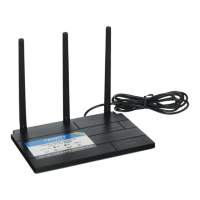
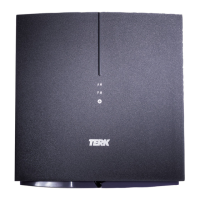
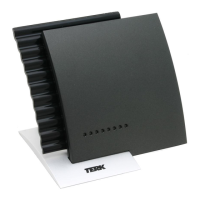
Explanation of POWER, LINK, ACTIVITY indicators, reception elements, and the RESET button.
Details on mounting keyholes for wall installation and the SSID/password label with QR codes.
Description of the device's amplifier and the function of the AMP/BYPASS switch for signal optimization.
Solutions for poor or no reception, addressing placement, interference, and cable issues.
Resolving issues connecting your smartphone to the Xtend or the Xtend to your home network.
Tips for enhancing WiFi coverage, reconnecting to the Xtend, and fixing intermittent connections.
 General
| Brand | TERK Technologies |
|---|---|
| Model | Trinity Xtend |
| Category | Antenna |
| Language | English |



 To Next Page
