11
Using browser-based setup
The Terk Xtend WiFi Extender can also be set up via web browser.
1. In your computer’s WiFi connection menu, choose the Xtend from list of available
connections and enter its password (the Xtend’s SSID and password are listed on the
bottom of the unit).
2. In your web browser, enter the following URL—http://192.168.168.1
3. Follow the directions in the browser-based setup to configure the Xtend with your
network. (If the browser-based setup asks for a user name and password to start setup,
enter admin for the user name and admin for the password.)
WIFI EXTENDER SETUP (continued)
The next screen lets you change the name
and password of the Xtend from what’s
listed on the bottom of the Xtend to a
name and password of your choice (like
“upstairs-xtend,” for example). This step is
optional but recommended.
Just tap on each area, delete the old name
and password, and type new ones. Then
press NEXT to continue.
The final screen of the Xtend setup shows
you the name and password of your
existing Wi-Fi network and the name and
password of the Xtend. You might want to
take a screenshot of this screen for your
records.
Press FINISH when you’re ready to
continue.
The final screen confirms that you’ve
finished setup and closes the App for you.
Connect your devices to the Terk Xtend.
5
Once you’ve finished setup, wait for the Xtend to reboot with its new settings.
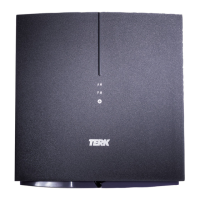
When the LINK light on the Xtend’s front panel comes on, go into the WiFi connection
menus of the devices you want to use with the Xtend’s boosted WiFi signal and
choose the Xtend from the list of available devices to connect to. IMPORTANT: You
must connect to the Xtend in order to use it—otherwise, you will still be using your
existing WiFi router and you won’t get the benefits of the boosted signal.




 To Next Page
