ABOUT WIFI
WI-FI CONNECTION
Before using your Wi-Fi thermostat for the rst time, you must congure
the Wi-Fi signal and settings through your smartphone or tablet. This will
allow communication between your connected devices.
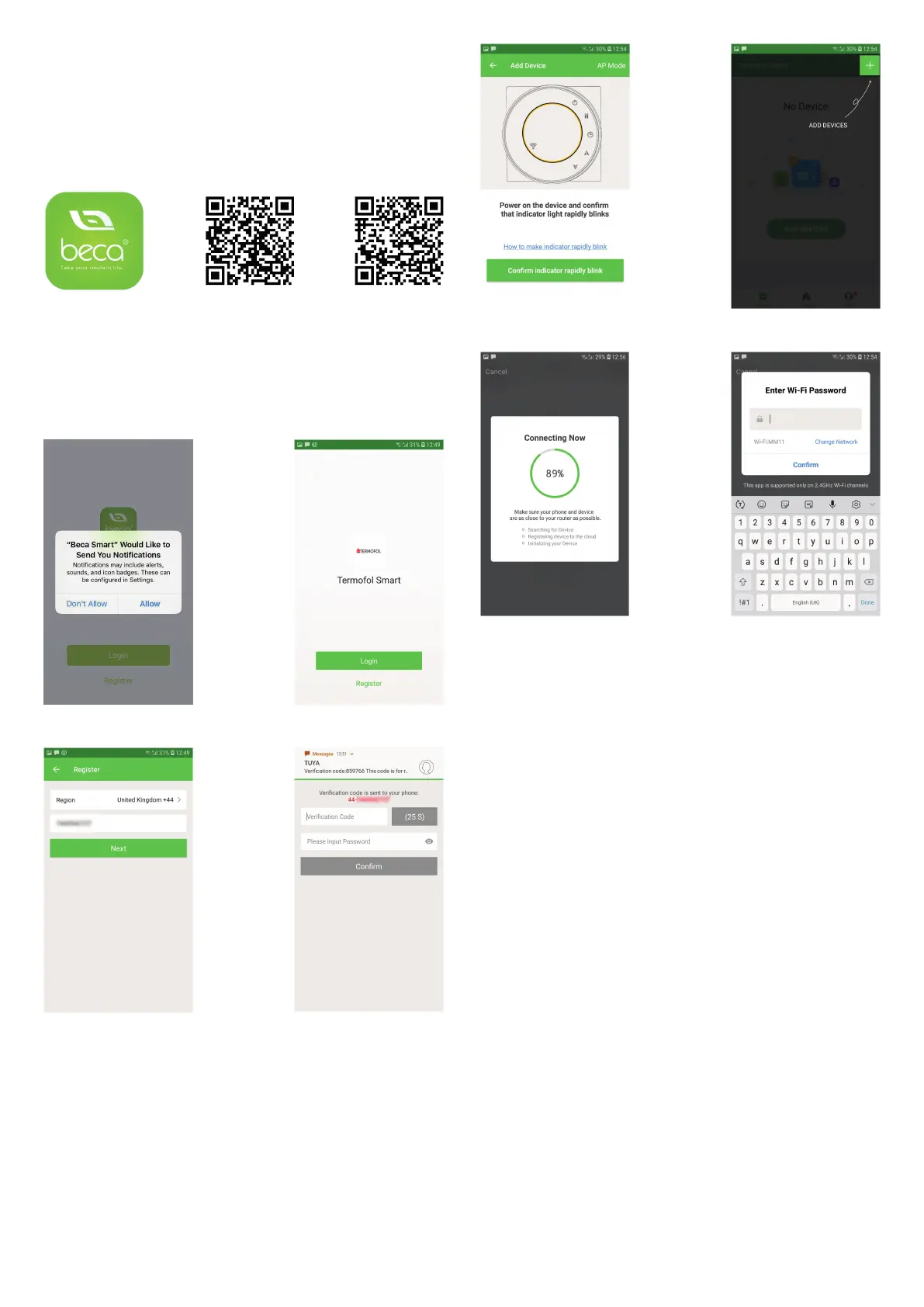
Step 1 Download your APP (Fig 1-1)
Fig 1-1 Fig 1-2 IOS Fig 1-3 Android
Step 2 Register your account.
Open your , you will get a piece of nolicacalion (Fig 2-1). Click Allow to go
into your page of register (Fig 2—2). Press register and enter your phone
no. or email (Fig Z—3) then you can get a verication code. Input your
password and conrm (Fig 2-4) to complete your registeration.if you have
account, please log in.
Step 3 Connect your Wi-Fi signal
With power off, press and hold the arrow for eight (8) seconds.
The backlight will be on and the icon will ash one time per sec..
Press the on the upper right corner of the page (see Fig 3-1) to add your
device. Click Conrm indicator rapidly blink (Fig 3—2) then select your
network and back to your app to enter the password of your wireless
router (Fig 3-3) and conrm. The app will connect automatically (Fig 3—
4). This may typically take up to 5~90 seconds to complete. Your room
name could be edited when the device is connected (Fig 4—4).
This is EZ modę which provides fast network connection between your
app and your device. If your router doesn't support it or your wi signal is
weak or you can not connect by EZ mode, press the AP Mode on the upper
right corner in Fig 3-2. If you have connected your thermostat successfully,
please ignore the AP setting as below.
On your thermostat
With power off, press and hold the arrow for eight (8) seconds.
The backlight will be on and the icon will ash one time per sec.. Press
and hold the arrow for eight (8) seconds again.
The icon will ash one time every (3) seconds.
Then, go back to the home page of your app
Click Conrm indicator slowly blink (Fig 4-1) then select your network and
back to your app to enter the password of your wireless router (Fig 3-3)
and conrm. The app will go into the page in Fig 4-2.


 To Next Page
 Loading...