After TOS installation is complete, TNAS will take several minutes to restart. Please wait patiently for this
process to finish. Once TNAS has restarted successfully, you will be guided to the next step.
Step 6: Basic Settings
Complete the basic settings for TNAS according to the instructions. This will involve setting a password,
inputting device name, selecting your time zone, and clicking “Next”.
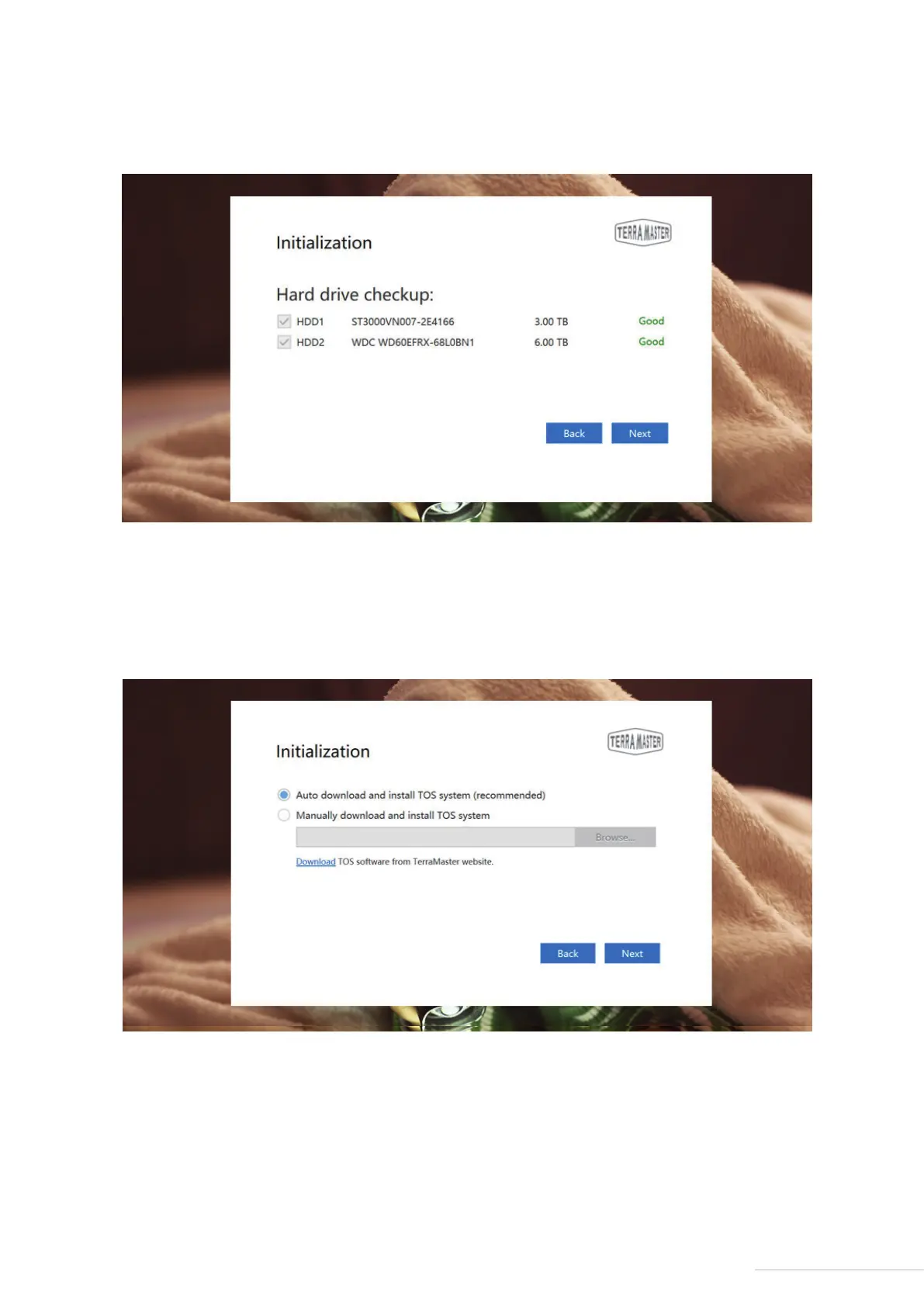
Step 4: Hard Drive Check-Up
Your TNAS will assess the health status of the hard drive. If the health status is good, please click “Next”. If
the test results indicate a risk, we recommend that you replace the abnormal hard drive.
Step 5: Install TOS
Follow the page prompts to install TOS. If your TNAS is connected to the Internet, we recommend that you
choose the “Online Install” option. Otherwise, choose the “Manual Install” option. If you select
“Manual Install”, please visit TerraMaster's website to download the TOS software package from the
“Download” before you process the installation.
9
Model:F8-421



 To Next Page