EN
Operation and Storage Manual of Panel Heater 21English
The schedule displays information about the operation of the
appliance over the past 24 hours.
•
Hourly status (heating, ready, o);
•
Temperature
/QUICK START I/
8.
9. 9. Additional settings
10. 9.1. Adaptive start – to activate, press
11. 9.2. Anti-frost function – to activate/deactivate, press
12. 9.3. Open window – to activate, press (only for model
CN04)
13. 9.4. Lock device - you can lock the buttons, in order to prevent
any changes of the settings
14. 9.5. Power calculator - it provides information about the
instantaneous power consumption of the convector from the
time of the rst switching on:
•
Power consumption from the date of the last reset;
•
The counter value can be cleared using the „Reset“ button.
•
Detailed information about the consumed energy for the
current day, the previous day, for the year.
Note: In order for calculator to function correctly you need to
select the power of the convector.
Note: The power of the convector is is marked on the rating
plate of the appliance.
Note: The calculator is not a precise measuring device. It is a
function that gives you information about the consumed
energy.
9.6. Temperature correction for the sensor - to set, press
9.7. Time zone - to set, press
9.8. Set name - using this menu you can assign a name to
each device you control via the app. In the „Device name“ eld
enter a recognizable name and conrm it with the „SET“ button.
9.9. Device info – it provides information about device’s
software.
TESY’s team reserves the possibility to change and add new functions
in the products with inbuilt Wi-Fi module, as well as to change the
instructions in accordance with the new versions of the software.
For full instructions for use and store, follow the link below:
https://tesy.com/products/heating-appliances/electric-panel-
convectors .
TROUBLESHOOTING
Prior to contacting the Customer Service Center, please check the items in the table below.
PROBLEM SOLUTION
Unsuccessful connecting to the home Wi-Fi network (wireless connection) Check if the modem is switched on.
If you use portable computer, make sure that that the wireless connection switch on the front, at the side or
at the back of the portable computer is in “on” mode.
Make sure you type your home network password correctly
Wait for about a minute and check again if connection is established.
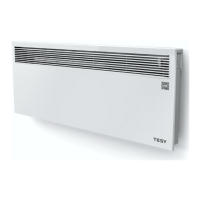
The convector does not appear in the application Check if your router is connected to the Internet.
The convector has to be connected to a wireless router (modem) in your home (oce).
Check if the convector is properly connected to the wireless router (modem).
Check whether you have entered correctly the email address of your prole.
When you select the "Search for networks" option on your Smart device,
the convector is not seen
Go near the convector
Check if the appliance is connected to the electrical grid or if it is turned o by the mechanical switch.
The convector is properly connected but does not work. Restart the application.
When you select the “Search for networks” option on your Smart device,
multiple devices are seen.
Select the convector whose number is shown on a label next to the rating plate.
If the inbuilt wireless module does not see the wireless router (modem) Place the convector in a position with the wireless router (modem) in sight.
Use additional wireless modem to boost the signal of the wireless router (modem)
After I have connected to the wi- network of the appliance, I cannot see it
on the browser panel
Enter the 10.0.0.1 address in the box for entering the browser address and you will see the application.
You have forgotten the password for the wireless Wi-Fi device of the
convector
If you have forgotten your password for encrypting your network, you will have to use the RESET function
of the convector to turn it back to factory settings. You have to push and hold the “up” and “down” arrows
simultaneously when the convector is in an “o” mode. Then you have to set the convector again.
When attempting at restoring the factory settings, the appliance does not
restore the factory settings
At the restart, the appliance has to be switched o by the “small” switch on control panel. The display
should be lit up but no other indicators should be on.
Your appliance could not reconnect to the wireless router (modem) You have a new wireless router (modem). Please set the convector again.
A factory reset has been performed. Please set the convector again.
Not assignedproduct to the home Wi-Fi network
Upon opening the mobile application, the main menu is visualized in the
electrical convector's network
If upon activation of the mobile application the main menuof the appliance is loaded, and not the dedi-
cated screen for control via the Internet, you need to stop the direct Wi-Fi connection with the appliance
established through its aerial wireless network TCHxxxxxxxx and then connect to your home network


 To Next Page