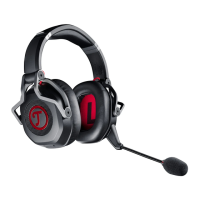
The ZOLA Gaming Headset is designed to provide an exceptional sound and voice experience for gamers and individuals equipping their home office. This user manual provides essential information for first-time use, ensuring safe and reliable operation.
Function Description
The ZOLA Gaming Headset is primarily designed for the playback of audio and voice signals, transmitted via an enclosed cable. It features a detachable USB soundcard dongle for PC gaming, which enables surround sound. The headset includes an analog volume wheel for adjusting audio levels, a microphone mute switch, and an LED indicator to show when the surround dongle is active. A dedicated surround button allows users to enable or disable surround sound. When connected to a Windows PC via the USB dongle, users can access the Teufel Audio Center for ZOLA features, allowing for sound configuration, microphone level adjustment, activation of surround presets, customization of surround effects, and addition of voice effects. The headset can also be connected directly to a gaming controller or smartphone using its 3.5 mm plug, though surround sound functionality may be limited without the USB dongle.
Important Technical Specifications
- Driver Size: 2 x 40 mm full range
- Max. Power: 50 mW
- Impedance: 32 Ω +/-15% @ 1 kHz; 1 mW input power
- Microphone Sensitivity: -45 dB (+/- 3.0 dB) @ 94 dB SPL, 1 kHz
- Frequency Response: 20 Hz – 20 kHz
- Dongle Input Voltage: 5 V DC, 0.5 A
- Operating Temperature Range: 0°C to 45°C
- Storage Temperature Range: -20°C to 65°C
Usage Features
The ZOLA Gaming Headset comes with several components for assembly and customization:
- Gaming Headset: The main unit.
- Mic Arm: Detachable microphone arm.
- Windscreen: For the microphone.
- Top Covers: A pair of customizable covers for the earcups.
- Cushions: A pair of ear cushions.
- Audio Cable & Remote (A): For wired connection and control.
- USB Dongle (B): For PC connection and surround sound.
Assembly:
- Cushions: Insert the top side of the cushion flap into the headphone gap, ensuring Teufel logos are aligned. Grip the inserted top part, stretch, and insert the bottom parts. Rotate the headset and insert the remaining parts. Gently shuffle the cushion until all parts are in place. To remove, hold the headset firmly and pull the cushion off at an angle.
- Mic Arm: Insert the plug with the triangle on top, aligning it with the mark on the cup. Keep both markings aligned. Insert until fully attached. Rotate the plug 90° clockwise until the line marking of the plug aligns with the marking at the cup, fixating the plug.
- Top Covers: Align the top cover side openings with the headset. Push the top cover in until a click is heard. To remove, pull the braided cord outwards.
- Microphone Placement: The boom arm mic head has a small groove with a glossy finish on the inside. This groove should point towards the mouth and be positioned about 2-4 cm away for optimal signal-to-noise ratio.
Connecting:
- Surround Sound (PC): Use the enclosed USB Dongle to connect the headset to a USB port on your PC.
- Gaming Controller/Smartphone: Connect the 3.5 mm plug of the headset directly to the device.
Handling:
- Place the headset on your head so that both ears are firmly covered. Adjust the headband length as needed for a comfortable fit.
Controlling:
- Analog Volume Wheel: Rotate upwards to increase volume, downwards to decrease.
- Microphone Mute Switch: Push up to mute, down to unmute.
- LED Indicator: Lights up when the surround dongle is active.
- Surround Button: Press to enable/disable surround sound.
Other Functions:
- Lighting: The LED on the USB dongle indicates surround sound status.
- Detachable USB Soundcard Dongle: Allows for PC gaming with enhanced audio features.
- Teufel Audio Center (Windows PC): Provides advanced configuration options for sound, microphone levels, surround presets, custom surround effects, and voice effects. More information is available at https://teufelaudio.com/tac-zola.
Maintenance Features
Periodic cleaning is recommended for the headset components:
- Cushions, Windscreen & Top Covers: Clean with mild detergent. Remove the windscreen from the microphone and wash with mild detergent and water. Ensure the windscreen is thoroughly rinsed and dried before re-attaching; do not use force during removal or installation.
- Headband: Clean only with a dry, soft cotton swab or equivalent. Avoid aggressive cleaning agents, as they may damage the sensitive surface.
Troubleshooting
- No audio playback:
- Possible cause: USB or 3.5 mm plug cable not properly connected.
- Solution: Properly connect the USB or 3.5 mm plug cable with devices.
- Possible cause: Volume set too low.
- Solution: Increase volume on PC, gaming controller, and/or headset.
- No voice reproduction:
- Possible cause: Microphone switch in the wrong position.
- Solution: Set the microphone switch to the "on" position.
- Bad intelligibility of speech:
- Possible cause: Directional mic not facing towards the user's mouth.
- Solution: Use the glossy groove on the mic arm to adjust the front of the microphone towards the mouth.
- Weak bass:
- Possible cause: Cushions not attached correctly.
- Solution: Check if the rubber lip is correctly slid into the recess and does not throw up wrinkles. The cushion needs to sit firmly in place for proper sealing.

 Need help?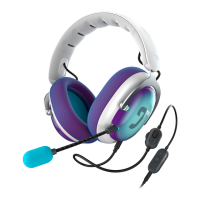

 To Next Page
 General