8
Setup (Cont.)
NOTE:
If you want to quit during device setup, press the device key or wait
10 seconds for the remote to exit setup automatically.
If you are uncertain about your 3-digit code entry, follow the instructions
under ‘Check current brand code’ (page 10) to conrm your code.
If you have tried all the codes for your device in the Code List and your
universal remote still does not work, follow the steps for ‘Auto code search’
(below) or ‘Manual code search’ (page 10).
Auto code search
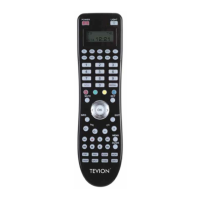
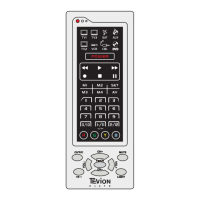
Auto Code Search automatically sends device codes to the device you want
to control.
1. Power on the device you want to control. For VCRs and DVD players, you
must insert a tape or disc.
2. On your universal remote, press and hold SET and then, while holding
SET , press and hold a device key (TV, VCR/DVD or STB/CBL). Continue
to hold down both keys for more than three seconds. The red LED ashes
and the universal remote starts searching. Release both buttons.
3. When the device responds in any way (switches o, play, pause, volume
change, channel changes), press any key other than SET within two
seconds to conrm the code. The red LED will stop ashing.
4. Verify the setup by testing various keys and functions. Press
on your
universal remote to turn on the device if it turned o in step 3. If some of
your device’s functions do not respond to the remote, repeat
steps 2-4.
NOTE:
Because Auto Code Search requires you to stop the search, you must
remain with the device during the process.
To stop searching, press any key (except SET). The red LED light turns o
and the search stops.
You can press SET during search to change direction from forward to
backward or vice versa.
55484
2 x AAA batteries


 To Next Page