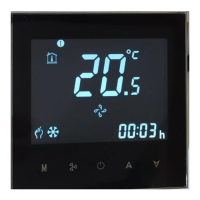
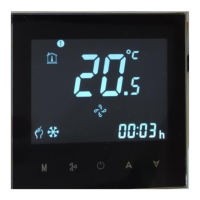
Predisposizione WiFi –
WiFi predisposition
-
WiFi
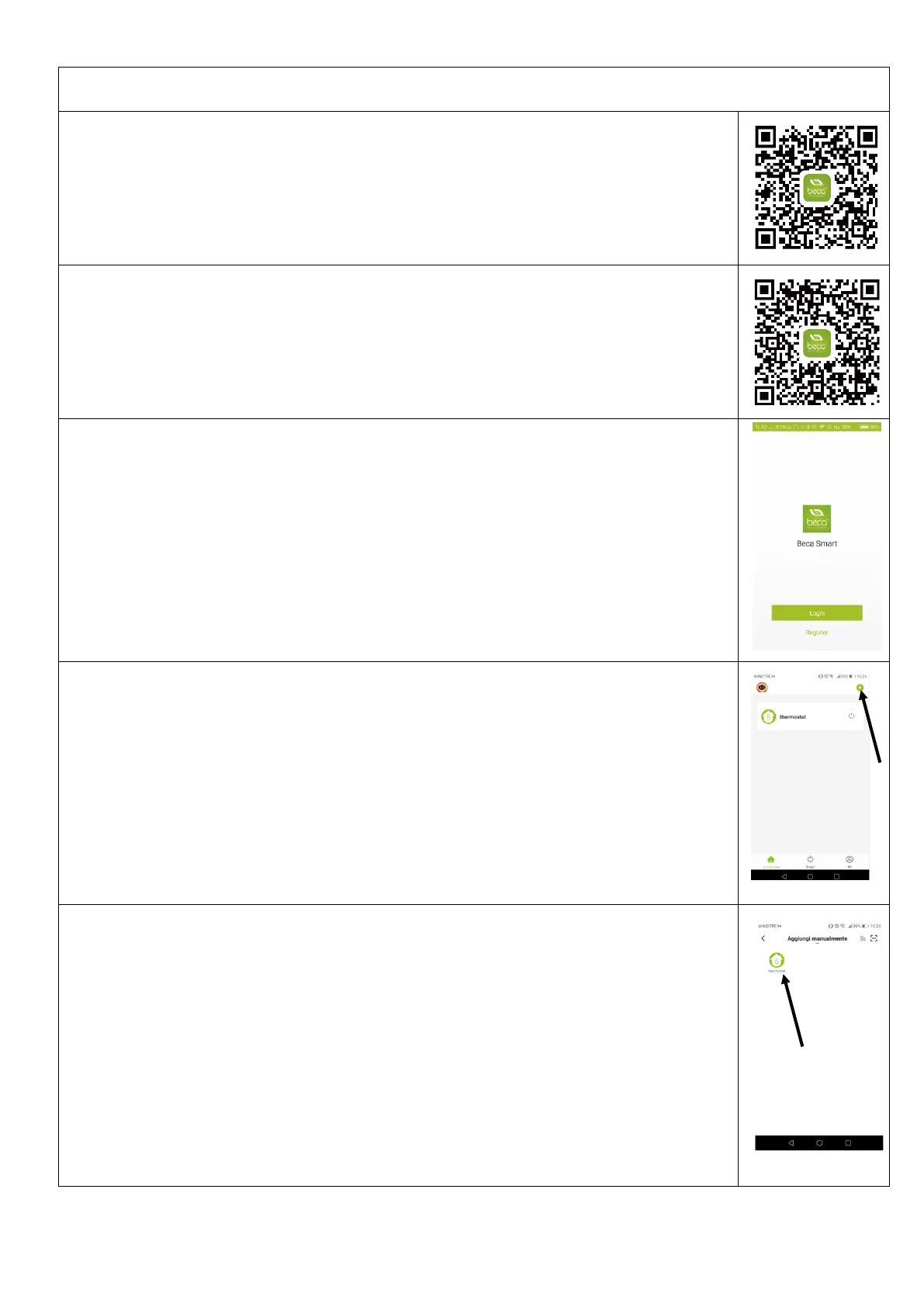
Per iOS, cercare “My BecaSmart” nell’Apple Store e scaricarla. In alternativa scansionare il QR code:
For iOS, search for “My BecaSmart” in the Apple Store and download it. Alternatively, scan the QR code:
iOS esetén keresse meg a „My BecaSmart” kifejezést az Apple Store-ban, és töltse le. Alternatív
megoldásként szkennelje be a QR-kódot:
Per Android, cercare “My BecaSmart” in Google Play e scaricarla. In alternativa scansionare il QR code:
For Android, search for “My BecaSmart” in Google Play and download it. Alternatively, scan the QR code:
Android esetén keresse meg a „My BecaSmart” kifejezést a Google Playen, és töltse le.
Alternatív megoldásként szkennelje be a QR-kódot:
Assicurati che il tuo smartphone sia connesso con la WiFi.
Make sure your smartphone is connected to WiFi.
Győződjön meg arról, hogy okostelefonja csatlakozik a WiFi-hez.
Aprire l’APP, eseguire la registrazione.
Open the App, make the registration.
Nyissa meg az alkalmazást,
végezze el a regisztrációt.
Per installare la prima unità o aggiungerne altre, premere il tasto + in alto a destra, come indicato nella foto a
fianco.
To install the first unit or to add a new one, press + button on the top and on the right, as indicated in the picture
on the left
Az első egység beszereléséhez vagy egy új hozzáadásához nyomja meg a + gombot a
felső és a jobb oldalon, ahogy a bal oldali képen látható
Poi quando compare la finestra “aggiungi manualmente”, cliccare su “Thermostat” come nella foto a fianco
When in the window, it appears the indication "add manually", click on "thermostat" as in the picture on the right
Amikor az ablakban megjelenik a "manuális hozzáadás" jelzés, kattintson a "termosztát" gombra,
mint a jobb oldali képen


 To Next Page
 Loading...