EasyManua.ls Logo

THOMSON DTH160E - User Manual

THOMSON DTH160E
27 pages
Print Icon
To Next Page IconTo Next Page
Loading...
PBC (VCD)
The Playback Control function offers scenes and information which can be selected
interactively via a menu. It can also be used to display high-resolution pictures, if the disc
contains any.
Press the DVD MENU button to access the PBC menu and the PBC button to turn the PBC
function on and off.
Search function
Press SEARCH and then directly input with the number entry keys to select track, chapter or
file for playback. Press ENTER to confirm.
For DVD disc : TT --- CH--- (input desired title and chapter)
For VCD /CD disc: Disc go to --:--:-- (input desired time of disc)
Track go to--:--:-- (input desired time of track)
Select track -- (input desired track number)
For MP3/JPG disc: --- (input desired file number)
Other Connection Options
Front Panel Controls
English
Basic Playback Operations
It is important to read this instruction book prior to using your new product for the first time.
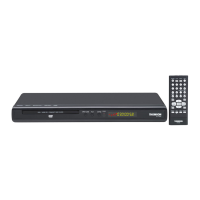
DVD Player
DTH160E
DTH161B
user
manual
EN
THOMSON
46, quai Alphonse Le Gallo
92648 Boulogne
Cedex FRANCE
5639 6410 (EN)
www.thomson.net
Connections & Setup
Safety Information Important Information
WARNING:
TO PREVENT FIRE
OR ELECTRICAL
SHOCK HAZARD,
DO NOT EXPOSE THIS PRODUCT
TO RAIN OR MOISTURE.
SEE MARKING ON BOTTOM / BACK OF PRODUCT
CAUTION
RISK OF ELECTRIC SHOCK
DO NOT OPEN
THE EXCLAMATION
POINT WITHIN THE
TRIANGLE IS A
WARNING SIGN
ALERTING YOU OF
IMPORTANT
INSTRUCTIONS
ACCOMPANYING
THE PRODUCT.
THE LIGHTNING
FLASH AND ARROW-
HEAD WITHIN THE
TRIANGLE IS A
WARNING SIGN
ALERTING YOU OF
"DANGEROUS
VOLTAGE" INSIDE
THE PRODUCT.
CAUTION: TO REDUCE THE
RISK OF ELECTRIC SHOCK,
DO NOT REMOVE COVER
(OR BACK). NO USER-
SERVICEABLE PARTS IN-
SIDE. REFER SERVICING
TO QUALIFIED SERVICE
PERSONNEL.
GEFAHR EINES 
ELEKTRISCHEN SCHLAGS
The descriptions and characteristics in this owner’s manual are for the purpose of general reference only and not
as a guarantee. In order to provide you with the highest quality product, we may make changes or modifications
without prior notice. The English version serves as the final reference on all product and operational details
should any discrepancies arise in other languages.
MAINS CONNECTIONS
MAINS OUTLET POWER SUPPLY: 230V ~50Hz
Note:
Power is fed to the unit even when it is not functioning. To
cut the power supply off, the power cable must be unplugged.
Note:
The mains plug is used as the disconnect device and it shall
remain readily operable and easily accessed by the user during the
apparatus is in intended use.
In accordance with the rating plate of the unit, this unit complies with current
standards concerning electrical safety and electromagnetlc compatibillity.
Please respect the environment. Before throwing any batteries away, consult your
distributor who may be able to take them back for specific recycling.
This symbol means that your inoperative electronic appliance must be collected
separately and not mixed with the household waste. The European Union has
implemented a specific collection and recycling system for which manufacturers
are responsible.
This appliance has been designed and manufactured with high quality materials and
components that can be recycled and reused.
Electrical and electronic appliances are liable to contain parts that are necessary in order for
the system to work properly but which can become a health and environmental hazard if
they are not handled or disposed of in the proper way. Consequently, please do not throw
out your inoperative appliance with the household waste.
If you are the owner of the appliance, you must deposit it at the appropriate local
collection point or leave it with the vendor when buying a new appliance.
• If you are a professional user, please follow your supplier’s instructions.
• If the appliance is rented to you or left in your care, please contact your service provider.
Help us protect the environment in which we live!
CAUTION - LASER RADIATION WHEN OPEN. DO NOT STARE INTO BEAM.
CLASS 1
LASER PRODUCT
You can contact THOMSON by dialling: 0871 712 1312
(for United Kingdom, £0.10/mn inc VAT)
www.thomson-europe.com
HELPLINE
Some points to check before you connect your TV set
Ensure that the mains supply in your house complies with that indicated on the
identification sticker located on the back of your appliance.
Install your appliance horizontally, away from any source of heat (fireplace) or appliances
generating strong magnetic or electric fields. The components of this appliance are
sensitive to heat. The maximum ambient temperature should not exceed 35° Celsius.
Leave sufficient space around the appliance to allow adequate ventilation: 10 cm on
either side and at the back, as well as 7 cm above it are ideal.
The humidity of the room should not exceed 75%. If you have to use the appliance
outdoors, do not expose it to rain or splashing water. The appliance should not be
exposed to dripping or splashing and no objects filled with liquids, such as vases, should
be placed on top of it.
Moving it from a cold environment to a warm one is likely to cause condensation on
some components inside the appliance. Let the condensation disappear of its own accord
before turning the appliance on again.
Before moving the player, make sure the disc tray is empty.
2. VIDEO OUT socket
This socket (yellow) is also known as a composite video socket. The video cable (not supplied)
usually comes with two audio cables (white and red). The picture quality obtained using a
video connection is poorer compared to that obtained using a Scart connection.
3. AUDIO L (left) and AUDIO R (right) sockets
These are analogue audio output sockets. The AUDIO L socket and cable are white, while the
AUDIO R socket and cable are red. Connect the DVD player’s AUDIO L and R sockets to the
television set’s AUDIO L and R sockets using audio cables (not supplied).
Note: If your television set only has one audio socket connect it to the DVD player’s left
socket (white).
4. Coaxial digital audio output (COAXIAL)
This socket offers a higher level of sound quality compared to that provided using an
analogue audio connection. For 6-channel multichannel sound, connect the audio/video
amplifier or receiver to this socket using a coaxial cable (not supplied).
Remote Control
Inserting batteries in the remote control
Insert a CR2025 battery in the remote control.
Observe the polarities indicated inside the battery compartment. Replace only with
the type of batteries specified above. Do not dispose of them in a fire or recharge
them.
If you are not using the remote control for a long period of time, remove the
batteries.
Please respect the environment and prevailing regulations. Before you dispose of
batteries or accumulators, ask your dealer whether they are subject to special
recycling and if they will accept them for disposal.
2 4 3 1
Play ModesBasic Playback Operations
Basic Connections
Advanced Functions
1. Basic connections (DVD player + TV + video recorder)
1. Connect the DVD player Scart socket (TV AUDIO VIDEO OUT) to the television set’s Scart
socket (AV1, EXT1, AUX1) using a Scart lead (not provided).
- OR -
1. If your television set does not have two Scart sockets, connect the DVD player to the
video recorder’s AV2 socket using a Scart lead (not provided). If you have a satellite or
cable receiver you can also connect the DVD player to the receiver’s second Scart socket.
Note: If your video recorder only has one Scart socket, but has a modulator, use the aerial
cable to connect the video recorder to the television set, adjust the video recorder’s
modulator, then connect the DVD player to the video recorder’s Scart socket.
2. Connect the video recorder (or satellite receiver) to the television set as shown in the
video recorder’s (or satellite receiver’s) user guide.
3. Connect the DVD player to the mains socket using the mains lead.
4. Switch on the devices.
Note: If one of the devices is not working, check that all the cables have been inserted
properly into the sockets which they should be connected to.
1
3 2 4
ON/STANDBY ON/OFF Function
CLEAR Clears some functions.
DISPLAY Provides playback status.
MUTE Lowers and restores the volume.
0 - 9 Number entry.
REPEAT Accesses the Repeat playback mode.
A-B Accesses the A-B repeat playback
mode.
PAUSE/STEP Freezes frame, frame advance.
OPEN/CLOSE Opens and closes the tray.
REV Searches back through the disc.
FWD Searches forward through the disc.
STOP Stops playback.
ANGLE Accesses the camera angle.
ZOOM Accesses the Zoom feature
(if available).
Navigates through the menus.
Advances to the next/ preceding
chapter or track.
ENTER/PLAY Selects item highlighted in menu.
Starts playing a disc.
SEARCH Goes to a specific play time or track
SETUP Accesses and exits the General
Setup (main) menu.
SUBTITLE Turns the subtitle on and off.
TITLE Accesses the title of the disc
PBC For VCD Disc, selects PBC
AUDIO Selects the audio language.
DVD MENU Accesses the disc’s menu (if available).
To access the PBC menu for VCD disc.
1 SENSOR - Remote sensor. Point the remote control here.
2 OPEN/CLOSE - To open and close the disc tray.
3 STOP - To stop disc playback. To switch the appliance on and off.
4 PLAY - To start playing a disc.
Operating the DVD player
1. Switch on your TV set.
2. Press the ON/STANDBY button on the remote control or press and hold the STOP button
located on the DVD player’s front panel.
Playback
1. Press the OPEN/CLOSE button on the front of the appliance or on the remote control to
open the disc tray.
2. Put the disc in with the printed side upwards (in the case of a single-sided disc).
3. Press
OPEN/CLOSE again to close the disc tray. Play starts automatically. If a menu
appears, one of its options can be selected to start playing the disc. Select it and press
ENTER
.
4. Press STOP to stop playback.
Notes: The player stores the point where playback was interrupted. If you press PLAY
again, playback resumes from this point. To stop playback completely or to start again
from the beginning, press
STOP twice.
If the player is left in STOP mode for more than five minutes without any user interaction,
a screen saver is activated.
Accelerated play
While the disc is playing, press the REV or FWD button one or more times to vary the speed
and direction of the accelerated play.
Still image
While the disc is playing, press PAUSE once for freeze frame.
Note: After five minutes in PAUSE with no user interaction, the player goes into screen
saver mode.
Frame advance (all discs except audio CD, mp3, WMA and DivX)
1. While the disc is playing, press PAUSE once.
2. Press PAUSE a number of times to advance forward image by image.
3. Press PLAY to resume normal playback.
Variable slow motion (DVD and VCD only)
1. While the disc is playing, press PAUSE once.
2. Press the REV or FWD button a number of times to vary the speed and direction of the
slow motion.
3. Press PLAY to resume normal playback.
Note: Reverse slow motion is not possible with a Video CD.
Changing chapter/track
While the disc is playing, press the / button to go immediately to the next or previous
chapter, or to the next or previous track.
For audio CD and VCD only: enter the track number with the number buttons and then
press ENTER.
Zoom (DVD, VCD, DivX and JPEG discs only)
1. While a disc is playing, press ZOOM until you reach the zoom size you require.
2. Move from one area to another using the buttons.
Note: for JPEG discs, press ZOOM and then REV or FWD until you reach the zoom size
you require. Press ZOOM again to quit the zoom function.
Repeat playback
While the disc is playing, press the REPEAT button repeatedly to select a play mode:
DVD: Repeat Chapter, Repeat Title, Repeat Off;
VCD and audio CD: Repeat Track, Repeat All, Repeat Off;
A-B repeat
To repeat a sequence between two points A and B, press A-B at the beginning of the
sequence you want to repeat. Then press A-B again at the end of the sequence.
The sequence is played repeatedly until you press A-B to resume normal playback.
Advanced Functions
Audio (DVD, VCD and audio CD)
Some discs have several audio tracks used for different languages or different audio formats.
To change the language or audio format during play, press the AUDIO button one or more
times to select one of the available audio formats or languages.
Note: This option is only available if the disc offers a number of dialogue languages or
audio formats.
Status menu
Press the DISPLAY button a number of times during playback to show in turn:
DVD: Title elapsed time, Title remaining time, Chapter elapsed time, Chapter remaining
time, Display Off.
VCD and audio CD: Single elapsed time, Single remaining time, Total elapsed time, Total
remaining time, Display Off.
mp3 and DivX: Single elapsed time, Single remaining time.
mp3, WMA, JPEG & DivX Files
mp3 is an audio file format which compresses recorded music. It was developed in
collaboration with THOMSON . The main advantage of the mp3 format is that it means CD-
quality music tracks can be stored on a personal computer in user-friendly compressed files.
WMA (Windows Media Audio) is another audio file format developed by Microsoft.
JPEG files are image files. Make sure that they have a resolution of less than 5 megapixels.
Your player is an Official DivX Certified™ product that plays DivX®5, DivX®4, DivX®3, and
DivX®VOD video content, in compliance with DivX Certified™ technical requirements.
Displaying JPEG files or playing mp3 or WMA or DivX files
Before inserting a disc, check that it is compatible with the player.
1. Open the tray by pressing the OPEN/CLOSE button.
2. Place the disc with the printed side facing up and close the tray. The disc’s contents are
displayed.
3. Select a folder using the buttons on the remote control, then press ENTER to see
the folder’s contents.
4. Select a file using the buttons on the remote control, then press ENTER to start
playback.
5. Press the STOP button to stop playback.
6. To go back to the folder list, press the button in stop mode.
Note: During playback you can use the / button to go back to the previous file or
go on to the next one.
Audio cable (red
and white)
Video cable
(yellow)
Coaxial cable

Question and Answer IconNeed help?

Do you have a question about the THOMSON DTH160E and is the answer not in the manual?

Summary

Safety and Compliance

Mains Connections

Information on connecting to mains power supply and safety notes.

Laser Radiation Warning

Caution regarding laser radiation and avoiding direct eye exposure.

Product Safety Compliance

Indicates compliance with Class 1 laser safety standards and general safety warnings.

Electrical Hazard Warnings

Warnings about electrical shock and avoiding exposure to rain or moisture.

Customer Support Information

Contact details for customer helpline and official website.

Important Product Information

Product Compliance and Environment

CE compliance, battery recycling, and proper disposal of electronic appliances.

Environmental Responsibility

Guidance on responsible disposal to avoid health and environmental hazards.

Manual Disclaimer

Statement on manual content accuracy, potential changes, and English version precedence.

Connecting and Setting Up Your Player

Pre-Connection Checklist

Essential checks and environmental considerations before connecting the appliance.

Basic Connection Guide

Connecting to TV and Recorder

Step-by-step guide for connecting the DVD player to a TV and video recorder.

Alternative Connection Options

Video and Audio Outputs

Explanation of composite video, analogue audio, and coaxial digital audio outputs.

Remote Control Operations

Playback and Navigation Controls

Functions of playback, navigation, and special feature buttons on the remote.

System and Disc Feature Buttons

Controls for subtitles, audio languages, disc menus, and system setup.

Front Panel Controls and Battery Installation

Player Front Panel Operations

Identification and functions of the main controls on the DVD player's front panel.

Remote Control Battery Installation

Instructions for inserting and handling batteries for the remote control.

Basic Playback Procedures

Player Operation and Playback

Initial steps to power on the player, insert discs, and manage playback.

Playback Enhancements

Features for accelerated playback and freezing the image for a still frame.

Advanced Playback Functions

Frame Advance and Slow Motion

Methods for advancing playback frame-by-frame or in slow motion.

Track Navigation and Zoom

How to switch tracks/chapters and use the zoom function.

Playback Modes and Options

Repeat and Segment Playback

Setting repeat playback modes and defining A-B segments for repetition.

Advanced Player Functions

Audio and Status Information

Changing audio formats/languages and displaying playback status information.

VCD Functions and Search Capabilities

VCD Playback Control and Search

Using PBC for VCDs and the search function for tracks, chapters, or time.

Supported Disc and File Formats

Playing Media Files

Instructions for displaying JPEG files or playing mp3, WMA, and DivX media.

Media File Playback Features

Simultaneous Media Playback

Playing JPEG and mp3 files concurrently from the same disc.

Media File Repeat Modes

Setting repeat playback options for JPEG, mp3, WMA, and DivX files.

DivX VOD and Subtitle Management

DivX VOD Content

Information on renting/purchasing DivX VOD files and player registration.

Subtitle Character Sets

How to select character sets for proper subtitle display in different languages.

Player Menus and Display Configuration

Menu Navigation and General Setup

Guide to using player menus and the General Setup options.

TV Display and Type Configuration

Adjusting picture format and TV signal type for optimal display.

Player Menus: Audio and Dolby Setup

Menu Language and VOD Reference

Changing menu language and referencing DivX VOD instructions.

Dolby Digital Sound Setup

Configuring Dolby Digital audio settings, including dynamic compression.

Player Menus: Preference Settings

Preferences Setup Menu

Settings for audio, subtitle, and disc menu languages.

Player Menus: Parental Control

Ratings and Password Management

Setting parental control levels and managing the access password.

Troubleshooting Common Problems

Power, Disc, and Remote Problems

Solutions for appliance not turning on, disc reading errors, and remote control issues.

Picture, Subtitle, and Menu Language Issues

Troubleshooting no picture, subtitle display, and disc menu language problems.

Forgotten Password Recovery

Procedure to reset a forgotten parental control password.

Precautions and Cleaning Guidelines

Usage Precautions

Important safety and usage precautions for the appliance.

Cleaning Instructions

Guidelines for safely cleaning the appliance.

Disc Handling and Care

Disc Handling and Care

Guidelines for proper handling, cleaning, and storage of discs.

Guarantee, Service, and Legal Disclaimer

Guarantee and Service Information

Details on product guarantee, warranty claims, and authorized service.

Legal Disclaimer

Legal disclaimer concerning warranties and intellectual property rights.

Disc Compatibility and Regional Coding

Supported Discs and Files

List of compatible disc types and media file formats.

Regional Coding Explained

Explanation of DVD regional codes and player compatibility.

Technical Specifications and Notes

DVD Copy Protection and DivX Notes

Information on copy protection technology and notes on DivX file usage.

Technical Specifications

Key technical specifications including power, weight, and operating conditions.

Summary

Safety and Compliance

Mains Connections

Information on connecting to mains power supply and safety notes.

Laser Radiation Warning

Caution regarding laser radiation and avoiding direct eye exposure.

Product Safety Compliance

Indicates compliance with Class 1 laser safety standards and general safety warnings.

Electrical Hazard Warnings

Warnings about electrical shock and avoiding exposure to rain or moisture.

Customer Support Information

Contact details for customer helpline and official website.

Important Product Information

Product Compliance and Environment

CE compliance, battery recycling, and proper disposal of electronic appliances.

Environmental Responsibility

Guidance on responsible disposal to avoid health and environmental hazards.

Manual Disclaimer

Statement on manual content accuracy, potential changes, and English version precedence.

Connecting and Setting Up Your Player

Pre-Connection Checklist

Essential checks and environmental considerations before connecting the appliance.

Basic Connection Guide

Connecting to TV and Recorder

Step-by-step guide for connecting the DVD player to a TV and video recorder.

Alternative Connection Options

Video and Audio Outputs

Explanation of composite video, analogue audio, and coaxial digital audio outputs.

Remote Control Operations

Playback and Navigation Controls

Functions of playback, navigation, and special feature buttons on the remote.

System and Disc Feature Buttons

Controls for subtitles, audio languages, disc menus, and system setup.

Front Panel Controls and Battery Installation

Player Front Panel Operations

Identification and functions of the main controls on the DVD player's front panel.

Remote Control Battery Installation

Instructions for inserting and handling batteries for the remote control.

Basic Playback Procedures

Player Operation and Playback

Initial steps to power on the player, insert discs, and manage playback.

Playback Enhancements

Features for accelerated playback and freezing the image for a still frame.

Advanced Playback Functions

Frame Advance and Slow Motion

Methods for advancing playback frame-by-frame or in slow motion.

Track Navigation and Zoom

How to switch tracks/chapters and use the zoom function.

Playback Modes and Options

Repeat and Segment Playback

Setting repeat playback modes and defining A-B segments for repetition.

Advanced Player Functions

Audio and Status Information

Changing audio formats/languages and displaying playback status information.

VCD Functions and Search Capabilities

VCD Playback Control and Search

Using PBC for VCDs and the search function for tracks, chapters, or time.

Supported Disc and File Formats

Playing Media Files

Instructions for displaying JPEG files or playing mp3, WMA, and DivX media.

Media File Playback Features

Simultaneous Media Playback

Playing JPEG and mp3 files concurrently from the same disc.

Media File Repeat Modes

Setting repeat playback options for JPEG, mp3, WMA, and DivX files.

DivX VOD and Subtitle Management

DivX VOD Content

Information on renting/purchasing DivX VOD files and player registration.

Subtitle Character Sets

How to select character sets for proper subtitle display in different languages.

Player Menus and Display Configuration

Menu Navigation and General Setup

Guide to using player menus and the General Setup options.

TV Display and Type Configuration

Adjusting picture format and TV signal type for optimal display.

Player Menus: Audio and Dolby Setup

Menu Language and VOD Reference

Changing menu language and referencing DivX VOD instructions.

Dolby Digital Sound Setup

Configuring Dolby Digital audio settings, including dynamic compression.

Player Menus: Preference Settings

Preferences Setup Menu

Settings for audio, subtitle, and disc menu languages.

Player Menus: Parental Control

Ratings and Password Management

Setting parental control levels and managing the access password.

Troubleshooting Common Problems

Power, Disc, and Remote Problems

Solutions for appliance not turning on, disc reading errors, and remote control issues.

Picture, Subtitle, and Menu Language Issues

Troubleshooting no picture, subtitle display, and disc menu language problems.

Forgotten Password Recovery

Procedure to reset a forgotten parental control password.

Precautions and Cleaning Guidelines

Usage Precautions

Important safety and usage precautions for the appliance.

Cleaning Instructions

Guidelines for safely cleaning the appliance.

Disc Handling and Care

Disc Handling and Care

Guidelines for proper handling, cleaning, and storage of discs.

Guarantee, Service, and Legal Disclaimer

Guarantee and Service Information

Details on product guarantee, warranty claims, and authorized service.

Legal Disclaimer

Legal disclaimer concerning warranties and intellectual property rights.

Disc Compatibility and Regional Coding

Supported Discs and Files

List of compatible disc types and media file formats.

Regional Coding Explained

Explanation of DVD regional codes and player compatibility.

Technical Specifications and Notes

DVD Copy Protection and DivX Notes

Information on copy protection technology and notes on DivX file usage.

Technical Specifications

Key technical specifications including power, weight, and operating conditions.

THOMSON DTH160E Specifications

General IconGeneral
TypeDVD Player
Remote ControlYes
Image FormatsJPEG
Progressive ScanNo
Video OutputComposite
Audio OutputStereo
Supported FormatsDVD, CD, VCD, SVCD
Playable FormatsCD-R, CD-RW
Audio FormatsMP3
Video D/A Converter10-bit
Audio D/A Converter24-bit/96 kHz
ConnectorsComposite Video Output, Stereo Audio Output

Related product manuals