EasyManua.ls Logo

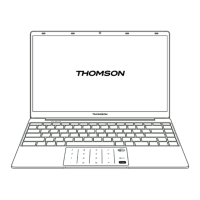
THOMSON Neo Z3 - User Manual

THOMSON Neo Z3
86 pages
Go to English
Print Icon
To Next Page IconTo Next Page
Loading...
MANUEL DE L’UTILISATEUR /
USER’S MANUAL / MANUAL DE USUARIO
/ MANUAL DO USUÁRIO / MANUALE
D’USO / GEBRUIKERSHANDLEIDING /
BENUTZERHANDBUCH
mythomson.com
Question and Answer IconNeed help?

Do you have a question about the THOMSON Neo Z3 and is the answer not in the manual?

Summary

Important Safety Instructions

Device Usage and Handling Precautions

Covers environmental conditions, liquids, radiation, chemicals, magnetic fields, and physical handling.

Battery and Component Safety

Instructions on battery handling, replacement, disposal, and component integrity.

Environmental Disposal and Hearing Protection

Guidelines for electronic waste disposal and risks of prolonged high-volume listening.

Device Overview

Front View Description

Details the screen, camera, speakers, keyboard, touchpad, and indicators on the front.

Bottom View Ports and Slots

Describes the Nano-SIM card slot and Micro-SD card reader on the bottom.

Side View Ports

Covers the USB Type-C port (left) and microphone/headset socket (right).

Getting Started

Charging and Initial Setup

Instructions for charging the battery and the first boot configuration of Windows 10.

Battery Safety Precautions

Essential warnings for handling, replacing, and disposing of the device battery safely.

Powering the Device On;Off

Procedures for turning the device on and off.

Using the Touchpad

Pointer Movement and Clicks

How to move the cursor, perform left/right clicks, and double-clicks.

Gestures: Scrolling and Zooming

Using two-finger gestures for scrolling vertically/horizontally and zooming.

Drag and Drop Operation

Method for selecting, holding, and moving items using the touchpad.

Using the Keyboard

Gesture Controls

Describes gestures for managing applications, viewing the desktop, and opening the action center.

Function Key Operations

Explains the functions of special keys for settings like touchpad, Wi-Fi, brightness, and volume.

Windows 10 Overview

Shortcut Keys for Navigation

Lists keyboard shortcuts for common Windows 10 actions like opening menus and apps.

Interface Elements

Identifies and explains the Desktop, Taskbar, Start Menu, and Notification area.

Windows 10 Interface Details

Start Menu Functionality

Details how to access applications, folders, settings, and manage running programs.

Action Center Functions

Explains how to view notifications and access quick settings for the device.

Network Connectivity

Connecting to Wi-Fi

Steps to connect the device to a wireless Wi-Fi network for internet access.

4 G LTE Mobile Data

Instructions for installing a SIM card and connecting to a 4G LTE network.

Bluetooth Device Pairing

Guide on connecting the device to Bluetooth peripherals like mice or speakers.

System Management

Airplane Mode Activation

How to enable or disable Airplane mode to manage wireless connectivity.

System Restoration Options

Details on recovery options to restore the device to factory settings or previous versions.

Troubleshooting and FAQ

Common Screen and Touchpad Issues

Addresses issues like black dots on screen and non-functional touchpad.

Power and Battery Problems

Solutions for battery indicator not lighting up or battery not working.

Audio and Connectivity Troubleshooting

Guidance for no sound output and optimizing battery life.

Advanced Troubleshooting

Operating System Startup Failures

Steps to resolve issues where the OS does not start after power indicator is on.

Sleep Mode Recovery

How to wake the computer from sleep mode and ensure sufficient battery power.

Driver Location and Backup

Information on where to find device drivers and recommendation to back them up.
Summary

Important Safety Instructions

Device Usage and Handling Precautions

Covers environmental conditions, liquids, radiation, chemicals, magnetic fields, and physical handling.

Battery and Component Safety

Instructions on battery handling, replacement, disposal, and component integrity.

Environmental Disposal and Hearing Protection

Guidelines for electronic waste disposal and risks of prolonged high-volume listening.

Device Overview

Front View Description

Details the screen, camera, speakers, keyboard, touchpad, and indicators on the front.

Bottom View Ports and Slots

Describes the Nano-SIM card slot and Micro-SD card reader on the bottom.

Side View Ports

Covers the USB Type-C port (left) and microphone/headset socket (right).

Getting Started

Charging and Initial Setup

Instructions for charging the battery and the first boot configuration of Windows 10.

Battery Safety Precautions

Essential warnings for handling, replacing, and disposing of the device battery safely.

Powering the Device On;Off

Procedures for turning the device on and off.

Using the Touchpad

Pointer Movement and Clicks

How to move the cursor, perform left/right clicks, and double-clicks.

Gestures: Scrolling and Zooming

Using two-finger gestures for scrolling vertically/horizontally and zooming.

Drag and Drop Operation

Method for selecting, holding, and moving items using the touchpad.

Using the Keyboard

Gesture Controls

Describes gestures for managing applications, viewing the desktop, and opening the action center.

Function Key Operations

Explains the functions of special keys for settings like touchpad, Wi-Fi, brightness, and volume.

Windows 10 Overview

Shortcut Keys for Navigation

Lists keyboard shortcuts for common Windows 10 actions like opening menus and apps.

Interface Elements

Identifies and explains the Desktop, Taskbar, Start Menu, and Notification area.

Windows 10 Interface Details

Start Menu Functionality

Details how to access applications, folders, settings, and manage running programs.

Action Center Functions

Explains how to view notifications and access quick settings for the device.

Network Connectivity

Connecting to Wi-Fi

Steps to connect the device to a wireless Wi-Fi network for internet access.

4 G LTE Mobile Data

Instructions for installing a SIM card and connecting to a 4G LTE network.

Bluetooth Device Pairing

Guide on connecting the device to Bluetooth peripherals like mice or speakers.

System Management

Airplane Mode Activation

How to enable or disable Airplane mode to manage wireless connectivity.

System Restoration Options

Details on recovery options to restore the device to factory settings or previous versions.

Troubleshooting and FAQ

Common Screen and Touchpad Issues

Addresses issues like black dots on screen and non-functional touchpad.

Power and Battery Problems

Solutions for battery indicator not lighting up or battery not working.

Audio and Connectivity Troubleshooting

Guidance for no sound output and optimizing battery life.

Advanced Troubleshooting

Operating System Startup Failures

Steps to resolve issues where the OS does not start after power indicator is on.

Sleep Mode Recovery

How to wake the computer from sleep mode and ensure sufficient battery power.

Driver Location and Backup

Information on where to find device drivers and recommendation to back them up.

THOMSON Neo Z3 Specifications

General IconGeneral
BrandTHOMSON
ModelNeo Z3
CategoryLaptop
LanguageEnglish

Related product manuals