Thrustmaster Force Feedback Racing Wheel – User Manual
7
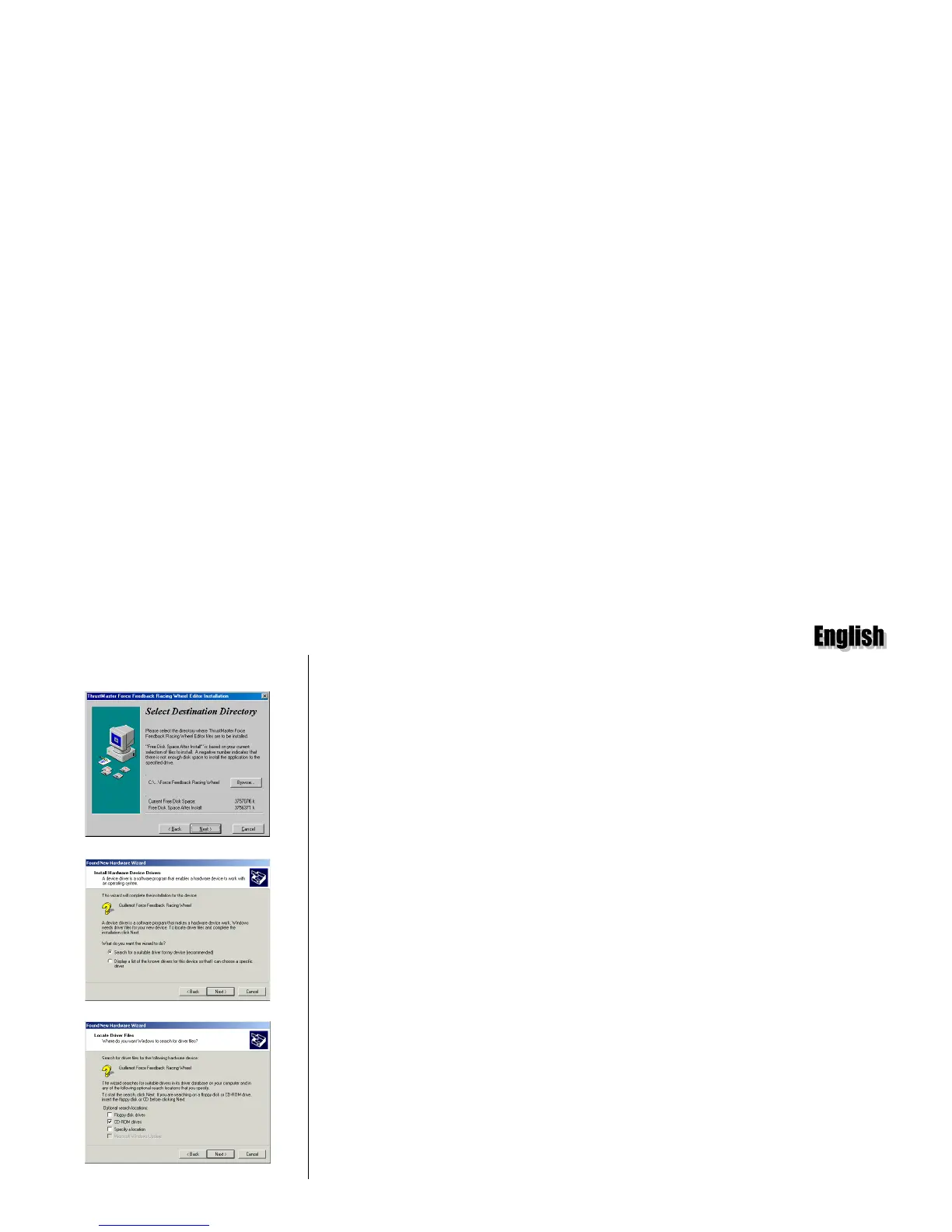
fig.3
fig.4
fig.5
D
RIVER
/S
OFTWARE
I
NSTALLATION
F
OR
W
INDOWS
M
ILLENNIUM
Insert the installation CD-ROM in the appropriate drive. Driver installation should
begin automatically (if not, click on
Next
). Follow the on-screen instructions.
Once you have completed installing the drivers, the Force Feedback Racing Wheel
Editor will install itself automatically. Follow the on-screen instructions to install this
program in the default directory
C:\PROGRAM FILES\THRUSTMASTER\
FORCE FEEDBACK RACING WHEEL
(fig.3). Click on
Next
.
Click on
Finish
. You are now ready to test your racing wheel (see
Installation Test
).
D
RIVER
/S
OFTWARE
I
NSTALLATION
F
OR
W
INDOWS
2000
The
Found New Hardware Wizard
will propose to search for a suitable driver or
display a list of the known drivers for the device. Enable
Search for a suitable driver
for my device (recommended)
and click on
Next
(fig.4). At the search prompt from
Windows, check the
CD-ROM drives
option and insert the installation CD-ROM into
your CD-ROM drive (fig.5). Click on
Next
.
If Windows fails to detect the drivers on the CD-ROM, also check the
Specify a
location
option, click on
Next
and type in
D:\WIN2K DRIVERS
(or replace
D
with
the drive letter used on your computer) and click on
OK
. Windows will then specify
the path and the name of the folder where the drivers are located. Click on
Next
to
continue driver installation.






 To Next Page