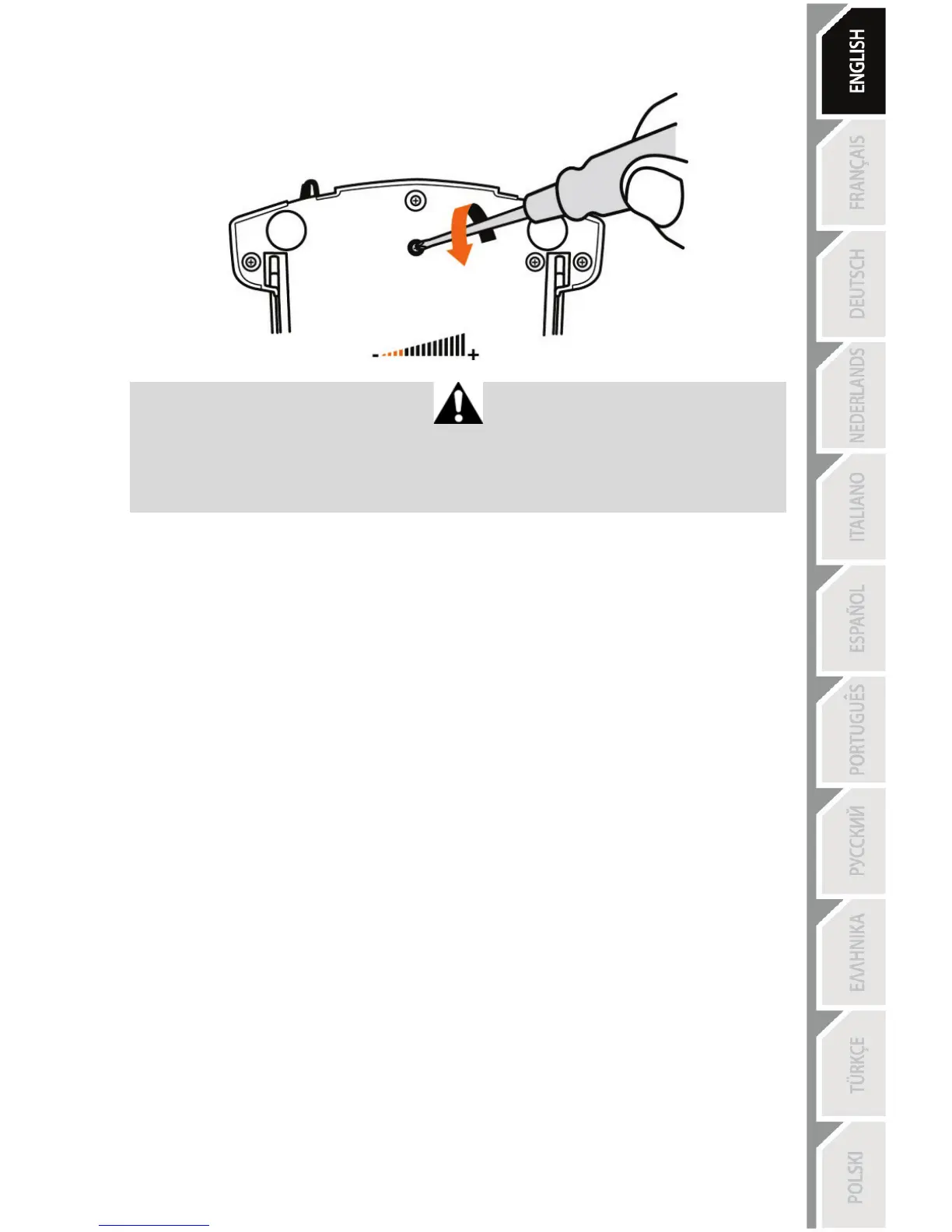
• To reduce friction, turn the screw counter-clockwise.
- Do not over-tighten the adjustment screw, as this could cause damage to the friction
system. Stop turning the screw as soon as any resistance is felt.
- Do not loosen the adjustment screw completely, as it could fall inside the TWCS Throttle’s
internal housing.
TROUBLESHOOTING AND WARNING
• My TWCS Throttle does not operate properly or seems incorrectly calibrated.
- Turn off your PC, unplug the TWCS Throttle’s USB connector, then reconnect it; turn on
your computer (or your games console), then restart the game.
- When connecting the TWCS Throttle’s USB connector, always leave the rudder’s axis in
the center position. Do not rest your feet on the pedals.
• I can’t configure my TWCS Throttle.
- In the game’s Options / Controller / Throttle or Joystick menu, select the appropriate
configuration or fully reconfigure the controller’s options.
- Please refer to your game’s user manual or online help for more information.
- Use the T.A.R.G.E.T (Thrustmaster Advanced pRogramming Graphical EdiTor) software.
• My TWCS Throttle is too sensitive or not sensitive enough.
- The TWCS Throttle’s axes self-calibrate after a few movements and when the axes’
physical stops are reached.
- In the game’s Options / Controller / Throttle or Joystick menu, adjust your controller’s
sensitivity and dead zones, if available.
- Use the T.A.R.G.E.T (Thrustmaster Advanced pRogramming Graphical EdiTor) software.





 To Next Page