Playing a Video Recording
Connect the camera to the computer.•
The camera can be connected to a computer while in o mode, standby
mode or video mode.
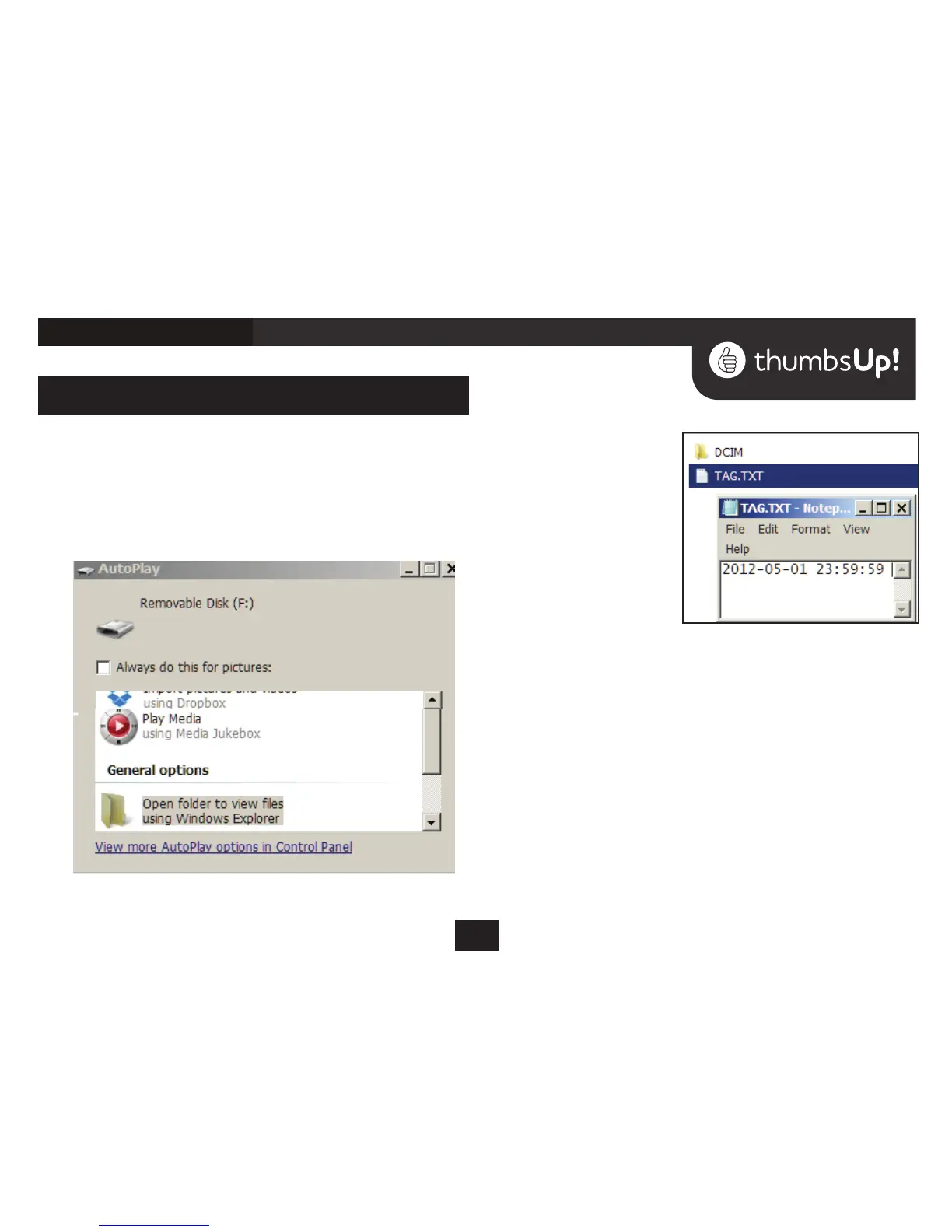
After USB connection, a Removable disk icon representing the •
Mini DV Camera will appear in the Autoplay menu.
If the DV camera cannot be identied lease re-connect it.
Click “Open Folder” to open the folder•
The folder • DCIM con-
tains the recorded vid-
eos. Click to open the
folder and display your
recordings.
Click a recording to play the le
via your default media player.
Note: It is better to copy or
cut the video le onto your PC
hard drive before playing it.
Large video les may not play
without interruption directly from the Micro SD.
Set the time stamp
After recording your rst video, insert the Micro SD into your PC •
or attach the mini DV player to the computer.
Open the TAG,TXT le. Change the time shown to the correct •
time and date in the format YYYY-MM-DD HH:MM:SS and save
the le.
The next video you take will display the new time and date in •
the lower right hand corner of the screen.
Note: the tag le will continue to show the original time and •
date but the videos will show the updated information. If you
need to change the time or date again, repeat the above pro-
cess.
5


 To Next Page