24
From there you can press the ENTER button once to display the data from the cycling process, as
well as use the +/ – buttons to scroll through other screens, and on most other screens you can press
the ENTER button to exit the charge process completely. It’s also important to note that the data from
the completed cycling process can also be viewed in the Data View mode after exiting the process
and before the next charge/discharge process begins.
STORAGE MODE
The TP820CD features an advanced Storage Mode that automatically discharges and/or charges the
battery for safe and healthy storage. For added reference you should NEVER store LiPo batteries
at full charge for more than few hours at most (and they should be stored at temps of 40-75° F
whenever possible to prevent swelling and/or loss of performance/capacity). Instead you
should use the Storage Mode to automatically charge or discharge them to approximately 50%
capacity (~3.85V per cell), especially if the battery is more than 50% charged and will not be
used in the next few hours.
Please also keep in mind that you must set the chemistry type, cell count, capacity and charge current
rate in the Charge Mode and the discharge current rate in the Discharge Mode. These are the values
used by the charger to automatically charge/discharge the battery accordingly in the Storage Mode.
In the case of LiPo/LiIon batteries, the charger will automatically charge (if the voltage is below
approximately 3.85V per cell) or discharge (if the voltage is above approximately 3.85V per cell) the
battery to approximately 3.85V per cell, and for LiFe batteries to approximately 3.3V per cell. For
NiCd/NiMH batteries the charger will automatically discharge them to the discharge voltage cutoff set
in the Discharge Mode, then charge them to 50% of the capacity set in the Charge Mode.
Storage Charging/Discharging the Battery
After setting the correct battery chemistry type, cell count, capacity (for NiCd/NiMH batteries) and
charge current rate in the Charge Mode, and the correct discharge current rate and voltage cutoff (for
NiCd/NiMH batteries) in the Discharge Mode, you can begin the storage process by simply pressing
and HOLDING the ENTER button for a few seconds (please also note that during the storage process
you can press and hold the ENTER button to end the process accordingly).
If the battery is connected properly and the charger confirms that all other parameters are correct, the
storage process will begin automatically.
Data Monitoring During the Storage Process
Throughout (and after) the storage process you can view/monitor various data. On the main storage
screen you will see the elapsed duration of the current charge or discharge process, the capacity
that’s been charged into/discharged from the battery, the charge/discharge current rate and the
voltage of the battery.
Also, it will be possible to identify whether the charger is charging or discharging by looking at the
‘CHG’ or ‘DCHG’ info located in the middle of the upper line on the screen. When ‘CHG’ shows the
charger is charging, and when ‘DCHG’ shows the charger is discharging.
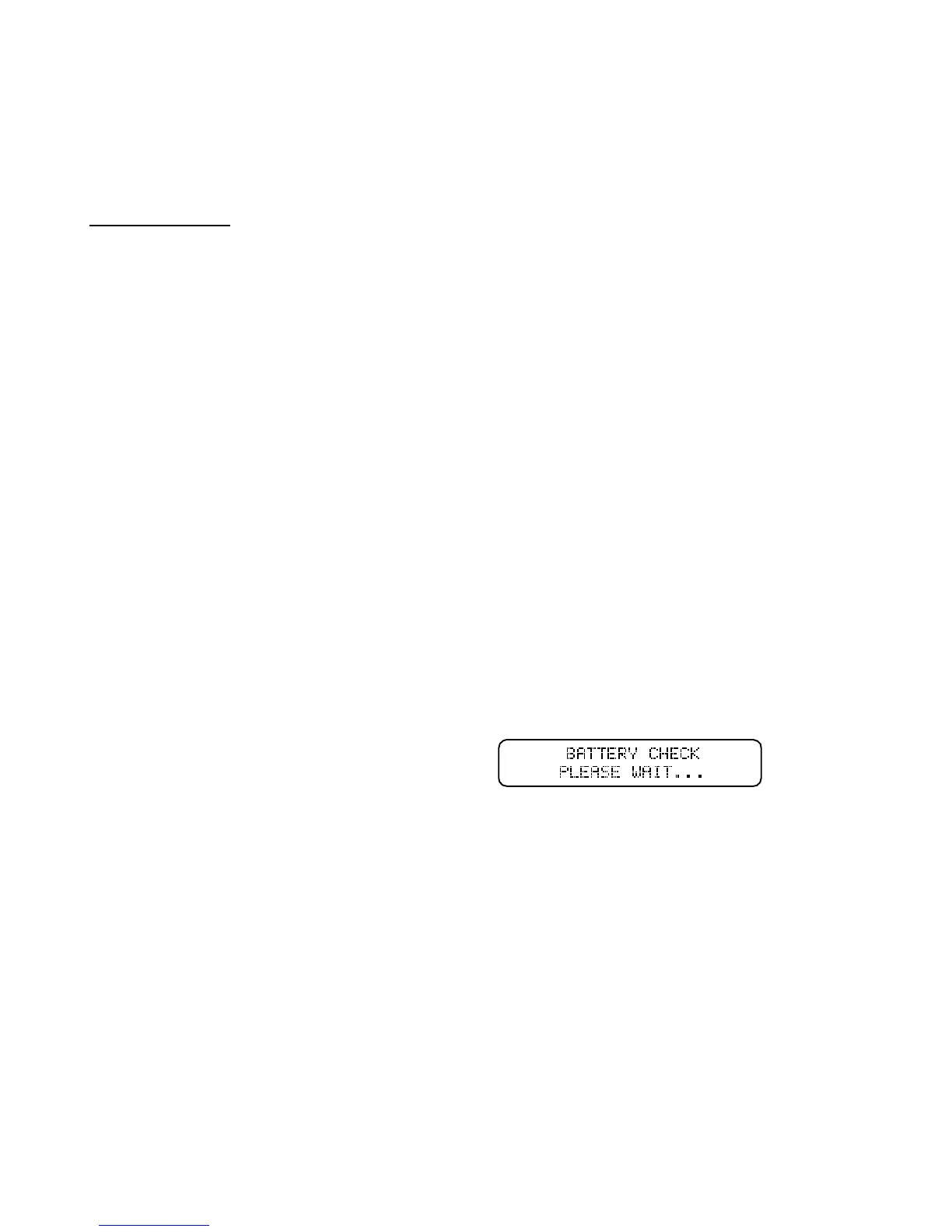
From there the charger will check the battery
while displaying the following screen:


 To Next Page