EasyManua.ls Logo

TiVo Premiere - User Manual

TiVo Premiere
5 pages
Print Icon
To Next Page IconTo Next Page
Loading...
S
w
a
p
© 2010 TiVo Inc. Reproduction in whole or in part without written permission is prohibited. All
rights reserved. TiVo, the TiVo logo, and TiVo Central are trademarks or registered trademarks of
TiVo Inc. or its subsidiaries, 2160 Gold Street, P.O. Box 2160, Alviso, CA 95002-2160.
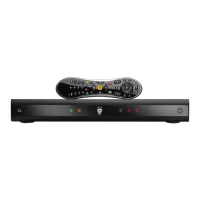
Using Your TiVo® Remote Control
Your TiVo remote control can be used for much more than meets the eye, from setting your recordings and managing your TiVo services, to streaming and down-
loading videos from the web. This guide shows how to program your remote, and oers some tips and shortcuts on using it while watching live TV or recordings,
nding shows using the TiVo program guide, and navigating the TiVo menus.
Customize your TiVo remote control
Some buttons on your TiVo remote control are programmable:
1 TV POWER
2 INPUT
4 VOLUME
5 MUTE (use VOLUME and MUTE to control sound on your TV or A/V receiver).
Programming your remote control
1. Press the TiVo button to go to the TiVo Central® screen and select ‘Messages & Settings’ > ‘Set-
tings’ > ‘Remote, CableCARD, & Devices’ >‘Remote Control’ > ‘Remote Control Setup.
2. Follow the instructions on the “Remote Control Setup” screen. You have options to control
power, volume, and mute on your TV; volume and mute on your A/V receiver (stereo system);
and input selection on your TV.
Be sure to press and hold the buttons indicated on the screen for about ve seconds—until
the ACTIVITY LIGHT on the remote lights up and stays on.
3. Try entering the rst code listed on the screen. The ACTIVITY LIGHT on the remote ashes
to indicate it received the code. Test the button you are trying to program. If it doesn’t work,
repeat the steps using the next code.
NOTE: Due to the wide variety of brands and models available, some TVs and A/V receivers are not
compatible with the TiVo remote control.
Resetting the programmable buttons
You can reset all the programmable buttons (TV PWR, INPUT , VOLUME and MUTE) at once. All
the buttons will return to their default settings. To reset the buttons:
1. Point the remote control away from your DVR.
2. Press and hold the TV PWR and TiVo buttons simultaneously until the ACTIVITY LIGHT on
the remote lights, and remains lit when you release the buttons.
3. Press 6 THUMBS DOWN three times, then press 7 ENTER.
“Learning” remote
Your TiVo remote control is a “learning” remote. This means that it can read and store certain func-
tions from other remotes. If you were unable to nd a code that works using the programming
procedure, try this method:
1. Press the TiVo button and 3 SELECT buttons simultaneously, and hold them for three to ve
seconds, until the ACTIVITY LIGHT remains lit. The remote is now in “learning mode.
2. On the TiVo remote, press and release the button you want it to learn from the TV or A/V
receiver remote (for example, TV PWR). The ACTIVITY LIGHT will ash once to acknowledge
the button press, then remain lit.
3. Point the remotes directly at each other, no more than four inches apart.
4. Press the corresponding button on the TV or A/V receiver remote (for example, Power).
5. If learning is successful, the ACTIVITY LIGHT will ash four times. If it is not successful, it will
blink 10 times very quickly.
6. Repeat steps 2-4 for any additional buttons.
NOTE: In learning mode, VOL UP and VOL DOWN are separate buttons.
7. When done, press the TiVo button to exit learning mode and return to normal operation.
1
2
4
5
6
3
7
TiVo
ACTIVITY LIGHT

Other manuals for TiVo Premiere

Questions and Answers

  • L
    Lisa McgeeJul 26, 2025
    Why doesn't my TiVo remote control work with my TiVo Premiere?
    • C
      csandersJul 26, 2025
      There could be several reasons why your TiVo remote isn't working. First, make sure you're using the correct remote and that it's pointed towards the TiVo Premiere. Press any button to see if the light flashes. If it doesn't, check the batteries or replace them. If the light flashes, check the lights on the front of the TiVo Premiere, if they do not respond, restart your TiVo Premiere by unplugging it, waiting 15 seconds, then plugging it back in. Also, ensure your TV has the correct input selected.
  • T
    Timothy PriceJul 31, 2025
    What to do if I don't see the Welcome screen on my TiVo Premiere?
    • A
      Alison ObrienJul 31, 2025
      If you don't see the Welcome screen when you plug in your TiVo Premiere for the first time, check the following: Ensure cables are properly connected from the OUT jack of one device to the IN jack of the next, and your TV is displaying the correct video source. You can use the Input, Source, or TV/Video button on your TV’s remote to change video sources. Try pressing the FORMAT button on the TiVo Premiere’s front panel several times. If connected to an A/V receiver, try connecting the TiVo Premiere directly to the TV. Also, the cables you are using to connect your TiVo Premiere to your TV or other equipment may be damaged or defective, so try using cables that you know are working properly.
  • A
    Anthony RobertsAug 5, 2025
    Why can’t I go to one of my channels on TiVo?
    • W
      williamsmarieAug 5, 2025
      If you can't access a specific channel on your TiVo Premiere, there might be a few reasons. If you have cable, verify that all the channels you subscribe to are marked with a yellow check in your channel list, comparing it to your cable subscription. Note that the TiVo Premiere requires a CableCARD[TM] decoder. Contact your cable company to ensure all channels are activated on the CableCARD. Also, check the Guide Options to ensure filtering is off and that the guide displays the channel you want to view.
  • M
    Meghan HarrisAug 10, 2025
    Why aren’t any shows listed in the program guide on my TiVo Premiere?
    • D
      Debra DoughertyAug 10, 2025
      If no shows appear in the program guide, it might be because filtering is turned on, and no upcoming shows in the next six hours match both the filter and the selected channel list. To view shows again, use Guide Options to turn off filtering.
  • C
    Caroline BaileyAug 15, 2025
    How to fix TiVo Premiere cannot connect to the TiVo Service by phone?
    • C
      Christopher AguilarAug 15, 2025
      If your TiVo Premiere cannot connect to the TiVo service by phone, consider these solutions: if set to connect via phone, try using your home network with a broadband internet connection instead. Verify the TiVo Phone Line Adapter is properly connected to a USB port on the back of your TiVo Premiere. Ensure your phone line works by connecting a phone and listening for a dial tone. Remember that you must use a standard analog phone line. You might also need to adjust your Phone Dialing Options.
  • D
    Darren BrownAug 20, 2025
    What to do if I can’t find my show in the guide on my TiVo?
    • J
      Jacob HowardAug 20, 2025
      If you can't find a show in the guide, it may not be displayed if you're using a filter or the 'Favorites' channel list. Also, the program information provided by the networks may sometimes contain errors.

Summary

Customizing Your TiVo Remote Control

Programming Remote Control Functions

How to program remote control buttons for TV/AV receiver power, volume, and input selection.

Resetting Programmable Buttons

Procedure to reset all programmable buttons to their original default settings.

Using the Learning Remote Feature

Method for copying functions from other remotes to the TiVo remote.

Using TiVo Remote While Watching Live TV

Live TV;Recording Button Functions Overview

Explains the function of key buttons like TV PWR, INPUT, INFO, SELECT, and navigation arrows.

Advanced Live TV;Recording Remote Functions

Recording and Playback Controls

Details on RECORD, PLAY, PAUSE, SLOW, INSTANT REPLAY, and ADVANCE buttons.

Playback Navigation and Special Buttons

Functions of THUMBS UP/DOWN, BACK, FORWARD, A/B/C/D, NUMBER, CLEAR, and ENTER/LAST buttons.

Using TiVo Remote in Menus and Guide

Menu Navigation Button Functions

How buttons like CHANNEL UP/DOWN, THUMBS UP, PLAY, ADVANCE, and NUMBER buttons navigate menus.

Menu Options and Special Buttons

Usage of A, B, C buttons for options, sorting, filtering, and CLEAR/ENTER/LAST for list management.

TiVo Program Guide Remote Functions

Guide Navigation and Options

Functions of INFO, CHANNEL UP/DOWN, INSTANT REPLAY, ADVANCE, and ENTER/LAST buttons in the guide.

TiVo Premiere Specifications

General IconGeneral
ModelTiVo Premiere
CategorySet-top box
Tuners2
HDMI OutputYes
USB Ports2
Operating SystemTiVo OS
Hard Drive Capacity320GB
NetworkingEthernet
PortsHDMI, Component, Composite, Optical Audio, USB, Ethernet
Streaming ServicesNetflix, Amazon Prime Video, Hulu Plus, YouTube
ResolutionUp to 1080p

Related product manuals