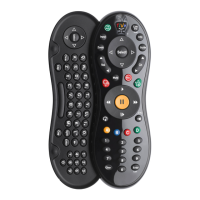
Step 1: Pair your Slide Pro
Before you can use your Slide Pro remote in RF mode, you’ll need
to pair it with your TiVo box. In RF mode, you can use the
slide-out keyboard and control your DVR even if it is not within
direct line-of-sight (for instance, if it is inside a cabinet).
Note: Make sure your TiVo box is running software version 20.3.7
or later before completing this step. To nd your software version,
go to ‘Settings & Messages’ > ‘Account & System Info’ > ‘System
Information.’
TiVo Roamio
™
or TiVo Roamio Plus/Pro
1. Insert the supplied AA batteries into the remote.
2. On your TiVo Roamio, go to ‘Settings & Messages’ > ‘Settings’
> ‘Remote, CableCARD, and Devices’ > ‘Remote Control
Setup.’
3. Select ‘Part 5: Remote Control Pairing,’ and follow the
on-screen instructions.
4. After pairing, the activity light on the remote will ash yellow
with each button press.
TiVo
®
Premiere Series DVR or TiVo Mini
1. Insert the supplied AA batteries into the remote.
2. Plug the USB receiver’s cable into the USB slot on the back of
your TiVo box, and position the receiver near the front of the
TiVo box.
Note: If you did not purchase a USB receiver with your Slide
Pro, visit tivo.com/store to purchase one.
3. The remote control will pair automatically with your TiVo box.
When paired, the activity light on the remote will ash yellow
with each button press.
If pairing does not happen automatically, press and hold the
button on the USB receiver for ve seconds. Then, press the
TiVo button and the BACK button on your remote at the same
time until the activity light turns solid red. It will then blink
yellow while trying to pair.
Note: If you use a wireless adapter with your DVR, leave at least
12” between the adapter and the USB receiver.
Tips & Tricks
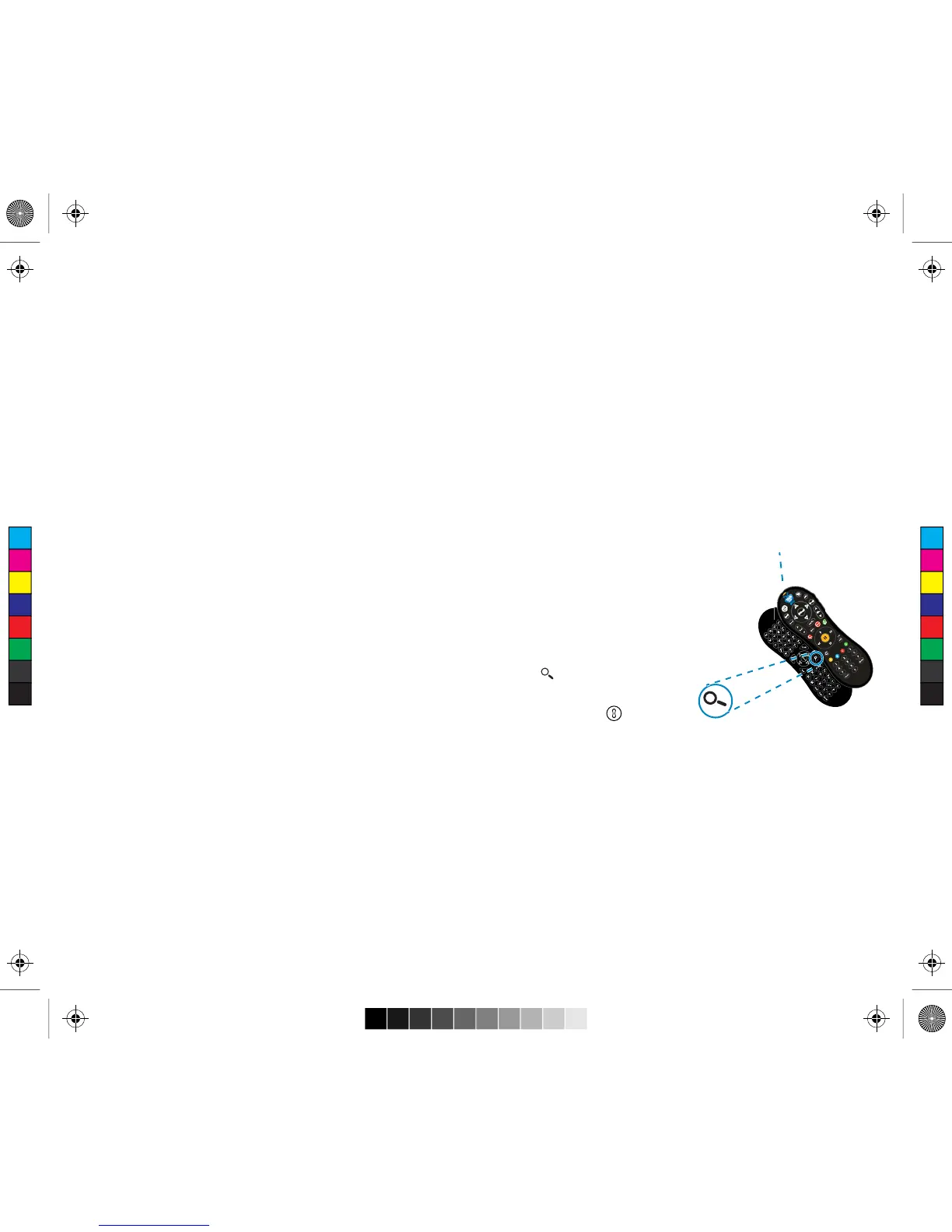
s When your remote is paired, it is in
RF mode; the activity light ashes
yellow with each button press. An
unpaired remote is in IR mode, and
the activity light ashes red with each
button press.
s
Search at the touch of a button!
Slide open the keyboard to nd
the button.
s Lost remote? Press the
Remote Finder button on
the Roamio Plus/Pro or on the
USB receiver to help nd it.
s To get to the My Shows list from any menu screen or from live
TV, just press the TiVo button twice.
s To turn the automatic backlight function off, press and hold the
TiVo and THUMBS DOWN button. Press and hold TiVo and
THUMBS UP to turn it back on.
Need some help? Visit tivo.com/support.
Step 2: Program your Slide Pro
The TV PWR, INPUT, VOL, and MUTE buttons on the Slide Pro can
CFDVTUPNJ[FEUPXPSLXJUIZPVS57PS"7SFDFJWFS
1. On your TiVo box, go to ‘Settings & Messages’ > ‘Settings’ >
‘Remote, CableCARD, and Devices’ > ‘Remote Control Setup.’
2. Complete Remote Control Setup Parts 1 - 3.
The Slide Pro is also a “learning” remote -- it can learn controls
directly from other remotes. For instructions on using the learning
function of your Slide Pro, visit tivo.com/support.
L
a
s
t
Activity light
C
M
Y
CM
MY
CY
CMY
K
Q2SlideRemote.pdf 2 9/24/2013 1:24:20 PM



 To Previous Page
 Loading...