11
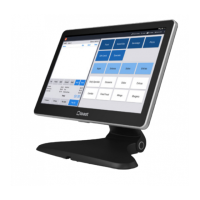
When setting up your Toast Tap (On-Counter), you may have a second screen
attached to your terminal - also known as a Toast Flex for Guest or Guest-
Facing Display. If so, you have the ability to utilize two card readers at once.
Check out the instructions below to set these readers up and take payments.
Setup:
From the Toast main menu of the Toast POS app, select Device Setup.
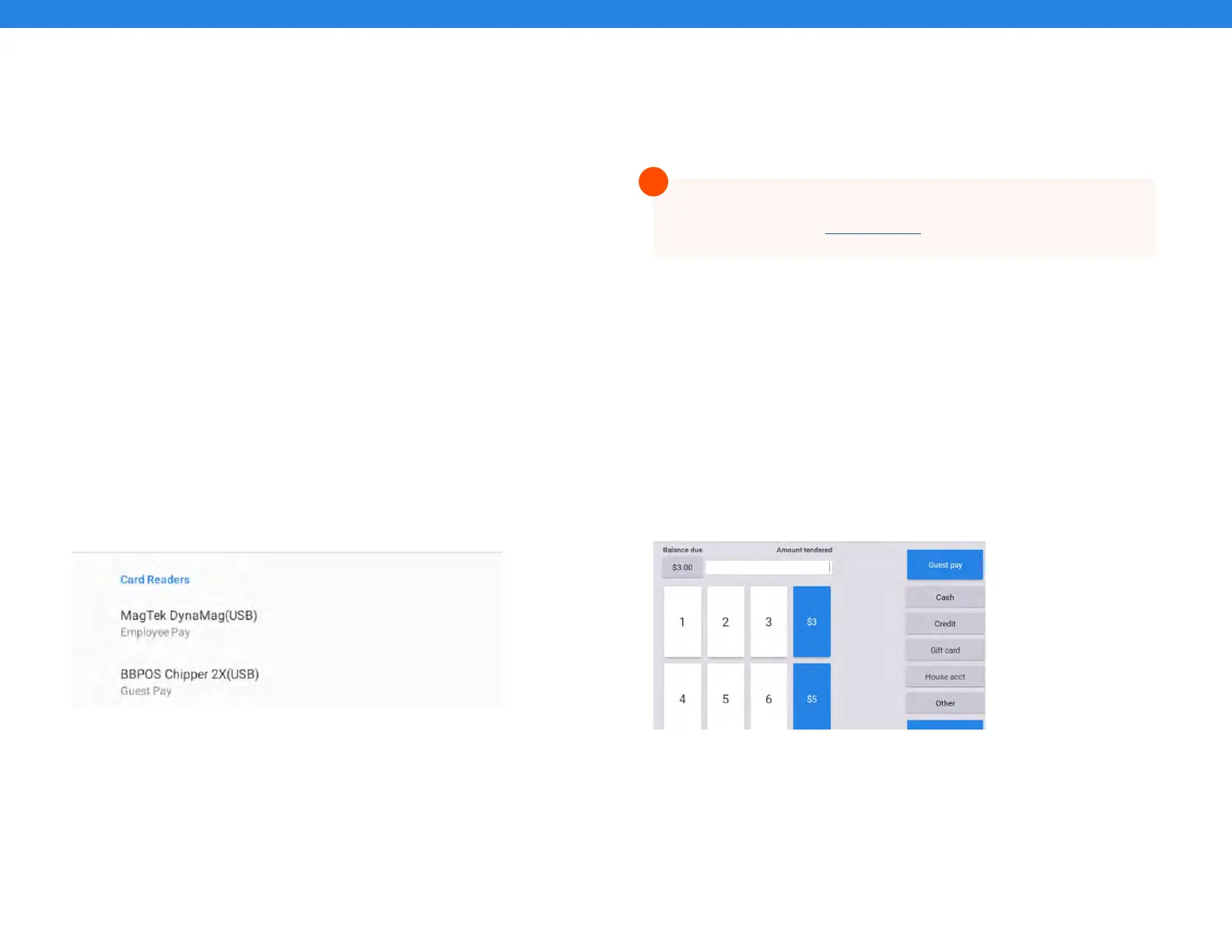
Under Card Readers, you should see two dierent readers.
The Toast Tap - BBPOS Chipper 2X(USB) - should be set to Guest Pay
when used with another card reader.
The MagTek DynaMag(USB) is your swipe-only reader on the terminal.
This should be set to Employee Pay.
Taking Payments:
After taking a guest’s order and selecting Pay, you’ll see a button for
Guest Pay, just like the option for Cash or a Gift Card. Once selected,
the screen will prompt your guest with instructions to complete the
payment.
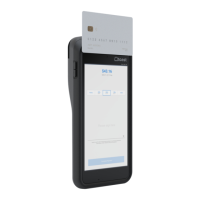
It’s important to note your Toast Tap can only be paired up with a
swipe-only reader (also known as an MSR reader). It is not possible to
use two Toast Tap readers on a single Toast Flex.
Toast Tap
Dual Card Reader Configuration
For more information regarding card reader setup, check
out this article onToast Central
!


 To Next Page
 Loading...