14
Toast Flex for Kitchen
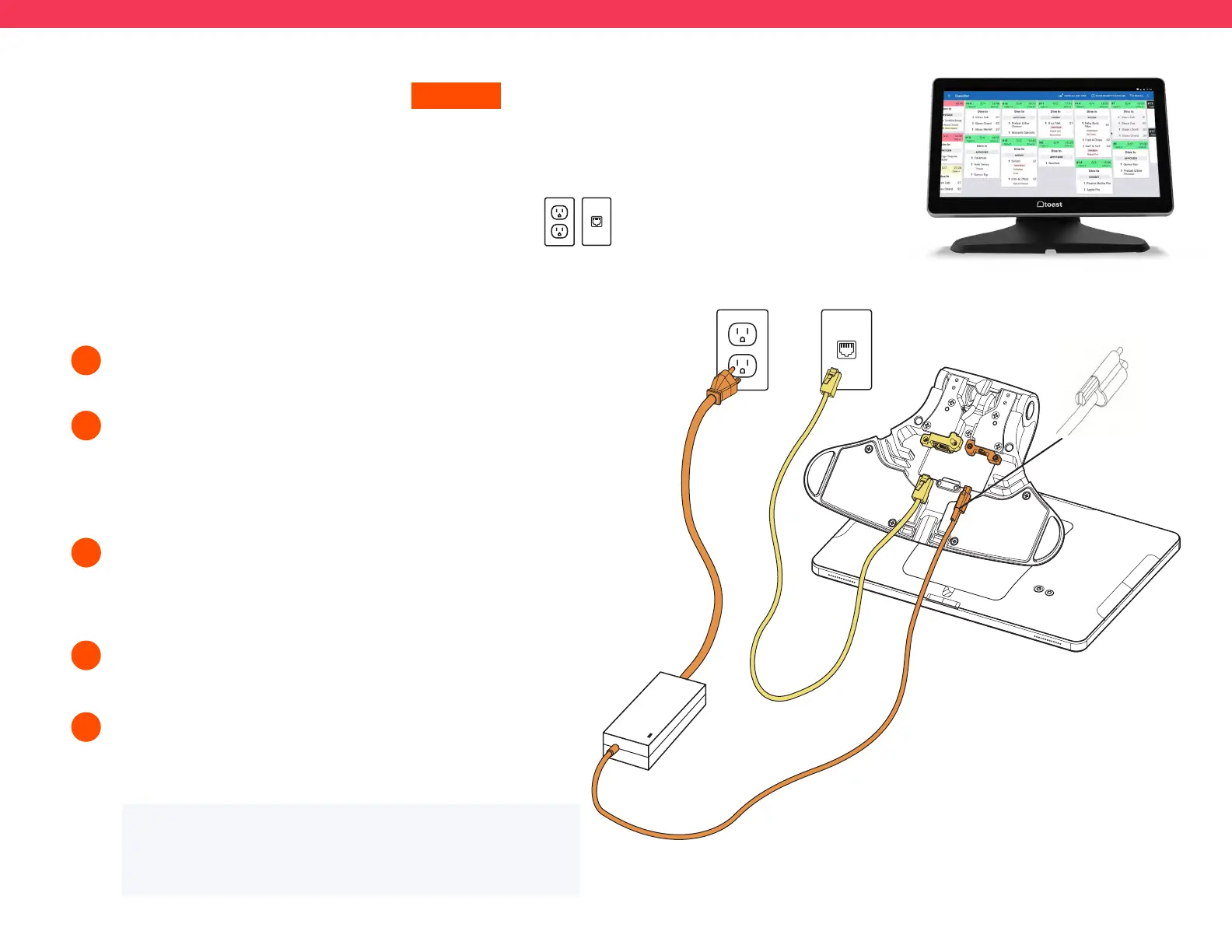
Unpack your Toast Flex for Kitchen terminal and place it on your
counter.
Remove the box labeled “Connect.” This box contains two
yellow ethernet cables. One cord is 3 ft and one is 7 ft. Choose
the cord length that best suits your restaurant and connect it
from the wall to the yellow port labeled “Internet IN” on the
base of the terminal stand.
Remove the power box labeled “Power.” Plug in the power
adapter from the wall into the orange port located at the base of
the Toast Flex terminal stand.
Use the thumb screw to secure it.
1
2
3
ON-STAND
Follow these instructions if the Toast Flex for Kitchen will be
on-stand
Before you get started, identify where you want your Toast Flex
for Kitchen to be located. Make sure there is a power outlet and
ethernet connection going to the Toast Network in reach.
Step 3 Step 2
Thumb
Screw
Step 3 Step 2
To Meraki /
Toast Network
Power on the Toast Flex and follow the Toast setup instructions
that appear on the screen.
Log into your restaurant in the Toast App and complete basic
setup. Note: You may need to update the Toast App when you
open it for the first time.
4
5
NOTE
You may need to update the Toast App when you open it
for the first time.
If you are using a wall mount for your
Toast Flex for Kitchen, go to the next page!
Set up prep stations on Toast Web before doing any initial setup on the
Toast Flex for Kitchen.


 To Next Page
 Loading...