5
Android™ Basics
• To display the notification panel, swipe down from the
top of the screen.
• To close or force quit an app, select the recent apps
button and swipe up the app you want to quit.
• To uninstall an app, press and hold down the app icon to
prompt an uninstall.
• To go to the previous screen or to minimize the
on-screen keyboard, select the back button.
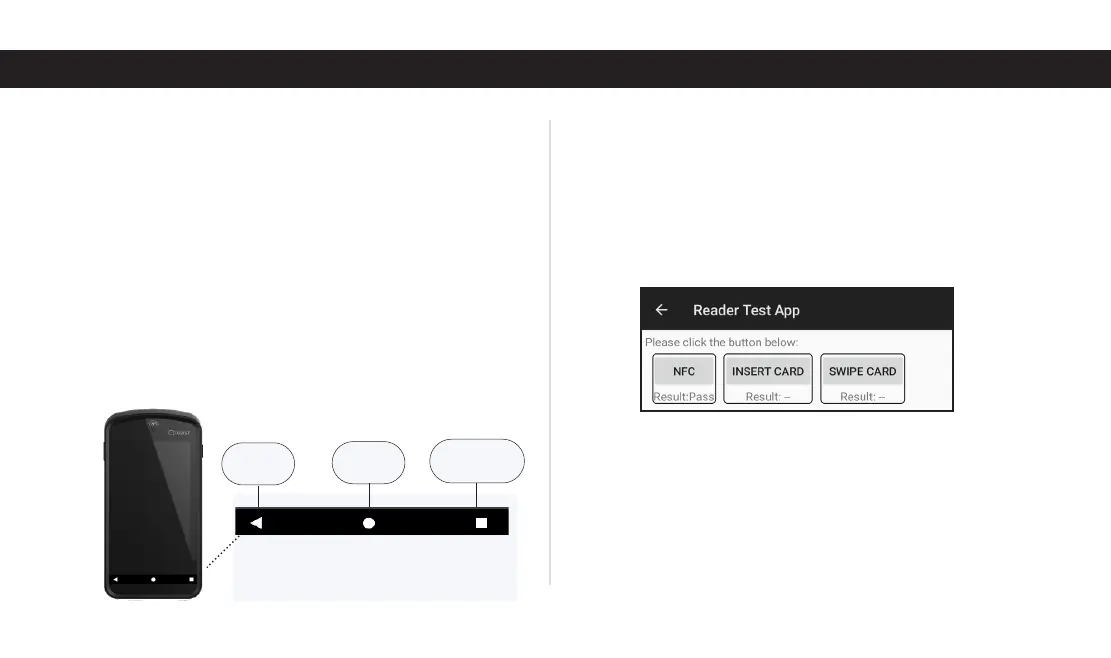
The Android controls are at the
bottom of the device.
Back
Button
Home
Button
Recent Apps
Button
Troubleshooting Your Toast Go 2
Q: Dipping or tapping cards doesn’t work, what do I do?
Make sure EMV is enabled. If EMV is disabled, you can only
swipe cards. If the problem persists when EMV is enabled:
1. Exit the Toast app.
2. Open the Reader Test App and make a test payment by
dipping or tapping the card. Check the result.
• If you see Result: Fail, contact Toast Customer Care.
• If you see Result: Pass, perform the following steps:
i. Exit the Reader Test App.
ii. Go to Settings > Apps & notifications > Toast POS >
Advanced > Open by default > Clear defaults.
iii. Turn o your device, then turn it back on.


 To Next Page