This document is a user manual for a notebook computer, covering models GK5CR0Y, GK5CP5Y, GK5CP6Y, GK5CP7Y, and GK5CP0Y. It provides essential information for operating and maintaining the device.
The manual emphasizes that the information contained within is protected by copyright laws and cannot be reproduced or transmitted without permission. It also states that the manufacturer or reseller is not liable for errors or omissions in the manual or for any consequential damages resulting from its use. Product specifications may vary by territory, and the information is subject to change without notice.
The device is classified as Class B technical information equipment (ITE) and is intended for use in living rooms and offices, complying with EU guidelines: EMC Directive 2014/30/EU, Low Voltage Directive 2014/35/EU (A2:2013), and RF Directive 2014/53/EU.
For safe operation, the unit should be used within an ambient temperature range of 5°C (41°F) to 35°C (95°F). It warns against exposing the device to temperatures below 5°C (41°F) or above 40°C (104°F). A critical caution is provided regarding battery replacement: there is a risk of explosion if an incorrect battery type is used, and used batteries should be disposed of according to instructions.
The manual also includes a warning about preventing hearing loss, advising users to listen to music at safe, comfortable volume levels for reduced durations, and to ensure headsets comply with EN 50332-2 requirements.
FCC Information is provided, stating that the equipment complies with Class B digital device limits under Part 15 of the FCC Rules. It generates and uses radio frequency energy and, if not installed according to instructions, may cause harmful interference. Measures to correct interference include reorienting the receiving antenna, increasing separation between equipment and receiver, and connecting the equipment to a different circuit. Any changes or modifications not expressly approved by the grantee could void the user's authority to operate the equipment.
RF Exposure Information (SAR) confirms that the device meets government requirements for exposure to radio waves, with an FCC SAR limit of 1.6 W/kg. SAR tests are conducted under standard operating positions, and the device's SAR levels comply with FCC RF exposure guidelines. The FCC ID is 2AKHF9560NG. The device complies with Part 15 of the FCC Rules, meaning it may not cause harmful interference and must accept any interference received.
Safety instructions include:
- Do not apply heavy pressure or strong impact to the computer.
- Never cover or block air vents, including those at the base, or cover the computer or AC adapter with any object.
- Protect the work area from direct sunlight to maintain prime operating condition.
- Do NOT expose to or use near liquid, rain, or moisture. Do NOT use the modem during electrical storms.
- Do not use or expose the device around magnetic fields, as magnetic interference may affect performance.
Physical Characteristics and Components:
The notebook has dimensions of 355.5 x 236.7 x 18.2~19.7mm and weighs 1.6kg ± 5%.
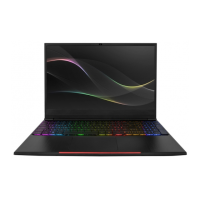
Top-Open View Components:
- Camera Status LED: Indicates camera status.
- Optional Camera: Allows video recording and photography.
- Infrared capability for facial recognition camera: Used for user authentication, unlocking, payments, and other security functions.
- Microphone: Built-in.
- LCD screen: Displays content.
- Charging & Battery indicator:
- Charging (Power ON/OFF): White, slow/smooth blinking (3Sec/Cycle).
- Battery Low (<6%): Amber (3 Sec/Cycle).
- Charging finish: White.
- Battery Full: OFF.
- Caution: Keep the LCD screen closed when not in use to protect it from dust.
- Power Button: Turns the computer on/off.
- Power ON: White.
- Suspend: White, slow/smooth blinking (3Sec/Cycle).
- Power Off: OFF.
- Office/Game/Turbo (option) Mode Switch: On-screen display.
- Caps Lock Status LED: Default: ON (White).
- Keyboard: Membrane KB (333x104mm) with 1.4mm travel and 4-zone RGB backlight.
- Touchpad LED indicator/Touchpad switch: (Refer to P32 for details).
- Touchpad/Clickpad: Touch-sensitive pointing device.
Right Side View Components:
- 2-in-1 Card Reader: Supports micro SD/SDHC/SDXC cards.
- USB Ports: Connects USB devices (e.g., Zip drive, keyboard, mouse).
- Vents: Designed to cool internal components and prevent overheating.
Left Side View Components:
- Kensington® Lock Port: For security products.
- Vents: Designed to cool internal components and prevent overheating.
- Network Jack: Connects to a LAN.
- USB Ports: Connects USB devices.
- Mic In Jack: Connects amplified speakers, headphones, or microphones.
- Audio Out Jack: Connects amplified speakers, headphones, or microphones.
Bottom Side View Components:
- Vents: Designed to cool internal components and prevent overheating.
- Speaker: Built-in 2 speakers, 2W/each.
- Caution: Do not place the computer on your lap or other body parts to avoid heat injury.
HDD / RAM / SSD / WLAN Compartment View:
This section shows the locations for RAM, PCIE SSD, PCIE or SATA SSD, NVMe (SATA) SSD, and WLAN.
- If upgrading SATA SSD to PCIE SSD, contact technical support.
Front Side View Components:
- Light bar: (No specific function described).
Back Side View Components:
- Vents: Designed to cool internal components and prevent overheating.
- Mini Display Port: Supports high-definition digital video connections.
- HDMI port: Connects to a screen or home theater system.
- USB Port (USB Type C): Connects USB devices with charging function.
- Power Connector: Connects the AC adapter.
Technical Specifications:
- CPU: Supports CFL-RH (i5, i7) for GK5CP6Y, and CFL-RH (i7) for GK5CP7Y, GK5CP0Y.
- GPU:
- NVIDIA GTX1660TI (N18E-G0), 192bits (GK5CP6Y)
- NVIDIA RTX2070 (N18E-G2), 256bits (GK5CP7Y)
- NVIDIA RTX2060 (N18E-G1), 192bits (GK5CP0Y)
- Memory: DDR4 2666 MHz RAM.
- I/O Ports:
- DC-in: x 1
- USB: USB 3.1 X 2 (Gen1), USB type C 3.1 X 1 (Gen1), USB 2.0 X 1
- RJ45: x 1
- Card Reader: x 1 (USB3.0 Interface-support micro SD/SDHC/SDXC card)
- HDMI: x 1
- Audio out & Mic in: x 2
- Mini DP: x 2
- Audio: Azalia standard support, D3 mode support. Built-in 2 speakers (2W each), Digital Microphone support.
- Input:
- Keyboard: Membrane KB (333X104mm) travel=1.4mm, 4-zone RGB backlight.
- Pointing Device: Touchpad (114.5700.8mm).
- Display: 15.6" Narrow, FHD, 16:9, sRGB100% / 144Hz LCD.
- Communication Port:
- LAN: Supports 10/100/1000 Mb/Sec, PCI-E interface, DSM (Deep sleep mode) support.
- Wireless LAN + BT: M.2 2230 w/ CNVI interface (Intel 9 series), IEEE802.11 a/b/g/n/ac support; AC mode support.
- Webcam: HD webcam with D-MIC*1.
- Power:
- AC Adapter: 180 Watts (19.5V/9.23A), 3 Pins for GK5CP6Y/GK5CP0Y; 230 Watts (19.5V/11.8A), 3 Pins for GK5CP7Y/GK5CP0Y. Automatic voltage adjustment (100-240V AC 50/60Hz).
- Battery: Li-polymer, SW Gas Gauge IC, soft pack, 4 cells (4S1P), 4100mAh, 62.32Wh.
- Caution: Model designed to use DC input 19.5V/9.23A or 19.5V/11.8A. Using inferior extension cords or unauthorized adapters may void warranty and damage hardware. The power adapter may become hot during use and should not be covered.
Usage Features:
- Preparing your Computer:
- Connect the AC adapter's DC output plug to the DC IN jack.
- Open the display panel to an optimal viewing angle.
- Press the power button to turn on the notebook.
- Knowing the Keyboard: Colored hot keys require pressing and holding the function key (Fn) simultaneously with the desired key.
- Fn+F1: Suspend (sleep mode).
- Fn+F2: Windows Lock/On.
- Fn+F3: Display mode.
- Fn+F4: Radio On/Off (all radios).
- Fn+F5: Touchpad On/Off.
- Fn+F6: Keyboard Brightness down.
- Fn+F7: Keyboard Brightness up.
- Fn+F8: MUTE.
- Fn+F9: Volume down.
- Fn+F10: Volume up.
- Fn+F11: Brightness down (LCD display).
- Fn+F12: Brightness up (LCD display).
- Windows logo key+Q: Search Charm (optional).
- Windows logo key+I: Settings Charm (optional).
- Windows logo key+H: Share Charm (optional).
- Windows logo key+K: Devices Charm (optional).
- Using the Touchpad/Clickpad:
- A rectangular electronic panel below the keyboard.
- Clicking the left corner twice will open or close touchpad functionality (indicated by a green light).
- Slide finger on the static-sensitive panel to move the cursor.
- Buttons below the touchpad function as left and right mouse buttons. Tapping the touchpad produces similar results.
BIOS Setup:
- When to Use BIOS Setup: To respond to error messages during booting, change default settings, or reload default BIOS settings.
- How to Run BIOS Setup: Turn on the notebook and press [Del] during POST. If missed, restart by turning OFF/ON or pressing [Ctrl]+[Alt]+[Del]. [F7] key for Boot Menu.
- BIOS Setup Menu:
- Main Menu: Shows system overview (memory size, HDD/ODD) and allows setting system time and date.
- System Time: Set system time (hour:minute:second) using [+] or [-].
- System Date: Set system date (day:month:date:year) using [ENTER], [TAB], or [SHIFT-TAB].
- Total Memory: Displays total memory.
- Advanced Menu:
- OS Support: Select UEFI OS or Legacy OS.
- Wake on LAN: Enable/Disable integrated LAN to wake the system.
- SATA Device: Shows AHCI SATA HDD info.
- NVMe Device: Shows NVMe Device info.
- Intel Virtualization Technology: When enabled, VMM can utilize additional hardware capabilities.
- RAID mode reminder: Update strip size in BIOS to 128K for optimized performance.
- Keyboard BackLight Features: Select keyboard light mode (Disabled/Breathing/Wave/Rainbow/Marquee/Raindrop) when power on.
- OverClocking Features: Performance Menu for Processor and Memory.
- Core Voltage Offset: Specifies offset voltage for IA Core domain in millivolts (-500 to 500 mV).
- Security Menu:
- Change Administrator Password: Set a maximum 20-digit password. This password cannot be reset even by removing the CMOS battery.
- Change User Password: Set or abandon a user password. Administrator password allows changing BIOS settings, while user password only allows entering the utility without making changes.
- Password Check: Specifies BIOS password protection type.
- To clear a password, press [Enter] when prompted to enter the password under "Change Administrator Password" or "Change User Password".
- Boot Menu: Configure settings during system boot.
- Launch CSM: Enable/Disable CSM Support.
- LAN Remote Boot: Enable/Disable booting from LAN.
- Boot Option Priorities: Specifies boot sequence from available devices.
- Hard Disk Drive / USB HardDisk Drive: Specifies boot device priority sequence.
- EXIT Menu:
- Save Changes and Reset: Exits setup after saving changes (F4 key).
- Discard Changes and Exit: Exits setup without saving changes (ESC key).
- Restore Defaults: Restores/Loads default values for all setup options (F3 key).
Maintenance Features:
- The manual advises keeping the LCD screen closed when not in use to protect it from dust.
- It also warns that the power adapter can become hot and should not be covered.
- For upgrading SATA SSD to PCIE SSD, users are advised to contact technical support.

 Need help?

 To Next Page
 General