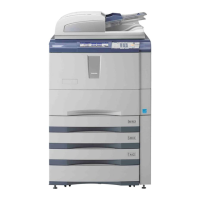
e-STUDIO Job Shops
38
Accessing the Microsoft Word Print Dialogue Window
This lesson will explain how to select a Toshiba Print Driver to use for printing
1. Access the MS Word print
dialogue window, click File, then click
Print or CTRL + P
2. Select the appropriate e-STUDIO
printer driver from the dropdown
menu. The image and name of the
printer driver shown will not be
identical to your selection. See your
IT administrator if you need
assistance.
3. After selecting the appropriate
printer driver, click Properties to
open the e-STUDIO Printing
Properties dialogue window.
4. This Printing Properties
dialogue window is where you will
begin the printing job shop
instructions on the following pages.



 To Next Page
 Loading...