EasyManua.ls Logo

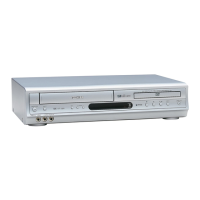
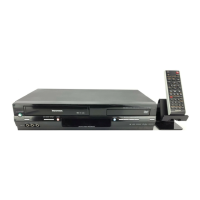
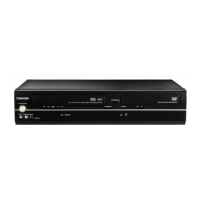
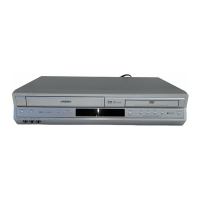
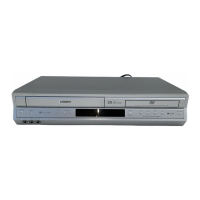
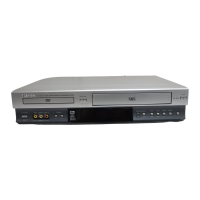
Toshiba SD-V290-S-TU - User Manual

Toshiba SD-V290-S-TU
46 pages
Print Icon
To Next Page IconTo Next Page
Loading...
1-3
SD-V290-S-TU
OWNER’S MANUAL
DVD VIDEO PLAYER &
VIDEO CASETTE RECORDER
Before connecting, operating or adjusting this product,
please read this instruction booklet carefully and completely.
©2002 Toshiba Corporation
This device does not tape-record copy protected DVD Video Discs.

Table of Contents

Questions and Answers

  • R
    Randy RichardsAug 18, 2025
    Why is my Toshiba DVD VCR Combo remote control not working?
    • R
      Rebecca KeithAug 18, 2025
      If the remote control for your Toshiba DVD VCR Combo isn't working properly, try these steps: - Point the remote directly at the remote sensor on the DVD VCR. - Make sure you're within 23 ft (7 m) of the unit. - Remove any obstacles between the remote and the DVD VCR. - Replace the batteries with new ones. - If using VCR functions, press the VCR button first; for DVD functions, press the DVD button first.
  • M
    Michael LozanoAug 20, 2025
    How to fix no power on my Toshiba SD-V290-S-TU DVD VCR Combo?
    • N
      Natasha CollinsAug 21, 2025
      If your Toshiba DVD VCR Combo has no power, the power cord might be disconnected. Make sure to securely plug the power cord into the wall outlet.
  • N
    Nancy ShepherdAug 23, 2025
    What to do if there is no picture on my Toshiba SD-V290-S-TU DVD VCR Combo?
    • M
      Molly AndersonAug 23, 2025
      If you're not getting a picture on your Toshiba DVD VCR Combo, there could be several reasons. First, make sure your TV is set to the correct video input mode to receive the signal from the DVD VCR. Also, check that the TV/VCR mode on the DVD VCR is set to VCR by pressing the TV/VCR button on the remote. Ensure the video cable is securely connected and that your TV is turned on.
  • T
    Teresa EdwardsAug 26, 2025
    How to troubleshoot no sound on Toshiba DVD VCR Combo?
    • T
      Tabitha BartonAug 26, 2025
      If you're experiencing no sound with your Toshiba DVD VCR Combo, check the following: Ensure the equipment connected with the audio cable is set to receive the DVD VCR signal output by selecting the correct input mode on the audio receiver. Verify that the audio cables are securely connected. Make sure the equipment connected with the audio cable is turned on. Also, check that the Digital Audio Output is set to the correct position, then turn the DVD VCR on again.
  • K
    Kathy RochaAug 28, 2025
    Why won't my Toshiba SD-V290-S-TU DVD VCR Combo start playing?
    • L
      Linda WilliamsAug 28, 2025
      If your Toshiba DVD VCR Combo won't start playback, make sure a disc or tape is inserted and that the disc or tape indicator in the display window is lit. Ensure that you are using a playable disc, checking the disc type, color system, and Regional code. Verify the disc is placed correctly, with the playback side down and within the guide on the disc tray. Also, make sure the disc is clean and that the Rating level is not set, or adjust the rating level.
  • A
    Amber DelgadoAug 30, 2025
    How to improve poor playback picture on Toshiba DVD VCR Combo?
    • A
      Anna NguyenAug 30, 2025
      If the playback picture on your Toshiba DVD VCR Combo is poor, try cleaning the disc or the video heads. If you're using a rental tape or one recorded on another VCR, use CH/TRK (+/-) for manual tracking adjustment while the tape is playing.
  • L
    ldunnSep 2, 2025
    Why can't I set timer recording on my Toshiba SD-V290-S-TU?
    • D
      Daniel SnyderSep 2, 2025
      If timer recording isn't working on your Toshiba DVD VCR Combo, first set the clock to the correct time. If that doesn't work, reprogram the Timer. If the TIMER indicator doesn't appear after programming, try reprogramming the Timer again.
  • K
    Kristina ThomasSep 4, 2025
    How to fix no stereo audio on Toshiba SD-V290-S-TU DVD VCR Combo?
    • L
      lisa99Sep 4, 2025
      If you're not getting stereo audio record or playback on your Toshiba DVD VCR Combo, ensure the DVD VCR A/V Out jacks are connected to the TV A/V In jacks, as stereo is only available via A/V output. Select AUX or A/V source as the TV input. Also, check that the DVD VCR BROADCAST TYPE mode is set to STEREO.
  • K
    Kathleen LiSep 7, 2025
    Why are channels skipped on my Toshiba SD-V290-S-TU DVD VCR Combo?
    • J
      Jon StevensSep 7, 2025
      If some channels are skipped when using CH/TRK (+/-) on your Toshiba DVD VCR Combo, it's possible those channels were deleted using the CH. ADD/DEL option. Use CH. ADD/DEL to restore the channels.
  • C
    Cory LiSep 9, 2025
    Why is camcorder image not showing on TV screen via Toshiba SD-V290-S-TU DVD VCR Combo?
    • K
      Karen RossSep 10, 2025
      If the camcorder image via A/V input to your Toshiba DVD VCR Combo isn't showing on the TV screen, press INPUT SELECT to select the LINE input channel (LINE1 or LINE2).

Summary

Safety Precautions

Electrical and Fire Hazards

Warnings about electric shock, fire risk, rain, and moisture exposure.

Regulatory Compliance

FCC regulations and copyright information for the device.

Important Safety Instructions

General Operating Safety

Comprehensive safety guidelines for using the unit, including handling, ventilation, and power.

Specific Usage Warnings

Precautions for disc handling, connections, sound volume, and laser beam exposure.

Before Use - Initial Setup

Playable Disc Formats

Details compatible discs (DVD, VCD, CD) and notes on their playback.

Remote Control Usage

Instructions for remote control battery installation and operation range.

Front Panel Controls

Key Buttons and Indicators

Explanation of front panel buttons like PLAY, STOP, REC, and indicators.

Display Window Guide

Understanding Display Indicators

Explains the meaning of various symbols and status messages on the display.

Remote Control Operations

Navigation and Playback Controls

Guide to buttons for controlling playback, menus, and disc/tape functions.

Special Function Buttons

Details on buttons for setup, search, repeat, and other advanced functions.

Rear Panel Connections

Video and Audio Output Ports

Describes various output jacks for connecting to TVs and audio systems.

Input and Digital Audio Ports

Details antenna input, line inputs, and digital audio output connections.

System Connections

Antenna and Cable TV Setup

Guide to connecting the unit to TV signal sources.

Audio;Video Signal Connections

Instructions for connecting audio and video signals from external devices.

Basic TV Connectivity

RF Coaxial Connection

Steps for connecting via RF coaxial cable and setting TV channel.

Audio;Video Connection

How to connect audio and video signals for TV viewing.

Preferred TV Connections

S-Video Connection

Connecting via S-Video for improved picture quality.

Component Video Connection

Using component cables for high-quality video output.

VCR Operations - Getting Started

On-Screen Display (OSD) Functions

Explains the information displayed during VCR operation and how to view it.

Setting Up VCR Display

How to access and adjust VCR menu and display settings.

VCR Setup and Tuning

VCR Setup Menu Options

Configuring language, audio mode, broadcast type, and audio output settings.

Channel Tuning and Management

Setting up channels via auto programming and manual adjustments.

VCR Clock Setup

Setting the Clock Automatically or Manually

Procedures for setting the unit's internal clock.

DVD Operations - Introduction

DVD General Explanation

Overview of DVD playback features and on-screen icons.

DVD On-Screen Display

Understanding DVD playback status and on-screen display options.

DVD Initial Settings

General Operation Setup

Configuring basic preferences like language, picture aspect, and menu language.

Picture and Language Preferences

Adjusting TV aspect ratio and selecting disc language options.

DVD Sound Settings

Digital Audio Output Configuration

Setting options for digital audio output like Dolby Digital and PCM.

Advanced Sound Features

Explains DRC, Vocal, PBC, Pluge, and DNR for audio enhancement.

DVD Parental Control

Rating and Area Code Setup

Setting playback restrictions based on disc rating and region codes.

Password Management

Procedures for changing or recovering the parental control password.

VCR Tape Playback

Normal Playback and Tracking Control

How to play tapes, adjust tracking, and use special effects.

Search, Slow Motion, and Instant Skip

Techniques for fast searching, frame-by-frame viewing, and skipping segments.

VCR Recording Features

VISS Index Search System

Locating specific recorded segments using the VISS index.

Normal Recording and Pausing

Steps for recording TV programs, pausing, and restarting recording.

VCR Timer Recording

Setting Up Scheduled Recordings

Programming the unit to record multiple programs automatically.

Recording Speed and Repeat Options

Selecting recording speed (SP/SLP) and repeat modes (Once, Weekly, Daily).

VCR Recording Management

Checking and Erasing Timer Programs

How to view, modify, or delete programmed timer recordings.

One Touch Timer Recording (OTR)

Using OTR for quick, preset-length recordings without timer setup.

VCR Dubbing and Copying

Dubbing from External Sources

Copying content from camcorders or other VCRs.

Copying from DVD to VCR

Instructions for transferring content from DVDs to VHS tapes.

VCR Audio and Broadcast Features

VHS Hi-Fi Stereo Playback

Achieving stereo sound from Hi-Fi recorded tapes.

MTS Broadcast Reception

Utilizing MTS for stereo, SAP, and bilingual audio broadcasts.

VCR Tape Management

Tape Counter and Memory Functions

Using the tape counter, memory features, and tape remaining display.

Additional VCR System Features

Information on S-VHS playback, auto play, head cleaning, and blank search.

DVD and Video CD Playback

General DVD;VCD Playback

Basic playback operations, menu navigation, and disc handling.

Navigating DVD;VCD Content

Moving through titles, chapters, tracks, and using slow motion.

DVD;VCD Playback Enhancements

Still Picture, Search, and Time Search

Using pause, frame-by-frame, search modes, and time search functions.

Sound Enhancement Options

Adjusting sound settings like NORM, 3D SUR, and DIALOGUE.

DVD;VCD Playback Controls

Repeat, Zoom, and Marker Functions

Using repeat modes, zoom, and marking playback points.

Special DVD Features

DVD Menus and Navigation

Accessing and using DVD menus, title menus, and disc menus.

Audio, Subtitle, and Camera Options

Changing audio language, channels, camera angles, and subtitles.

Audio CD Playback

Basic Audio CD Operations

Playing tracks, pausing, moving between tracks, and stopping playback.

Audio CD Enhancement Features

Using search, random, repeat, sound enhancement, and changing audio channels.

MP3 Disc Playback

Playing and Navigating MP3 Files

Steps to play MP3 files, pause, move between tracks, and repeat.

MP3 Disc Compatibility Notes

Important information regarding MP3 file formats and disc compatibility.

JPEG Disc Viewing

Viewing and Navigating JPEG Files

How to select, view, and navigate JPEG image files.

JPEG File Repeat and Naming

Repeating file playback and requirements for file naming conventions.

WMA Disc Playback

Playing and Navigating WMA Files

Steps to play WMA files, pause, move between tracks, and repeat.

WMA Disc Compatibility Notes

Compatibility limitations for WMA files, including sampling frequency and bit rate.

Programmed Playback

Setting Up Programmed Playback

Storing favorite tracks or files for various disc types.

Resuming Normal Playback

Exiting program edit mode and resuming normal playback.

Programmed Playback Management

Repeat and Erase Programmed Content

Managing repeat modes and erasing tracks/files from the program list.

Additional DVD Features

One Touch Replay and Screen Saver

Using instant replay and understanding the screen saver function.

Video Mode Settings

Adjusting video modes for optimal picture quality based on disc content.

Troubleshooting Common Issues

Power, Picture, and Sound Problems

Solutions for issues like no power, no picture, or no sound.

Playback and Remote Control Issues

Resolving problems with disc playback, remote control, and tape issues.

Troubleshooting and Maintenance

Channel and Broadcast Issues

Addressing skipped channels, weak signals, and audio playback problems.

Moisture Condensation Handling

Guidance on preventing and dealing with moisture condensation.

Language Code Reference

Language Code List

Codes for setting disc audio, subtitle, and menu languages.

Country;Area Code Reference

Country;Area Code List

Codes for setting the DVD's area code for playback restrictions.

Product Specifications

General and Connectivity Specs

Technical details on power, dimensions, inputs, and outputs.

VCR and DVD Component Specs

Specific technical details for the VCR and DVD components.

Limited Warranty Information

Warranty Coverage and Limitations

Details on warranty periods, exclusions, and customer responsibilities.

Obtaining Warranty Service

Procedures for contacting service stations and returning the product for repair.

Toshiba SD-V290-S-TU Specifications

General IconGeneral
TypeDVD VCR Combo
BrandToshiba
ModelSD-V290-S-TU
Video FormatNTSC
Recording FormatsVHS
Audio OutputStereo
DVD TypeDVD player
Progressive ScanYes
Remote ControlYes
Output Resolution480i
Playback FormatsDVD, VHS
ConnectionsComposite Video, S-Video
VCR TypeVCR
Playable File FormatsDVD-Video, CD-DA, CD-R/RW, VCD
DVD FormatsDVD-Video
VHS FormatsVHS

Related product manuals