EasyManua.ls Logo

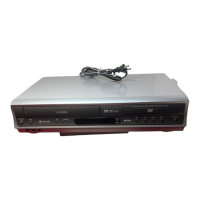
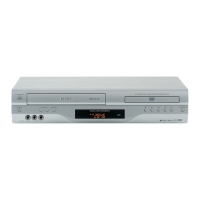
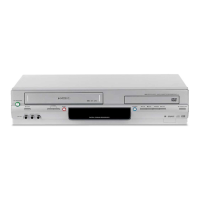
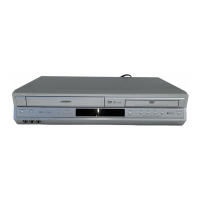
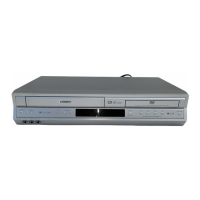
Toshiba SD-V395KC - User Manual

Toshiba SD-V395KC
49 pages
Print Icon
To Next Page IconTo Next Page
Loading...
Mémo de l’utilisateur
La désignation du modèle et le
numéro de série se trouvent à l’arrière
de votre DVD/VCR. Consignez ces
numéros dans les espaces ci-dessous
et communiquez-les à votre revendeur
Toshiba chaque fois que vous le consultez
au sujet de cet DVD/VCR.
Désignation du modèle:
Numéro de série:
Owner’s Record
The model number and serial number are
on the back of your DVD/VCR. Record these
numbers in the spaces below.
Refer to these numbers whenever you
communicate with your Toshiba dealer
about this DVD/VCR.
Model number:
Serial number:
2
Introduction
DVD VIDEO PLAYER & VIDEO
CASSETTE RECORDER
LECTEUR DVD & MAGNÉTOSCOPE
SD-V395KC
OWNER’S MANUAL
MODE D’EMPLOI
©2007 Toshiba Corporation
This device does not tape-record copy protected DVD Video Discs.
Cet appareil ne permet pas d’enregistrer sur cassettes des disques DVD protégés contre la copie.
22
Playback
(VCR)
28
Recording
(VCR)
Other functions
(VCR)
32
Playback
(DVD)
Function setup
(DVD)
44
Others
Introduction
14
Branchements
Réglages de base
(VCR)
25
Lecture
(VCR)
Enregistrement
(VCR)
30
Autres fonctions
(VCR)
Lecture
(DVD)
41
Réglage des fonctions
(DVD)
Divers
Basic setup
(VCR)
Connections
25
30
14
41
2
22
28
32
44
FRANÇAIS
ENGLISH
2K60121A.indb 12K60121A.indb 1 1/12/2007 3:50:00 PM1/12/2007 3:50:00 PM

Table of Contents

Questions and Answers

  • S
    spierceAug 20, 2025
    What to do if Toshiba SD-V395KC remote control is not working?
    • A
      Amber HallAug 20, 2025
      If the remote control for your Toshiba DVD VCR Combo isn't working, first aim the remote directly at the remote sensor on the unit. Ensure you are within approximately 7 meters of the unit and that there are no obstructions blocking the path of the beam. Also, the batteries might be weak or incorrectly inserted, so replace them, ensuring they are correctly oriented.
  • J
    Jonathan GordonAug 22, 2025
    What to do if Toshiba DVD VCR Combo unit or remote operation key is not functioning?
    • L
      Lucas CallahanAug 22, 2025
      If the unit or remote operation key on your Toshiba DVD VCR Combo is not functioning, turn off the unit and unplug the AC power cord for several minutes, then replug it.
  • A
    April CruzAug 25, 2025
    How to fix Toshiba DVD VCR Combo that won't turn on?
    • J
      Jennifer JamesAug 25, 2025
      If your Toshiba DVD VCR Combo is not operating, ensure the power cord is securely plugged in. If it is, try a different AC outlet. As a next step, unplug the unit, wait a few seconds, and then plug it back in. Finally, make sure you've selected either the DVD or VCR mode before attempting to use it.
  • J
    julie56Aug 26, 2025
    Why is there no picture on my Toshiba SD-V395KC DVD VCR Combo?
    • J
      Jennifer McfarlandAug 27, 2025
      If you're not getting a picture on your Toshiba DVD VCR Combo, verify that the antenna connection is correct and the cable is securely connected. Also, check that the video channel is correctly set and that your TV is set to video channel 3 or 4. Ensure the unit is connected correctly and that the video input selector on your TV is set to VIDEO (or the equivalent). Lastly, confirm that the channel is not set to the external mode.
  • Z
    Zachary SullivanAug 27, 2025
    How to troubleshoot no sound on Toshiba SD-V395KC?
    • P
      pamelaallenAug 28, 2025
      If you're experiencing no sound with your Toshiba DVD VCR Combo, first check that the unit is connected correctly. Next, verify that the input selector on your amplifier is properly set. Finally, ensure that the unit is not in a Special playback mode.
  • A
    Alyssa ClayAug 29, 2025
    Why is my Toshiba DVD VCR Combo not receiving Cable TV?
    • H
      Hannah YoderAug 30, 2025
      If your Toshiba DVD VCR Combo isn't receiving Cable TV, begin by checking all Cable TV connections to ensure they are secure. If connections are good, the issue might be with the station or Cable TV system itself; try tuning to another station to see if the problem persists.
  • J
    Julia AdamsAug 31, 2025
    How to remove noise bars from Toshiba DVD VCR Combo screen?
    • W
      William McphersonAug 31, 2025
      If you're seeing noise bars on the screen of your Toshiba DVD VCR Combo, it could be due to several reasons. First, try manual tracking adjustment if the automatic tracking circuit is out of range. Another potential cause is dirty video heads. Finally, the tape itself might be worn or damaged.
  • C
    Cassidy MclaughlinSep 2, 2025
    What to do if TV recording is not working on Toshiba SD-V395KC?
    • D
      David RojasSep 2, 2025
      If TV recording is not working on your Toshiba DVD VCR Combo, it might be because the erase prevention tab of the video cassette is broken off. Also, make sure the unit is not in the external input mode.
  • L
    Leslie PayneSep 4, 2025
    Why timer recording is not working on Toshiba SD-V395KC?
    • K
      kwintersSep 4, 2025
      If timer recording isn't functioning on your Toshiba DVD VCR Combo, first check that the time is set correctly. Also, make sure the recording start and end times are correctly set. Finally, ensure that the TIMER REC button has been pressed (and is lit).
  • S
    sandra84Sep 6, 2025
    What to do if playback doesn't start on Toshiba SD-V395KC DVD VCR Combo?
    • J
      jamesgibsonSep 6, 2025
      If playback doesn't start on your Toshiba DVD VCR Combo, first ensure that a disc is inserted. If a disc is inserted, it may be dirty, so clean it. Also, be aware that the unit cannot play DVD-ROMs, etc.

Summary

Introduction

Safety Precautions

General safety warnings and precautions for operating the device.

Important Safeguards

Detailed safety instructions covering power, ventilation, grounding, and more.

Power Source Safety

Safety measures related to replacement parts, heat, disc tray, connections, and laser beam.

Precautions

Handling, locating, cleaning, and moisture condensation precautions for the unit.

Notes on Discs

Handling Discs

Guidelines for handling and cleaning discs to ensure proper playback.

Storing Discs

Recommendations for storing discs to prevent damage and warping.

Playable Discs

Lists the types of discs supported by the DVD/VCR.

Identification of Controls

Front Panel Controls

Identifies buttons and indicators on the front panel of the DVD/VCR.

Rear Panel Connections

Identifies the input and output jacks on the rear panel of the DVD/VCR.

Display Window Indicators

Explains the meaning of indicators shown in the unit's display window.

Remote Control Functions

Details the functions of buttons on the remote control for operation.

Inserting Batteries

Step-by-step instructions for inserting batteries into the remote control.

Connections

Antenna Connections

Instructions for connecting an antenna system to the DVD/VCR.

Connecting DVD;VCR to TV

Various methods for connecting the DVD/VCR output to a television.

Cable TV Connections

Methods for connecting the DVD/VCR to a cable TV system.

Connecting to a TV (Basic Connection)

Basic procedure for connecting the DVD/VCR to a TV using audio/video cables.

S-Video and Component Video Outputs

Explains S-Video and Component video outputs for enhanced DVD playback.

Connecting Audio Systems

Instructions for connecting the unit to an audio system.

Connecting to Dolby Digital Decoder

How to connect the DVD/VCR to an amplifier with a Dolby Digital decoder.

Connecting to DTS Decoder

How to connect the DVD/VCR to an amplifier with a DTS decoder.

Connecting to MPEG2 Audio Decoder

Connecting to an amplifier with an MPEG2 audio decoder for dynamic sound.

Connecting to Digital Audio Input

Connecting to an amplifier with a digital audio input for 2 channel stereo.

Basic Setup (VCR)

Setting the Video Channel

How to set the video channel for connecting the DVD/VCR to a TV.

Setting the Language

How to choose the on-screen display language (English, French, Spanish).

Clock Setting (AUTO CLOCK)

Instructions for setting the clock automatically or manually.

Setting Standard Time

How to set the standard time zone for accurate clock setting.

Setting Daylight Saving Time

How to set Daylight Saving Time automatically or manually.

Manual Clock Setting

Procedure for manually setting the clock if AUTO CLOCK fails.

Tuner Setting

How to program channels into the DVD/VCR's memory.

TV;CABLE Selection

How to select between TV and Cable modes for tuning.

Automatic Channel Scanning

How to automatically scan and set channels.

Playback (VCR)

Loading and Unloading a Cassette Tape

Instructions for inserting and removing video cassette tapes.

Preventing Accidental Erasure

How to protect tapes from accidental erasure.

Tape Speed and Maximum Recording Time

Chart showing tape speeds and their corresponding recording times.

Cassette Tape Playback

Basic steps to play a pre-recorded VHS tape.

Adjusting Tracking Condition

Automatic and manual tracking adjustment for optimal playback.

Video Head Cleaning

Instructions on how to clean video heads if picture is snowy.

Video Index Search System

How to locate specific recordings using index marks.

Recording (VCR)

Recording a TV Program

Step-by-step guide to record a TV program.

Recording One Program While Watching Another

How to record one channel and watch another simultaneously.

One-Touch Timer Recording (OTR)

Simple method for timed recording using the remote.

Timer Recording

How to program timed recordings on-screen.

Other Functions (VCR)

Setting Daily;Weekly Timer

How to set timer recording for specific days or weekly cycles.

Stereo Recording and Playback

How to record and playback MTS STEREO TV broadcasts.

Second Audio Program (SAP)

How to switch to a second audio program broadcast.

Duplicating a Video Tape

How to copy tapes from another VCR or camcorder.

Recording a DVD;CD Disc

How to record disc content onto a video tape.

Playback (DVD)

Playing a Disc (Basic Playback)

Basic steps for playing DVD video discs, Video CDs, and Audio CDs.

Playing a Disc During VCR Recording

How to play a disc while the VCR is recording or in standby.

Zooming

How to zoom in on the playback image and adjust the view.

Locating Desired Scenes

How to find specific scenes using title, chapter, or time.

Marking Desired Scenes

How to store up to 3 points to resume playback from.

Repeat Playback

How to set the disc to automatically repeat playback.

A-B Repeat Playback

How to repeat a specific section between two points.

Program Playback

How to arrange the playback order of tracks on a disc.

Changing Soundtrack Language

How to select the audio language for multilingual discs.

Setting Surround Sound

How to enable or disable the QSound surround effect.

Turning Off PBC

How to disable the Playback Control (PBC) feature for Video CDs.

Subtitles

How to select subtitle language or turn subtitles on/off.

MP3;WMA;JPEG;DivX and Audio CD Operation

How to play MP3, WMA, JPEG, and DivX files from discs.

JPEG CD Playback

How to play JPEG image files from a disc.

Slide Show Playback

How to view JPEG files as an automatic slide show.

Playing DivX VOD Content

Information on playing DivX Video on Demand content.

Repeat Playback (CD)

How to set a CD to repeat playback by track or all tracks.

Random Playback (CD)

How to play tracks from a CD in random order.

Program Playback (CD)

How to arrange the playback order of tracks on a CD.

Function Setup (DVD)

Customizing Function Settings

How to change default settings for performance customization.

Setting Procedure

Step-by-step guide to navigate and change settings.

Menu, Subtitle, Audio Language

How to select languages for disc menus, subtitles, and audio.

Picture Mode Selection

How to select preferred picture modes (Video, Film, Auto).

Digital Out Settings

How to select digital output sound format (PCM, Bitstream).

Parental Control Setting

How to set parental level restrictions for discs.

DivX(R) VOD Registration

How to register the unit for DivX Video on Demand content.

Output Signal Selection

Selecting video output signal (Interlace or Progressive).

Others

Language Code List

A list of language names and their corresponding code numbers for settings.

Troubleshooting

DVD;VCR Troubleshooting

Common issues and solutions for the DVD/VCR not operating or having no picture/sound.

VCR Troubleshooting

Solutions for VCR recording issues, timer recording, and noise bars.

DVD Troubleshooting

Solutions for DVD playback issues like no display, no start, or incorrect picture.

Specifications

General Specifications

Technical details about power, dimensions, tuner, video head, and operating conditions.

Input;Output Specifications

Details on video and audio input/output ports.

Supplied Accessories

Lists the items included with the DVD/VCR.

Limited Canadian Warranty

Warranty Coverage

Details the one-year warranty for parts and labor for home use.

Commercial Unit Warranty

Details the 90-day warranty for commercial use.

Your Responsibility

Outlines customer responsibilities for warranty service.

Arbitration and Dispute Resolution

Explains the arbitration process for disputes.

Critical Applications

States the player is not designed for critical applications.

Obtaining Warranty Services

How to find service depots and contact information.

Toshiba SD-V395KC Specifications

General IconGeneral
TypeDVD VCR Combo
Remote ControlYes
DVD TypeDVD player
Progressive ScanYes
Video Formats SupportedMPEG-2
Audio Formats SupportedDolby Digital
ConnectionsComposite video output, S-Video output
Playable Disk TypesDVD, CD, VCD
Playable File FormatsJPEG, MP3

Related product manuals