English - 22 -
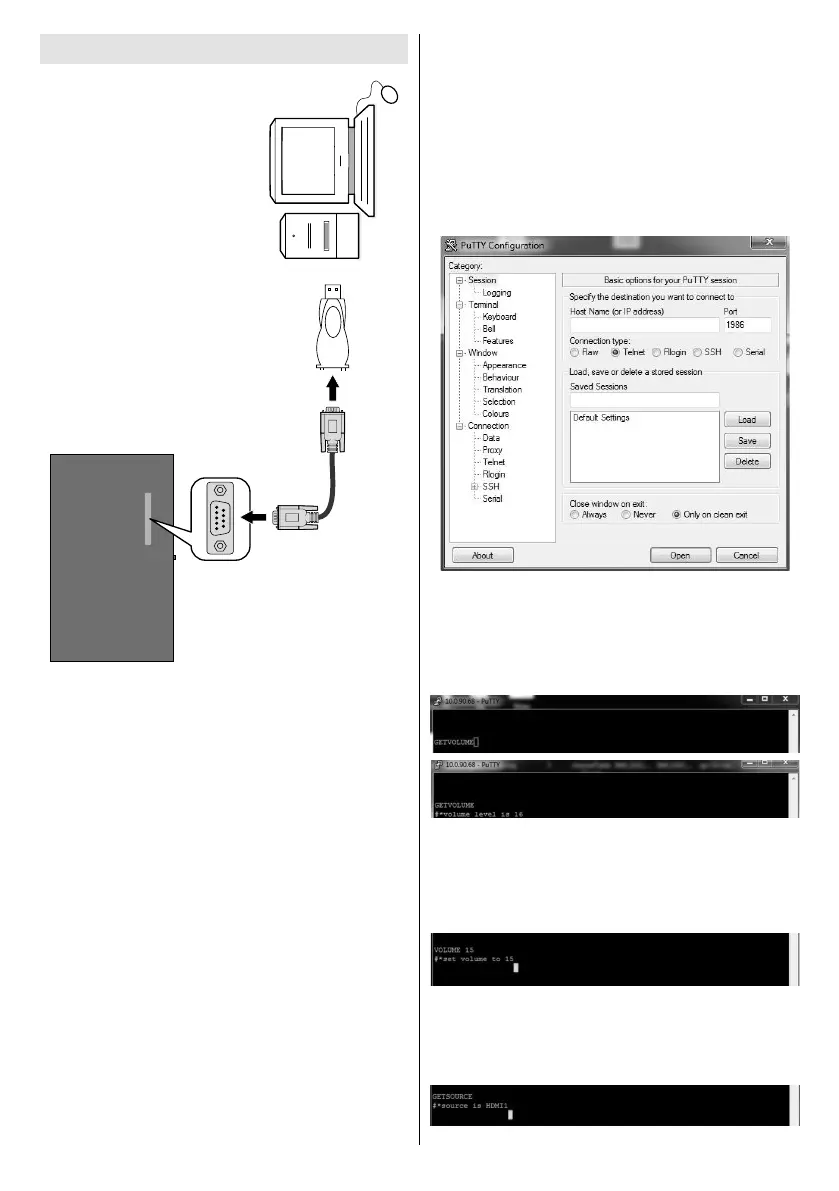
RS-232
Input Socket
To COM port
RS-232 to
USB Adaptor
PC
You can control the product from an external PC via
RS-232 (COM port or LAN(Ethernet port)) on the
RS-232 from remote computer. When a command is
according to the received command and sends a
response message to the PC.
Equipment/Tools:
• RS-232 (female) to RS-232(male) cable or LAN
cable (connected via router).
• USB to RS-232(male) cable
• Notebook or PC which has USB port or LAN
• Installed program on remote PC to send commands:
operating the implemented functions via serial port
and utility a suitable utility can be used such as
described below.
Connecting to the Display LAN port
Download and install the PuTTY software from the
Host Name1986
PortTelnetConnection
type and click the Open button.
Note: Refer to the Connectivity section of this manual for
information on connecting the Display to a network and
displaying the IP address of the Display.
Use the commands in the RS232 Command Table
which can be found on Toshiba website.For
current volume level should be displayed on the putty
window as shown in the pictures below.
Another example;
the changes from the Display.
The last example ;
source should be displayed on the putty window as
shown in the picture below.


 To Next Page