EasyManua.ls Logo

TouchTunes Playdium Floor Stand - User Manual

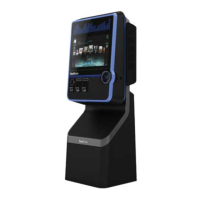
TouchTunes Playdium Floor Stand
12 pages
Print Icon
To Next Page IconTo Next Page
Loading...
900785-001 Rev. 02 February 2016
This guide is an overview of the Playdium installation process.
1 of 12
Quick Start Guide
Disclaimer and Important Safety Instructions
TouchTunes Interactive Networks is not responsible for
any damage resulting from the improper installation or
connection of test kit components or any other external
equipment to Playdium. Nor is TouchTunes responsible for
any damage caused during shipment (except the shipment
to the original purchaser) or any damage caused by:
impacts, fluids, fire, flood, wind, earthquake, lightning
or similar disaster
unauthorized modifications, attachments or
peripherals, improper use, environment, installation or
electrical supply
improper maintenance
any other misuse, abuse, or mishandling
Familiarize yourself with this important safety information
before proceeding with product installation.
The Lightning Flash with arrow head symbol
within an equilateral triangle is intended to alert
the user to the presence of un-insulated
"dangerous voltage" within the product enclosure
that may be of sufficient magnitude to constitute a
risk of shock to persons".
The exclamation point within an equilateral
triangle is intended to alert the user to the
presence of important operating and maintenance
(servicing) instructions in the literature
accompanying the product".
WARNING: Do not defeat the safety purpose of
the polarized or grounding-type plug. A polarized
plug has two blades with one wider than the other.
A grounding type plug has two blades and a third
grounding prong. The wide blade or the third
prong are provided for your safety. If the provided
plug does not fit into your outlet, consult an
electrician for replacement of the obsolete outlet.
WARNING: TO REDUCE THE RISK OF FIRE OR
ELECTRIC SHOCK, DO NOT EXPOSE THIS
APPARATUS TO RAIN OR MOISTURE AND
OBJECTS FILLED WITH LIQUIDS, SUCH AS
VASES, SHOULD NOT BE PLACED ON THIS
APPARATUS
DO NOT USE THIS APPARATUS NEAR WATER.
WARNING: TO REDUCE THE RISK OF FIRE OR
ELECTRIC SHOCK, THIS APPARATUS SHALL
BE CONNECTED TO A MAINS SOCKET
OUTLET WITH A PROTECTIVE EARTHING
CONNECTION.
WARNING: The speaker output of this unit can
exceed 10 Watts and could cause a shock injury.
Connection to speakers should be performed by a
skilled person in compliance with local building
codes. Class 2 wiring is required for speaker
cables. Use of external speakers outside the
ratings stated at the speaker jack may result in a
shock injury or damage to the unit, or equivalent.
CAUTION: Playdium is heavy and represents a
serious safety hazard if its mounting system
should fail. Installation of the mounting system for
Playdium should be performed only by an
experienced installer or licensed contractor
familiar with standard rigging, mounting and
hanging practices as recognized by a licensed
engineer or government agency in your area.
Playdium is intended to be wall mounted or used
only with TouchTunes Floor Stand model 700748-
001, which is optional.
CAUTION: Do not use Playdium immediately after
transferring the unit from a cold place to a warm
place as condensation may have occurred on
internal components. Wait for the unit to reach
room temperature before using it.
IMPORTANT: See product enclosure for safety-
related markings.
TO COMPLETELY DISCONNECT THIS
APPARATUS FROM THE AC MAINS,
DISCONNECT THE POWER SUPPLY CORD
PLUG FROM THE AC RECEPTACLE
THE MAINS PLUG OF THE POWER SUPPLY
CORD OR APPLIANCE COUPLER SHALL
REMAIN READILY ACCESSIBLE
No serviceable parts inside the core, please
contact TouchTunes Customer Support for
service; only the hard drive is designed to be
serviced, and is accessible from outside the core.

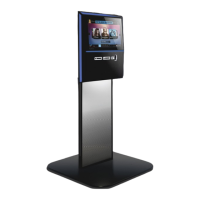
Other manuals for TouchTunes Playdium Floor Stand

Questions and Answers

  • J
    Jennifer WallaceSep 3, 2025
    What to do if my OpenStage 2 TouchTunes Playdium Floor Stand will not boot?
    • A
      Aaron PonceSep 3, 2025
      If your OpenStage 2 Jukebox won't boot, it could be due to software corruption. Try flipping the power switch off, then back on, and press and hold the MNGR button. If that doesn't work, reboot into the ODT and perform a Software Restore. If the Jukebox still refuses to boot, the hard drive may be failing and should be replaced.
  • B
    Brandi CunninghamSep 18, 2025
    Why is the light show not working on my TouchTunes Playdium Floor Stand?
    • A
      Anthony ShawSep 18, 2025
      If the light show on your Jukebox is not working, first ensure that it is turned on in the Operator Screen under Hardware | Lightshow. Check that all the cables going from the backplane to each LED strip are properly connected and undamaged. Software corruption could also be the cause; dock the core back into the chassis and turn on the jukebox. If a software restore fails, replace the hard drive. If the light show remains dark while being tested in the ODT, the backplane or the entire chassis may need to be replaced.
  • T
    tanner94Sep 16, 2025
    How to resolve dead spots, unresponsiveness, bad calibration, or self-selecting on my TouchTunes Playdium Floor Stand touch screen?
    • C
      Cindy MaddenSep 16, 2025
      If your Jukebox touch screen has dead spots, is unresponsive, has bad calibration, or is selecting on its own, first check for any stickers, tape, or other objects stuck to the screen. Clean the screen thoroughly. If the issues persist, recalibrate the touch screen. A bad connection between the core and backplane could also be the cause; power down, open the payment door, un-dock the core, and carefully re-seat it. Lastly, software corruption can cause this, so reboot into the ODT.
  • T
    Thomas FordSep 14, 2025
    Why is the credit card reader on my TouchTunes Playdium Floor Stand Jukebox not working?
    • C
      chungstaceySep 14, 2025
      If the credit card reader on your Jukebox is not working, first verify that you are using the supported card reader. Check the USB cable connection on the backplane, disconnecting and reconnecting it. Inspect the reader’s USB cable and the reader itself for any damage. If there's no visible damage, the reader may still be damaged internally and require replacement.
  • M
    Mr. Richard EdwardsSep 12, 2025
    What to do if my TouchTunes Playdium Floor Stand Jukebox bill acceptor is not accepting bills at all?
    • H
      hillscottSep 12, 2025
      If the bill acceptor on your Jukebox isn't accepting any bills, first check if the bill stacker is full and empty it if necessary. Also, ensure the cable connected to the bill acceptor is properly seated and undamaged. The bill acceptor may also be jammed, so check and unjam it if necessary. If none of these steps work, the bill acceptor may be damaged and need to be replaced.
  • T
    thomasleeSep 12, 2025
    Why is my TouchTunes Playdium Floor Stand bill acceptor rejecting too many bills?
    • C
      Corey BellSep 12, 2025
      If the bill acceptor on your Jukebox is rejecting too many bills, the firmware might be out of date. Check for a new firmware update and install it if available. If the issue persists, the bill acceptor may be damaged and need to be replaced.
  • J
    John HarrisonSep 9, 2025
    Why is my TouchTunes Jukebox bill acceptor rejecting newer bills?
    • I
      iwalkerSep 9, 2025
      If your Jukebox bill acceptor is rejecting newer bills, the firmware might be out of date. Check if a new firmware is available for the bill acceptor and update it if one is available.
  • B
    bankswendySep 7, 2025
    Why does my TouchTunes Playdium Floor Stand Jukebox have video corruption?
    • J
      James BrownSep 7, 2025
      Video corruption on your Jukebox can be caused by software corruption or hard drive failure. If any tests indicate a hardware failure, replace the affected component. If the video corruption remains after a software restore, you should replace the core.
  • A
    Ashley BrownSep 5, 2025
    Why is my TouchTunes Playdium Floor Stand sluggish or less responsive?
    • D
      Dr. Katie MillsSep 5, 2025
      If your Jukebox is running sluggishly or is less responsive, the issue could stem from missing RAM or software corruption. Boot into the ODT and check the Total RAM shown in the top-right Hardware Info box. You can also use the Diagnostics tool to find possible issues; if the tool doesn't find and fix anything, consider performing a Software Reinstall.
  • J
    Jordan RamseyAug 20, 2025
    Why is there no sound coming from my TouchTunes Playdium Floor Stand?
    • J
      jonescolleenAug 21, 2025
      Several factors could be the reason for the lack of sound from your Jukebox. It could be in night mode, paused, or the volume might be set too low. Check if the Playdium is in Night Mode by pressing the Power Button on the remote or the one under the Playdium. If it’s paused, press the Pause button on the remote to un-pause it. Also, ensure the volume isn't too low by using the remote or the volume controls under the Playdium to raise the volume. Wiring issues or a damaged core could also be the cause; in such cases, open the payment door and press the MNGR button on the backplane, or try a different core on the installed chassis.

TouchTunes Playdium Floor Stand Specifications

General IconGeneral
CategoryJukebox
TypeDigital Jukebox
Form FactorFloor Stand
UsageCommercial
ConnectivityEthernet, Wi-Fi
Payment OptionsCredit card, mobile payment

Related product manuals