Quick Installation Guide
Connect the Hardware
Register the Terminal
Connect to the Internet
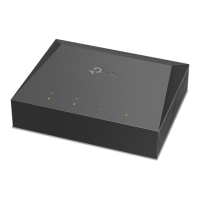
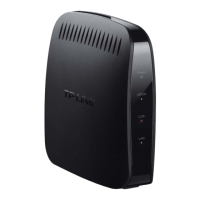
1-Port Gigabit XPON Terminal
Establish your internet connection according to your ISP's instructions.
Note: If you need assistance, contact your ISP.
If the PON LED is solid on, please skip to Connect to the Internet.
B
Go to Basic > Internet or Advanced > Network > GPON
setting. Enter the GPON Password and/or GPON SN
provided by your ISP (Internet Service Provider) to register
the Terminal and click Save.
2 1
Power adapter
Terminal
Enjoy!
http://192.168.1.1
Conrm Password
Save
New Password
HighMiddleLow
POWER
RESET LANPON
Internet
Verify that the hardware connection
is correct by checking these LEDs.
3
Power: On
PON: On or Flashing
LOS: O
1
Connect your computer to the Terminal via an Ethernet cable.
3
Register the Terminal via a web browser.
Ethernet Cable
POWER
LAN
A
Launch a web browser and type in http://192.168.1.1 in the
address bar. Create a password and get started.
If the Terminal’s LAN IP address is 192.168.1.1, please type
in IP address 192.168.1.x (x is from 2 to 253), subnet mask
255.255.255.0, and default gateway 192.168.1.1.
©2023 TP-Link 7109505778 REV1.0.1
2
Configure TCP/IP Properties manually on your computer.
Internet Connection Setup
Registration Status:
SN Type:
GPON SN:
Password Type:
GPON Password:
54504C47B7047410
Initial (01)
ASCII+HEX
HEX
ASCII
HEX
Save
Basic
GPON Registration
ASCII+HEX
GPON SN:
Password Type:
GPON Password:
OLT Mode:
54504C47B7047410
ASCII+HEX
HEX
ASCII
HEX
Save
Normal Mode
Advanced

 Need help?
 General

 To Next Page