6
Chapter 1
Get to Know About Your Router
Item Description
LED Button Press the LED button for 1 second to turn on or off the LEDs of your router.
WPS Button
Press this WPS button, and immediately press the WPS button on your client
device to start the WPS process.
Wi-Fi Button
Press and hold the Wi-Fi button for more than 2 seconds to turn on or off the
wireless function of your router.
Reset Button
Press and hold the button for about 6 seconds until the Power LED blinks to
reset the router to its factory default settings.
LAN Port (1-4) For connecting your PC or other wired devices to the router.
WAN Port For connecting to a modem or an Ethernet outlet.
Power On/Off Button Press this button to power on or off the router.
Power Port For connecting the router to a power socket via the provided power adapter.
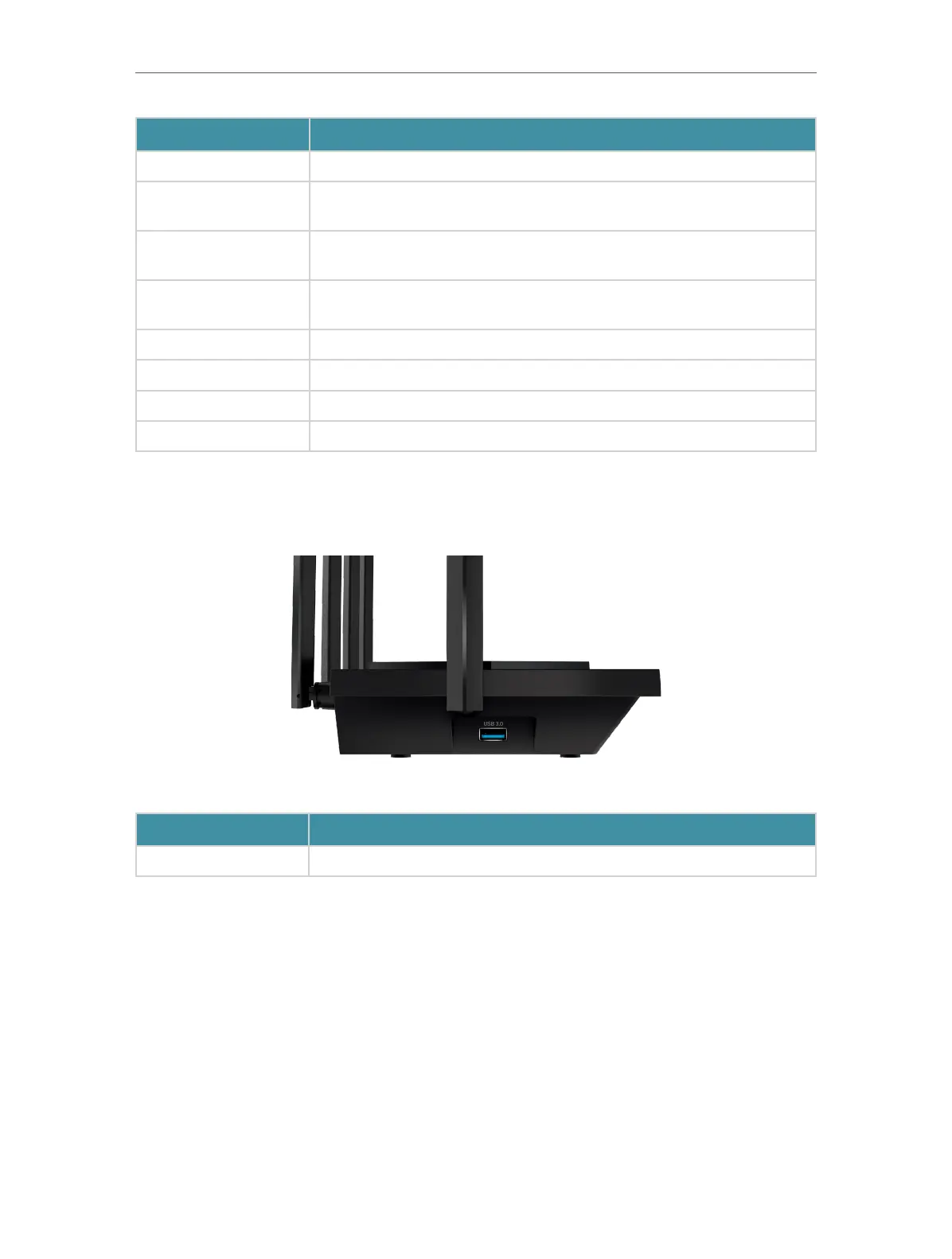
1. 2. 3. Side Panel
The following part is located on the side panel.
Item Description
USB 3.0 Port For connecting a USB storage device to the router.






 To Next Page